How To: The 5 Best Apps for Transcribing Lectures & Converting Speech to Text on Your iPhone

How To: The 5 Best Apps for Transcribing Lectures & Converting Speech to Text on Your iPhone
The transcribing app can be an invaluable tool, especially if you're a student or are in a profession that relies on audio journals or interviews. These apps can convert important recordings like lectures and meetings into text for you to carefully read through to better comprehend.With the abundance of transcribing apps available for iPhones, however, choosing one that'll meet all your school and work needs has the potential to break your wallet. With this in mind, we've tested dozens of these apps and found the five best transcribing apps for iOS.
Table of ContentsComparison Chart Chart Key Methodology App 1: TranscribeMe App 2: Rev Voice Recorder App 3: Voice Recorder App 4: Transcribe App 5: Voicera Conclusion

Comparison Chart Image by Amboy Manalo/Gadget Hacks
Key Comparison PointsPrice: The price of the app itself. Fees/In-App Purchases: While having to pay for a transcriber app's services isn't necessarily a bad thing, it's important to distinguish between apps that offer enhanced features — like transcriptions done by actual people — that justify their cost and apps that will basically give you more of the same. Account Required: For security purposes, most transcribing apps require you to create an account, though some apps give you the option to sign in using either your Google, Facebook, or Office365 accounts for added convenience. Free Trial: Some paid transcriber apps will let you try out their services for free on some sort of time-based trial. Trials are a great way to check how good these apps are in terms of overall service, so you can have a more informed decision on whether they're worth your time and money. Speech-to-Text: This element covers the various ways transcriber apps can record audio, from direct dictation, to conversion of audio and video files. Naturally, the more options an app has, the better. Transcription Method: Transcriber apps on the whole basically rely on two methods of transcribing your recordings — either via human-based transcriptions where you have a person manually transcribe your recordings, or AI-based transcriptions. Turnaround Time: The amount of time it takes for your to receive your transcribed recording. Besides overall accuracy, fast turnaround times are also ideal — no one wants to wait days to receive their transcripts. Share Options: There are times where you'll need to transfer a copy of your transcripts and recordings to another location or share with a colleague. Though almost all transcriber apps allow for this as far as transcripts go, some have the added ability to share your audio files alongside your transcripts. Save Options: Transcriber apps usually store your audio recordings and transcripts within the app itself, though some provide further options such as automatically sending copies of your transcripts to your email account. Transcription Accuracy: This element is perhaps the most important feature of transcription apps. We evaluated these apps by having them transcribe the same recording under the same circumstances, then we scored them based on the percentage of words they got right. Punctuation: While often taken for granted, punctuation within a transcript significantly aids in readability. Without punctuation, your transcript becomes one gigantic sentence, which can leave you more confused. Import Sound Files: There'll be times where you'll need to transcribe a video or audio recording done outside the Voice Memo app that a colleague shared with you, and having a transcribing app that's capable of converting it from an MP3 or other sound file to a text document will come in handy. Calendar Support: Though not a big feature in the grand scheme of things, a transcribing app that features calendar support gives you an awesome way of reminding yourself of events and tasks that may require you keep your recorder handy. 3D Touch Support: When used in conjunction with a supported transcriber app, this iPhone feature gives you added accessibility and lets you instantly record audio on the fly. Siri Integration: Apple's virtual assistant has become an asset in terms of hands-free use, and when fully supported, can open your transcriber app by voice to start recording an important lecture or meeting.
How We Chose These AppsBefore we started on the task of comparing transcribing apps, we first laid out some ground rules to better determine each apps' strengths and weaknesses. Because a majority of transcribing apps offer a fee-based payment system for the services they provide, we had to sort out which apps provided you the most bang for the buck in terms of pricing and overall speech-to-text accuracy.To determine transcription accuracy in particular, we devised a test based off a speech that was exactly 100 words long. The speech was then dictated in high quality on a separate device, in two separate recordings — one done in a normal tone of voice, with the other recording featuring a heavy accent. The first 50 words of both recordings were then dictated at a normal pace, with the latter half being spoken at a faster speed.From there, we opened each app on our test iPhone and played the recordings from three feet away for the apps to record and transcribe. We then calculated a score based on how many words were missed or erroneously transcribed, and determined the average score gathered from the numbers for each test. So, without further ado, here's our list for the best transcribing apps for iOS.

App 1: TranscribeMeTranscribeMe is a great all around speech-to-text app that's sure to meet all your transcribing needs. This app can fit into almost any budget, regardless of whether you're a student with limited finances or a high-powered lawyer who needs the most accurate transcriptions possible. The app is free to download, and gives you the most variety in terms of transcription services.Install TranscribeMe for free from the iOS App Store For payment and security purposes, the app requires you to create an account in order to use its transcription services. Thankfully, TranscribeMe gives you the ability to log in using either your Facebook or Google account, which means one less password to try to remember.In addition to in-app dictation support, TranscribeMe gives you the ability to import audio recordings done within the Voice Memos app, along with other audio files for speech-to-text conversion. Unfortunately, the "Import Recording" function wasn't functioning during our testing, and had to mark it as such on the chart. As such, this aspect will be updated as soon as we verify its functionality.In terms of service, TranscribeMe gives you a variety of transcription methods to suit almost any budget. Unlike other apps on this list, the app lets you choose between AI or human-based transcriptions, depending on your needs. Unfortunately, the app doesn't offer any free trials for their service, which means you'll have to pay for transcriptions off the bat.While opting for AI-based transcriptions somewhat offsets the lack of free trials with a cost of $0.10 a minute, more precise, human-based conversions can vary depending on what service you choose, along with other options — like faster turnaround time — requested. A standard transcript for a recording that's set to be delivered within one business day will set you back around $2.50 a minute. Of course, you can bring the rates down by either choosing a cheaper service like "First Draft" that only passes through one layer of transcription, setting the turnaround time to a longer time frame, or a combination of both. Bear in mind that in doing so, your transcriptions will take longer to receive. In terms of transcription accuracy, TranscribeMe does extremely well. Human transcriptions are very accurate, averaging out at nearly a hundred percent. AI-based "Machine Express" transcriptions are a little hit or miss, and although it did extremely well when converting a recording with a normal accent, it didn't fare as well and resulted in glaring errors when transcribing speech featuring a heavy accent. (1) Normal Accent, (2) Heavy Accent Unfortunately, TranscribeMe is not without its downsides, chief among these being the price for its services. While using its AI-based Machine Express option will cost you a reasonable $6.00 per hour, human-based transcriptions can start at around $75 an hour and run up to $240 an hour for the premium Verbatim option. Also bear in mind that turnaround time is calculated in business days, so weekends don't count.Clearly, TranscribeMe's premium services are more geared towards companies and professionals who need the absolute best and can afford it. Even still, the app's Machine Express option does a great job in accurately transcribing recordings, making it a solid choice for individuals with tighter wallets.

App 2: Rev Voice RecorderRev Voice Recorder is a great alternative for those seeking professional transcription services at a slightly lower price compared to TranscribeMe's premium transcription services. Like all the other apps on this list, Rev Voice Recorder is free to download from the iOS App Store.Install Rev Voice Recorder for free from the iOS App Store Unlike TranscribeMe, Rev Voice Recorder offers a free trial to try out its services. Basically, your first transcription of up to 10 minutes is free of charge. Keep in mind that this free offer is only for the first transcription, so even if your first transcript is only three minutes long, the trial period will instantly end, and you'll be charged for the second transcription.Rev relies on a dedicated team of people for its transcription service to guarantee accuracy, and it shows. The app boasted the highest overall accuracy in our testing, and precisely transcribed both recordings done with normal and heavy accents to land it an overall score of 99%. Unlike its AI-based counterparts, the transcriptions came complete with punctuation marks to make reading a lot more digestible. Recording done with a heavy accent. This reliance on premium, human-based transcriptions naturally comes with a price, however, as Rev Voice Recorder can be costly for transcriptions of long audio recordings. Though nowhere near the costs associated with TranscribeMe's premium services, a transcript of an hour-long recording using the app's services will cost around $60, making this app less than ideal for students with tight budgets.Besides that, Rev Voice recorder requires you to create an in-app account for security and payment purposes. This can be problematic, as it gives you yet another account containing sensitive financial information, along with associated login credentials to have to keep track of.That said, Rev Voice Recorder is still a great alternative to TranscribeMe, and ultimately costs less to use whenever you're in need of accurate human-based transcription. It also beats out its counterpart in terms of turnaround times, which Rev Voice Recorder guarantees will arrive within 12 hours of submission — 24 hours a day, 7 days a week.

App 3: Voice RecorderVoice Recorder is a simple app that — while free — requires you to purchase the full version to unlock its transcribing feature. And while its purchase price of $4.99 may seem steep at first glance, its long term value becomes instantly apparent when compared to other apps that will charge you roughly the same price just to transcribe a two or three minute audio recording.Install Voice Recorder & Audio Editor for free from the iOS App Store Voice Recorder is the only app in this list that doesn't require you to create an account in order to use its services, which earns it high marks for instant access. On top of that, the app is incredibly easy to interact with, and features a nifty voice recording page that's skinned in the likeness of a vintage cassette tape recorder.From there, you can easily record, save, and transcribe in a few taps. Text-to-speech conversion happens in real time — tapping the transcribe button instantly transcribes your recording into text right before your eyes. Image by Amboy Manalo/Gadget Hacks Voice Recorder is also the only transcriber app on this list that features 3D Touch support for added accessibility, and lets you instantly start a voice recording without having to open the app. This handy feature makes this transcribing app ideal for students and professionals that need to quickly record important tasks such as interviews, journal entries, or observations while on the go.For all the positives that Voice Recorder brings to the table, however, its not without its weaknesses. Besides the general lack of punctuation marks that can make reading extended transcripts a chore, the app scored at the low end of the spectrum with regards to transcription accuracy.While it transcribed the recording done in a normal accent well enough, it faltered when converting the heavy accent test to text, severely bringing its average score to around 90%. This limiting factor ultimately kept Voice Recorder from climbing to the top spot. In all, while Voice Recorder's price is ultimately a bargain when compared to TranscribeMe and Rev Voice Recorder, its inconsistent transcriptions may be a dealbreaker for those who rely on accurate transcriptions for work or school. Nevertheless, it's still a great option for people who'd like to have a fairly reliable transcribing app at a reasonable, one-time price.

App 4: TranscribeThe fourth app on this list is the aptly-named Transcribe. Like TranscribeMe and Rev Voice Recorder, the app is free to download and charges a time-based fee to use its services. Transcribe, however, deviates from its competitors' formulas in some key aspects.Install Transcribe for free from the iOS App Store First off, Transcribe charges a flat fee of $5.00 an hour for its text-to-speech service, and while that might seem expensive at first glance, it's actually cheaper than TranscribeMe's Machine Express $0.10 a minute ($6.00 an hour) transcription service, and Rev Voice Recorder's flat $1.00 a minute ($60.00 an hour) speech-to-text service.Second, Transcribe offers no human-based transcription services, opting instead to rely solely on AI to handle all transcriptions. Given how cheap the service is compared to its competitors, this was most likely done to keep overall costs down for both the company and its customers.Of all the rate-based transcriber apps on this list, Transcribe offers the most generous free trial period, giving you a 15-minute credit as soon as you sign in to see if the app is right up your alley. Unlike Rev's offer of transcribing your first recording (up to 10 minutes) for free, Transcribe lets you convert more than one recording — as long as they fall within the 15-minute window. While it lets you transcribe both audio and video files, Transcribe oddly left out the option of direct in-app dictation, and relies instead on recordings imported from the Voice Memo app. Because of this, any transcriptions done using this app force you to use a separate app for dictation, making it inconvenient.Like other AI-based transcriber apps on this list, Transcribe suffers from a general lack of punctuation marks that can make reading longer texts a hassle. In addition to that, the app suffered low marks for transcription accuracy. The app averaged out at a less than stellar 90% with regards to accuracy, though it did a much better job transcribing the recording with the normal accent as opposed to its heavy accent counterpart. (1) Normal accent, (2) Heavy Accent As bad as those sound, Transcribe has a feature built-in that's proven to be its saving grace. Unlike its competition, Transcribe is the only app on this list that lets you edit your transcripts while simultaneously listening to your recording, and correct any glaring errors for a near-perfect transcription. Because of this, Transcribe is definitely worth a try. And with a 15 minute free trial, what do you have to lose?

App 5: VoiceraVoicera is perhaps the most accessible app on this list, and features an intuitive UI that lets you hit the ground running with regards to recording audio files and transcriptions. And best of all, the transcribing app is completely free to install and use.Install Voicera for free from the iOS App Store Like most of the apps on this list, Voicera requires you to create an account in order to use the app, and lets you use your login credentials from either Google, Office365, Slack, or Salesforce for convenient access. As an added bonus, Voicera is the lone app on the list that features calendar support, giving you a way to remind yourself of any upcoming events like lectures that you want to record and transcribe.Voicera really shines in terms of transcription accuracy, which is impressive considering it's a free app. The app ranked second overall in our testing, averaging 97% in conversion accuracy, and transcribed recordings of both normal and heavy accents with minimal errors. The only weakness we've found was its glaring lack of punctuation marks, which can be a nightmare for longer transcripts. (1) Normal accent, (2) Heavy accent. As handy as Voicera is for recording dictations, the app solely relies on this form of recording audio, and doesn't allow you to import audio files from other apps like Voice Memos. Because of this, the app is less than ideal for moments when you need to transcribe audio files like lectures obtained from a classmate.Unlike Voice Recorder, transcriptions within Voicera aren't done in real-time, and it takes a little time to transcribe recordings. A 1-minute recording, for instance, can take an average of five minutes, and more so for recordings that are much longer. That said, the app does alert you with a notification when your transcription is complete.Despite its limitations, however, Voicera is still an awesome transcribing app that's more than capable of handling your speech-to-text needs. And because it's free to use and features built in calendar support, this app is especially ideal for students who rely on schedules and reminders to stay up to date with events and tasks like recording upcoming lectures.
ConclusionIn the end, TranscribeMe won out due to the balance it achieves with transcription accuracy and an abundance of transcription services that make it accessible on almost any budget. That said, it was an extremely close competition, with each app showing strengths that make it a viable option, such as Voicera's accurate AI-based transcriber, Transcribe's text editing feature, and Voice Recorder's accessibility, just to name a few.Which transcribing app did you end up going with and why? We'd love to hear your thoughts on the matter, so be sure to post in the comment section below.Don't Miss: The 5 Best Meal Tracking Apps for Managing Your Diet & Counting CaloriesFollow Gadget Hacks on Facebook, Twitter, YouTube, and Flipboard Follow WonderHowTo on Facebook, Twitter, Pinterest, and Flipboard
Cover image and screenshots by Amboy Manalo/Gadget Hacks


Apple's scheduled to show off the first look of iOS 13 at WWDC 2019 on June 3, but what will the new operating system hold for iPhone? Rumors suggest that many features initially planned for iOS 12 will show up in iOS 13, codenamed "Yukon," and dark mode will be the big ticket item this […]
Flipboard: News: Features We Want in iOS 13 for iPhone


Rooted, no custom ROM - want new Sprint 2.1. prevent you from rerooting the device and being able to flash custom roms Channels Android Devices HTC Hero.


If the Lens service fails to identify an image, it falls back on the power of Google's search engine to let you look it up yourself. Try Google Lens out with Google Lens Launcher for Google Photos
Google Lens app vs. Lens in Google Photos: Which is better


How To Overclock GPU - Beginners Guide (CAM 3.1) TechSource. Loading Unsubscribe from TechSource? A tutorial on how to overclock your GPU using the CAM 3.1 software.
How to overclock: it's easier than you think | PCGamesN


Recently when i was surfing on the net i went over an intriguing script kiddy tool named Facebook Freezer. Actually this instrument is not utilized for hacking Facebook but rather it is basically used to keep clients from signing into Facebook sounds fun
How to Freeze a Facebook Profile | Chron.com


Home News Here's A Look At What A Tesla Here's A Look At What A Tesla Designed Foldable Smartphone Could Look Like. iOS 12 / 12.1.2 iPhone XS Max
Here's What Apple Inc.'s 2018 iPhone Lineup Could Look Like


How to Text from a Computer to a Cell Phone. Need to send a text to someone, even yourself, and don't have a phone handy? You can send text messages through your email program, or you can use a variety of different messaging programs.
How to Send Text Messages Via Email (SMS & MMS): List of Gateways


Phone functionality Some Android tablets can make calls. While it may look absurd to holding a tablet against your ear, some people actually do that. Chromecast, and other proprietary Google stuff, as expected. Acting as a USB stick Plugging an Android tablet to a computer (like the S3) allows you to move data to/from it. The same can't be said


There has been a built-in flashlight on iPhones and iPod touches ever since the release of the Control Center in iOS 7, but it has stayed exactly the same since then. In iOS 10 and higher, you can actually adjust the brightness from the toggle if you have 3D Touch. First, swipe up the Control Center
Access Your Galaxy S8's Brightness Slider with a Single Swipe


A lot more people are about to be able to use Android Auto. Google announced at I/O 2016 that you'll soon be able to use the app with only your phone, so you won't need a compatible car or third-party display unit.
Google Rolls Out Wireless Android Auto, but Almost No One Can


How To Force Restart Your Galaxy S9 or S9+ When It's Acting Up.As advanced as the Galaxy S9 is, it can be susceptible to the casual hiccup. Several factors can cause your smartphone to act erratically or become unresponsive, such as buggy programs or improvements that didn't properly set up.
3 Ways to Reset Your Samsung Galaxy S4 - wikiHow

Hack the News: Build Your Own Media-Altering Newstweek Device

Messages 101: How to Name Group iMessages on Your iPhone

Messages 101: How to Name Group iMessages on Your iPhone

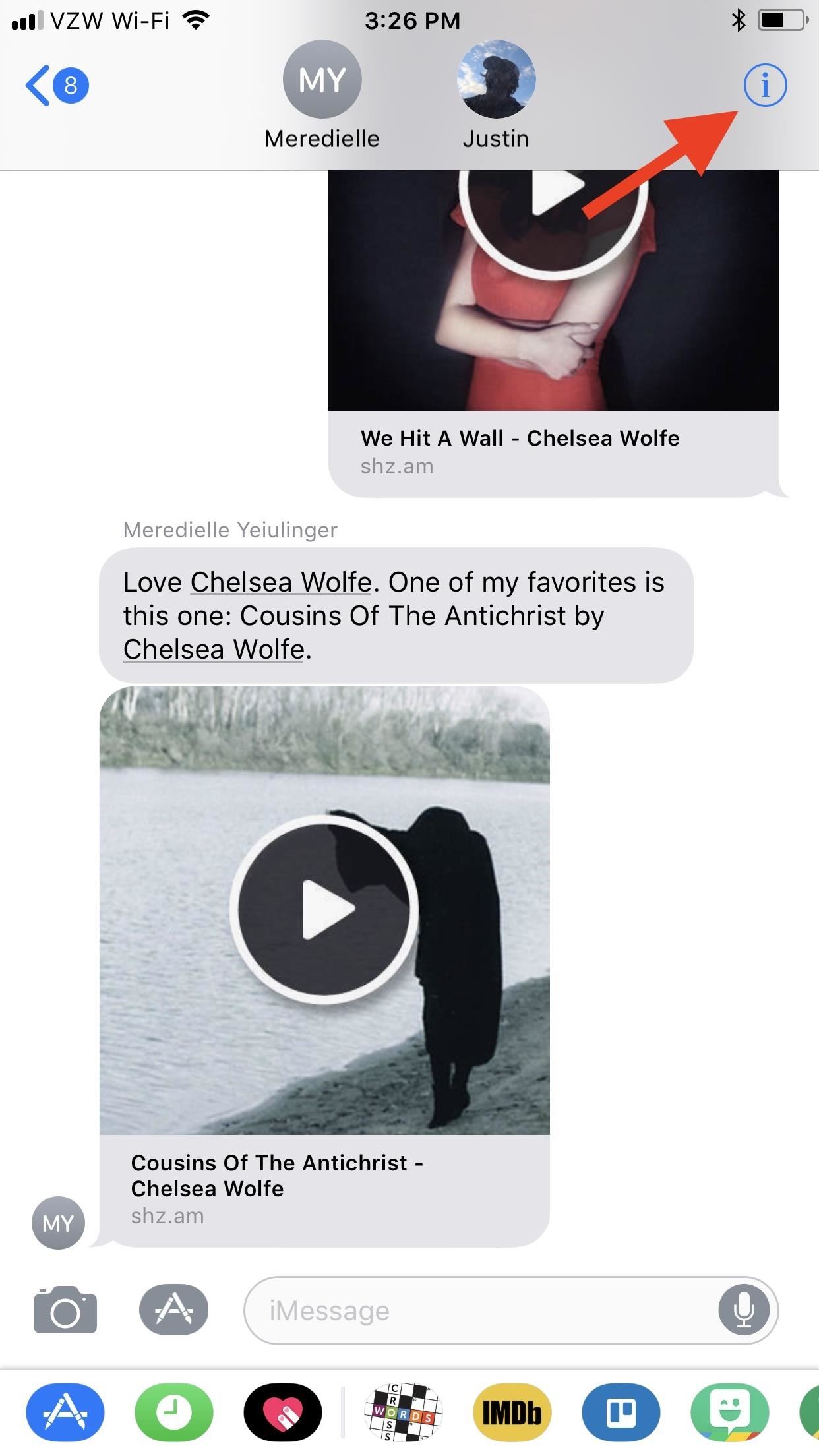
Group messages are great when you want to talk to multiple people at the same time. However, things can get disorderly real fast in the Messages app, especially if the same person is in multiple group conversations. That's where custom group names come in, which helps you make sense of all those disorganized threads with multiple names/numbers attached.Before diving into creating new group names in Apple's Messages app, you should know that this only works for group iMessages. If it's a group message that includes at least one person using SMS or MMS instead of iMessage, such as an Android user, you will not be able to name the group conversation. Also, custom group names only work in iOS 8 or higher for iPad, iPhone, or iPod touch.Don't Miss: 8 Great New Messages Features in iOS 11 for iPhoneTo give a group conversation a custom name, just open the conversation thread in Messages, then tap either the "i" (info) button or "Details" button in the top right, depending on your iOS version. On the next screen, tap on "Enter a Group Name" at the top and do just that (if you're on an older iOS version, you may have to pull down from the top of the screen first to see this option). When ready, just hit "Done." Doing this will change the name of the group for every contact in the conversation, and iMessage will immediately add a tiny notification in the thread saying that you named the conversation and when. If they don't like the name that you chose, they can also change it from their end; No name can be locked down by either party involved, so it may take a few back and forths until everybody is happy. Don't Miss: How to Enable & Disable Read Receipts for iMessagesFollow Gadget Hacks on Facebook, Twitter, Google+, YouTube, and Instagram Follow WonderHowTo on Facebook, Twitter, Pinterest, and Google+
Cover photo and screenshots by Justin Meyers/Gadget Hacks

How to Build a Mini Altoids BBQ « Hacks, Mods & Circuitry

How to Shake Your Way to a New Wallpaper on Your Samsung


Download Mozilla Firefox, a free Web browser. Firefox is created by a global non-profit dedicated to putting individuals in control online. Get Firefox today!
MSN | Outlook, Office, Skype, Bing, Breaking News, and Latest


google maps turn off labels label your favorite places google maps with stickers.w1456 {Label Gallery} Get some ideas to make labels for bottles, jars, packages, products, boxes or classroom activities for free.
Google Maps Now Lets You Organize Your Favorite Places Into


If you're a Firefox user, you can install a similar add-on that will block unwanted results from Google. Unfortunately, there doesn't seem to be any good solutions for IE and Safari, so if you use those browsers, you're kind of out of luck.
How to Block Unwanted Websites from Google Search Result


In the 111th episode of the iPhone Life Podcast, tune in as Sarah and David review all of the iOS 13 features we're expecting Apple to unveil for the iPhone and iPad on June 3 at the Worldwide Developers Conference. And tune in next week on June 3 for our special post-WWDC episode where we'll discuss everything Apple announces.
iOS 12: best new features - cnbc.com


Step 4: Remove from your "All Friends" page You can also remove a friend by going to the "Friends" tab at the top left and clicking "All Friends." Click the "X" to the right of the friend you want
How to Delete Your Facebook Account, Group, or Page [Easy Guide]


Your Android phone has a built-in speed dial function that's under the radar, but if you're willing to give up space on a home screen, you can set up a snazzy one-click speed dial page in just a
How to Set Speed Dial on Android: 10 Steps (with Pictures)


To Delete Activity History of Your Google Account on Android is the most significant task. Doing this will ensure that the search records is only known to you and help protect your privacy.
How to Permanently Delete Your Google Account History


How To: Use Redsn0w 0.9.6b4 to jailbreak an iPhone, iPad or iPod Touch (iOS 4.2.1/4.2) How To: Get iOS 10's New Wallpaper on Any Phone News: 1 in 4 iPhone Users Still Haven't Updated to iOS 11 How To: Jailbreak iOS 7 on Your iPad, iPhone, or iPod Touch Using evasi0n7
Jailbreak iOS 6 - iPhone And iPod touch (A4-Based Only) Using


The phone is great and silky smooth so far but my biggest gripe and I know this is something I could become accustomed too if I had too but I was hoping that maybe there was an easy way to swap the placement of the two buttons. On Samsung's the back button is on the right and the recent apps button on the left.
Android Basics: How to switch the placement of the recents


Create an empty application. To create a Ruby program from scratch, do the following: Run RubyMine and click Create New Project on the Welcome Screen.. In the New Project dialog, make sure that the Empty Project group is selected on the left pane.
Getting Started with Rails — Ruby on Rails Guides


Despite the abundance of sci-fi titles in the iOS App Store, very few of these mobile games ever have the staying power keep us glued for more than a few hours. Enter Space Pioneer, an awesome space exploration game that soft-launched in Canada ahead of a worldwide debut.
This Soft-Launched Game Lets You Create & Share Pac-Man Mazes


With Control Center, you can quickly take a picture, turn on lights, control your Apple TV, and more. You can even customize Control Center so you have instant access to the things you do most.
24 hidden iPhone settings you should know about | Popular Science


This Video Will Show You How To Enter DFU Mode On Your iDevice. This Works On iPhone 4S, 4, 3gs, 3g, 2g and iPod touch 4th, 3rd, 2nd, 1st, gen or generation. Also Works For iPad 1 and 2. NEW
How to Put an Apple iPod Touch or iPhone into DFU mode

How To: Disable the Photo Auto-Enhance Feature in Facebook's Mobile Apps

How To: Disable the Photo Auto-Enhance Feature in Facebook's Mobile Apps
Facebook is really good at two things: connecting people all over the world and force-feeding changes to its users (ahem...Facebook Messenger).Now, its most recent "feature" adds the ability to auto-enhance all photos uploaded from its mobile app. So, if you think you are great at taking and editing well-lit pictures, Facebook says, "Meh...we'll take it from here."Right now, this auto-enhance feature is only available in the iOS version of the Facebook app, but is said to be coming to Android soon. By default, this new feature is enabled, but for those of you who really dislike people or programs one-upping your own efforts, it can be disabled.

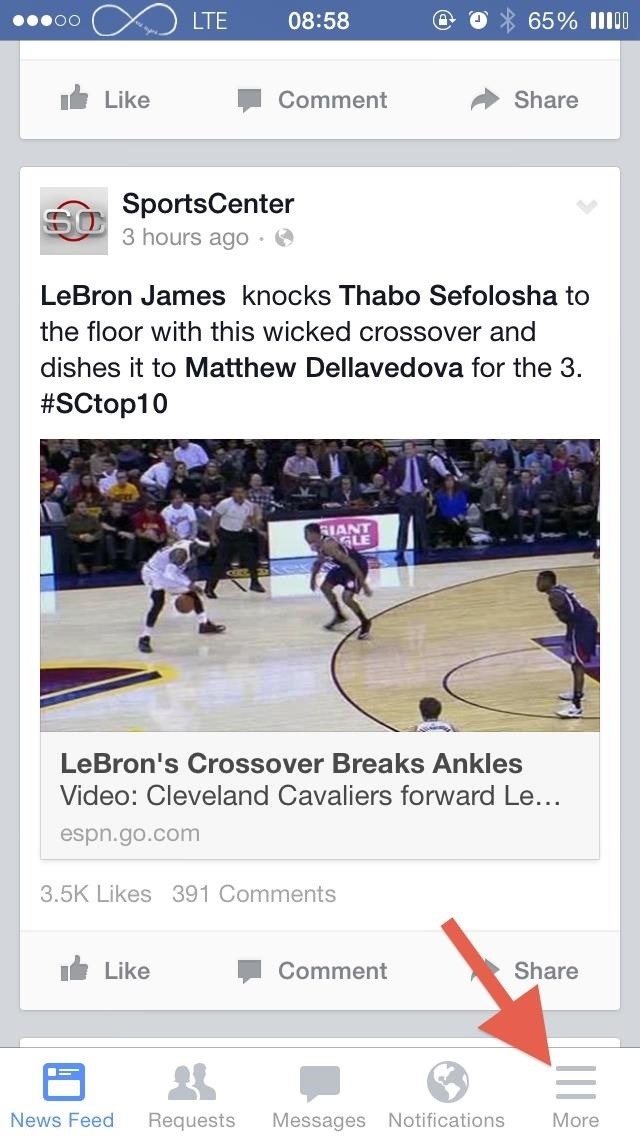
Step 1: Go to the Videos & Photos SettingsOpen up your Facebook mobile app and select the "More" tab from the bottom menu. Next, scroll down to the Settings section and select "Settings," then tap on the "Videos and Photos" option.

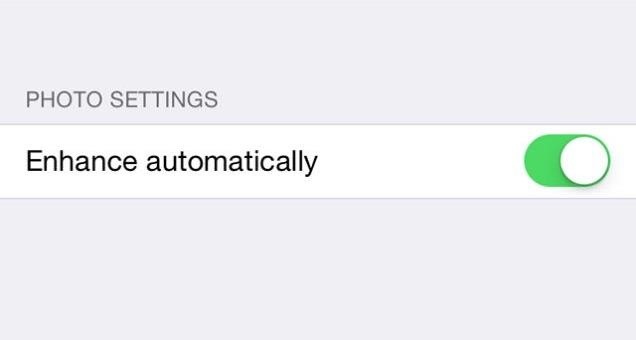
Step 2: Turn Off Auto-EnhanceInside the Video and Photos menu you'll see a new "Enhance automatically" option for photos. Toggle this off. Please note that not all users will see this option in the menu yet, as it's still rolling out. Once it hits your device, you should see a popup message the first time it's used, which is a step up from not telling you at all, but it would be better if it were a message asking to toggle it on instead.If you choose to keep it enabled, you can still disable all of the automatic filters applied to your photos on a case-by-case basis by tapping on the magic wand icon and dragging the slider down. You could also just double-tap the wand icon to move the slider down to zero.That's all there is to it, so go ahead and enjoy the freedom of enhancing your own photos again. Did you find the auto-enhance feature to actually be helpful or a nuisance? Did you try it out before disabling it? Let us know!


Imgur has just released a brand new feature to make GIFs better than they ever have before. Video to GIF is a tool that allows you to quickly paste any video link, easily select a clip from that video, and turn it into a very high-quality GIF, called a GIFV.
The Best Way to Make GIFs Out of Anything on Your iPhone


Ads - whether static, video or audio - can be annoying as well as big data hogs. In our guide, find out how to block ads and pop-ups with ad blockers on Android.
Restrict background data: how to reduce your data usage in

Open Links in Different Browsers with Gestures on Android

How to Use Google's Art Project (Enjoy Artwork Masterpieces


While we'll be using Google's own version of Android on the Pixel line of devices for this guide, if you're using a Samsung or LG device, you should be able to largely follow along at the same speed. Let's take a look at how to set your lock screen wallpaper on Android. Selecting Your Wallpaper through Settings
How to Get the iOS 7 Home & Lock Screen on Your Samsung


The iPhone X is one of the most beautiful phones ever made, but the aesthetics stop just short of perfect due to one thing: That notch. It was a necessary evil since Apple had to incorporate a front-facing camera somewhere, plus it houses all the sensors for Face ID, but that doesn't change the fact that it looks a bit goofy.
Free Home Screen Wallpaper - WallpaperSafari


Alongside the first developer beta of iOS 12, Apple also released the first developer beta of watchOS 5. Being a developer beta, it is not available for regular users, and it is currently limited to users who have a developer Apple account. Thankfully, just like you can install iOS 12 beta on your iPhone right away, there's a trick to get the
How to Install watchOS 6 Developer Beta on Your Apple Watch

Mimic Sony's STAMINA Mode to Save Battery Life on Any Android


Here my recommendation is Samsung File Transfer( Win/Mac), which can help you transfer files between Samsung phone and computer with simple operations. With it, all media files, like photos, movies, music, etc. and other files, such as contacts and text messages, can be exported between Samsung and PC without any restriction.
How to Send Pictures from Your Cell Phone to Your - wikiHow


While screenshotting a received Snapchat has never been a hard thing to do, saving one without being noticed is a completely different story. Previously, you would have to have either a rooted Android or jailbroken iOS device to save one of those self-destructing messages undetected, but one particular app has opened this trick up to the masses.
How to Save Snapchats on Android Undetected (No Root Needed


How To: Completely Customize the LED Notification Colors on Your Nexus 5X or 6P Without Rooting Instant Tuning: How to Quickly Change Notifications Settings for Any App in iOS 12 How To: Add Notes to Your iPhone's Notification Center for Easy Access Anytime
Essential Phone Comes with an LED Notification Light — And It

How To: Make a Super Secret Batman-Style Bust Switch for Your Batcave (Or Just Your Lights)

How To: Make a Super Secret Batman-Style Bust Switch for Your Batcave (Or Just Your Lights)

Remember the 1960's American television series Batman, with Adam West as Bruce Wayne? It was waaaaay before my time. The caped crusader that I'm more familiar with is actually this one... Image via thewb.com When I first heard of Adam West, it was him doing the Batusi on The Simpsons. I had no idea what was going on, so I looked up Adam West and his sensual dance and found myself face to face with the 1960's Batman.With its cheesy humor and outlandishly horrible effects, Batman quickly became a cult favorite. Just watch the video below to see what the hell I'm talking about. You can even watch the entire first episode on YouTube. Please enable JavaScript to watch this video.
In the show, Bruce Wayne uses a switch hidden inside of a Shakespeare bust in order to open the secret entrance to his Batcave. The idea of opening any type hidden trapdoor from a hidden switch sounds awesome, which is exactly how The New Hobbyist felt, who created his own secret switch. Image via instructables.com While he doesn't have any secret doors to open in his home, he sure has plenty of lights to turn on. So, he hid a wireless light switch inside of a That's why he's created a wireless light switch hidden inside a Ludwig van Beethoven bust. Anybody's bust will do really.To do this, he first decapitated Sir Beethoven (in the mos respectful way you can think of), so the switch could be hidden in Ludwig's gullet, which can then be discovered by lifting his head back. Images via instructables.com For the switch, he found a cheap 12 volt power supply (to drive the relay) and connected it to a multi-function remote control (that triggers the light). Image via instructables.com After putting the switch into the bust and putting it all back together, this is what the final result looked like: Image via instructables.com The project is on the easier side of the scale when it comes to those types of modifications, so it should be a great project for beginners. Check out the Beethoven bust in action below. Please enable JavaScript to watch this video.
To see exactly how to build your own Batman-like secret bust button, check out The New Hobbyist's project page on Instructables.Whose bust would you use for your secret switches?
Photo by The Batfan


Just because you're not Batman doesn't mean you can't use a hidden room that's camouflaged as a bookshelf. Maybe you have a collection that's worth a lot of money, or a super-secret lab—or, like YouTube user korostelevm, maybe you just want a good hiding place for your guns.
How to Turn Your Old NES Controller into a Wireless Light


How To: Hide Secret Files on Your Mac's Desktop with Obscurity How To: Lock and Unlock a Safe How To: Make a Super Secret Batman-Style Bust Switch for Your Batcave (Or Just Your Lights) How To: Make a hidden compartment using CDs How To: Make a Super Secret Book Safe
Keep Your Secret Stash a Secret with This DIY - WonderHowTo


How To: Keep Your Secret Stash a Secret with This DIY Hidden Bookcase Door How To: Get the S5's New Rounded Quick Settings Toggles on Your Samsung Galaxy S3 How To: Make a Super Secret Batman-Style Bust Switch for Your Batcave (Or Just Your Lights)
How to Wire a light with a 3 way switch « Hacks, Mods


How To: Make a super hero mask prop for a film or Halloween News: Watch Lenovo Mirage AR Headsets Turn Star Wars Fans into Jedi on Christmas Morning How To: Make a Super Secret Batman-Style Bust Switch for Your Batcave (Or Just Your Lights)
Oceania Palace - hidden light trick « Minecraft :: WonderHowTo


How To: Make a Super Secret Batman-Style Bust Switch for Your Batcave (Or Just Your Lights) Skip Scented Candles: Make Scented Light Bulbs with Flavored Extracts Instead How To: Enable the Hidden Notification LED on Your Nexus 6


How to Make a Super Secret Batman-Style Bust Switch for Your Batcave (Or Just Your Lights) Adam West Family Guy Batman 1966 Batman Arkham Batman Crafts Comic Book Rooms Adam West Batman Superhero Bathroom Batman Collectibles Video Game Rooms
How to Make a Super Secret Batman-Style Bust Switch for Your


In the show, Bruce Wayne uses a switch hidden inside of a Shakespeare bust in order to open the secret entrance to his Batcave. The idea of opening any type hidden trapdoor from a hidden switch sounds awesome, which is exactly how The New Hobbyist felt, who created his own secret switch.
How to Make a Super Secret Batman-Style Bust Switch for Your

How to Make a Super Secret Batman-Style Bust Switch for Your


To make your own, you'll need an old NES controller (obviously) and some wireless light switches. He used the ones that have a receiver which plugs into the wall, along with the lamp plug. The price ranges from $10 to $20 at hardware stores. You should take the controller with you to make sure the switch fits.
Hide Secret Photos & Videos Inside an Unsuspicious


a secret passageway switch - I will have need of one of these in my house someday. secret passage way mechanism I used as a model for the way the secret doorway opens. Hidden Passageway Lamp Belongs Here How to make a book on the bookshelf a secret Switch. - just in case we ever decide to build a secret room. See more
Make an Impossible-to-Find Doortop Safe to Hide - WonderHowTo


In this video, Mark Donovan teaches us how to wire a light with a 3 way switch. Before starting, make sure the power is turned off from the main circuit panel first, and you test to make sure it's off. You will have two switches for the same light fixture. For a 15 amp circuit, you can use 14-2 and 14-3 wire.
Super 8 - JJ Abrams & Spielberg's Secret Project « Movie

How To: 19 Tips for Making the Most of the Health App on Your iPhone

How To: 19 Tips for Making the Most of the Health App on Your iPhone

It's not easy staying fit and healthy these days with addicting phones, oversized portions, and long workdays, to name just a few things. To succeed, it takes work, commitment, and an understanding of your mind and body — and your iPhone can help you with some of that. While Apple pushed its Screen Time tool to help curb unhealthy smartphone habits, its "Health" app can help with everything else.If you've never used the Health app, it could seem confusing when you first open it, and that's partly because there's so much information it can house. But don't let that deter you from going any further. The Health app is full of useful health and fitness-tracking features to make sure you can stick to goals and be as healthy as you can be, whether you want to lose a little weight, stop snacking, destress your life, get better sleep, improve your overall physical fitness, or take care of your heart.Don't Miss: See How Much Weight MyFitnessPal Can Help You Lose Check out our favorite tips for using Apple Health on your iPhone below to see exactly what you can do with this tool. If you're new to the app, make sure to read them all. And if you've been using the app for some time, you'll still probably find a few useful features you didn't know about.

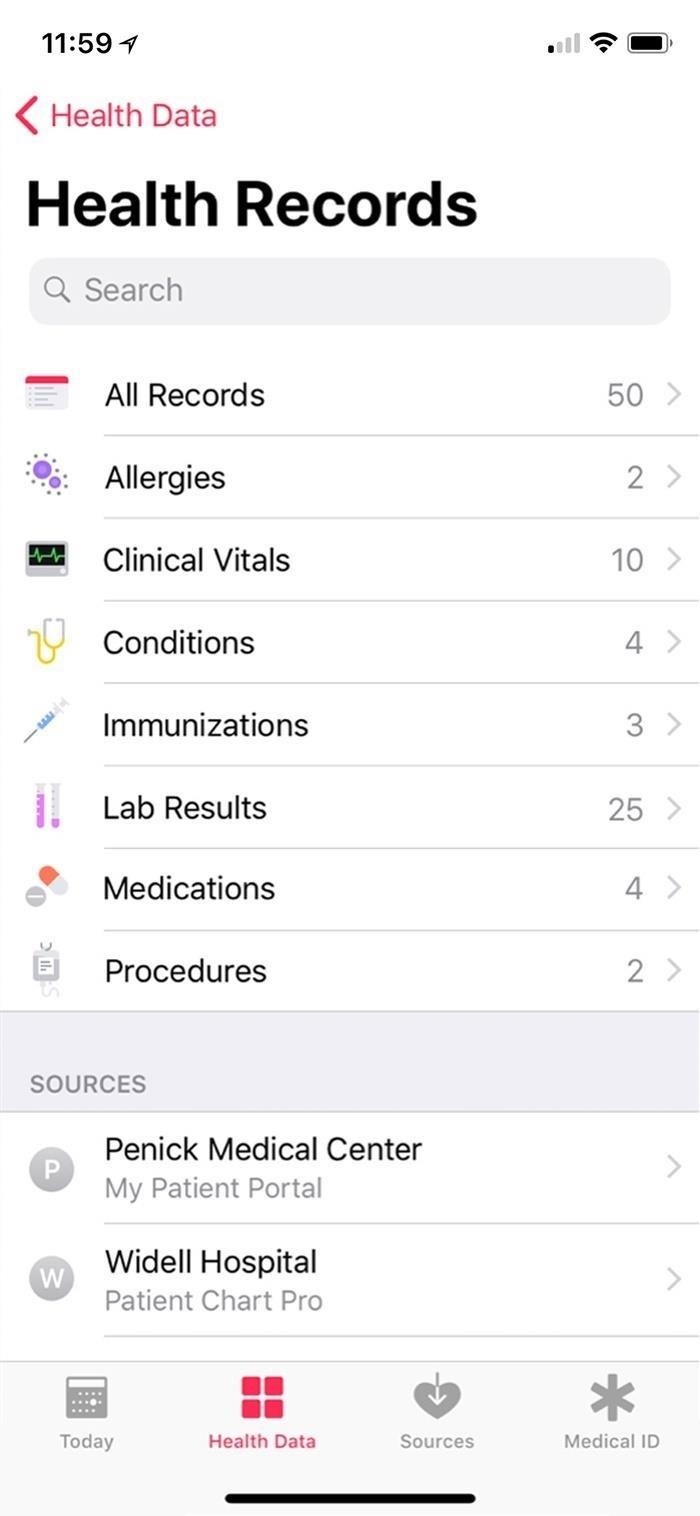
Tip 1: Import Health DataIf you're someone who needs easy access to your medical records, this tip's for you. Apple implemented a system back in iOS 11.3 so users could import their health data from a healthcare provider. There are over 70 locations compatible with this feature, so you might be able to use your iPhone to pull up relevant health information such as immunizations, allergies, medications, blood pressure, hospital visits, and other details, which could help you better follow your overall health goals.Full Instructions: How to Import Your Health Records onto Your iPhone Images by Justin Meyers/Gadget Hacks

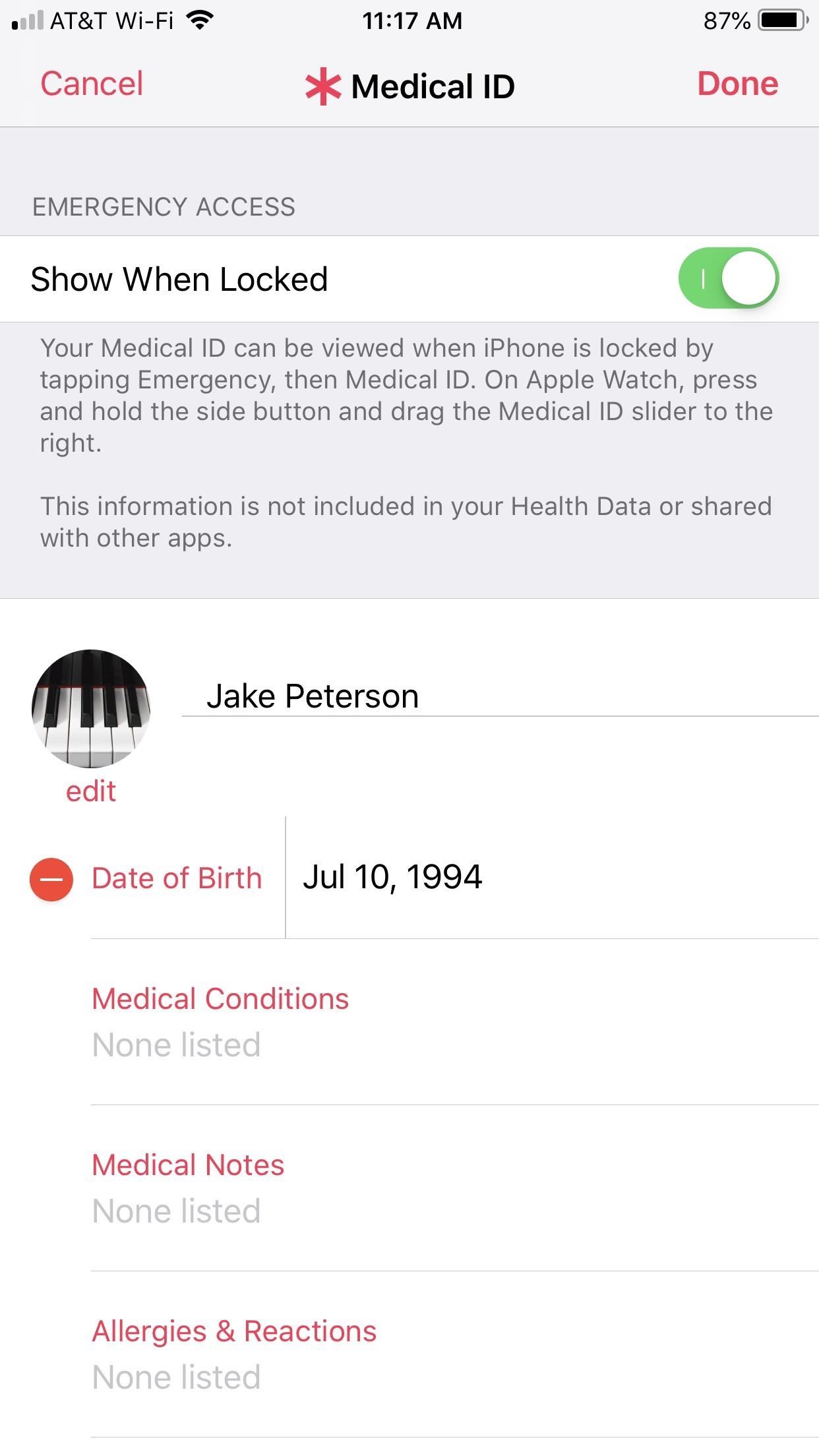
Tip 2: Set a Medical ID on the Lock ScreenMedical emergencies happen, and if they happen to you, it's best to be prepared. Your iPhone can offer life-saving information to first responders and medical professionals, even if you aren't able to, right from your lock screen. You just need to set it up. Your "Medical ID" can display valuable health data such as blood type, age, weight, medical conditions, medicines, allergies, and more. If you aren't able to speak for yourself, your iPhone can speak for you if you let it.Full Instructions: How to Add an Emergency Medical Card to Your Lock Screen

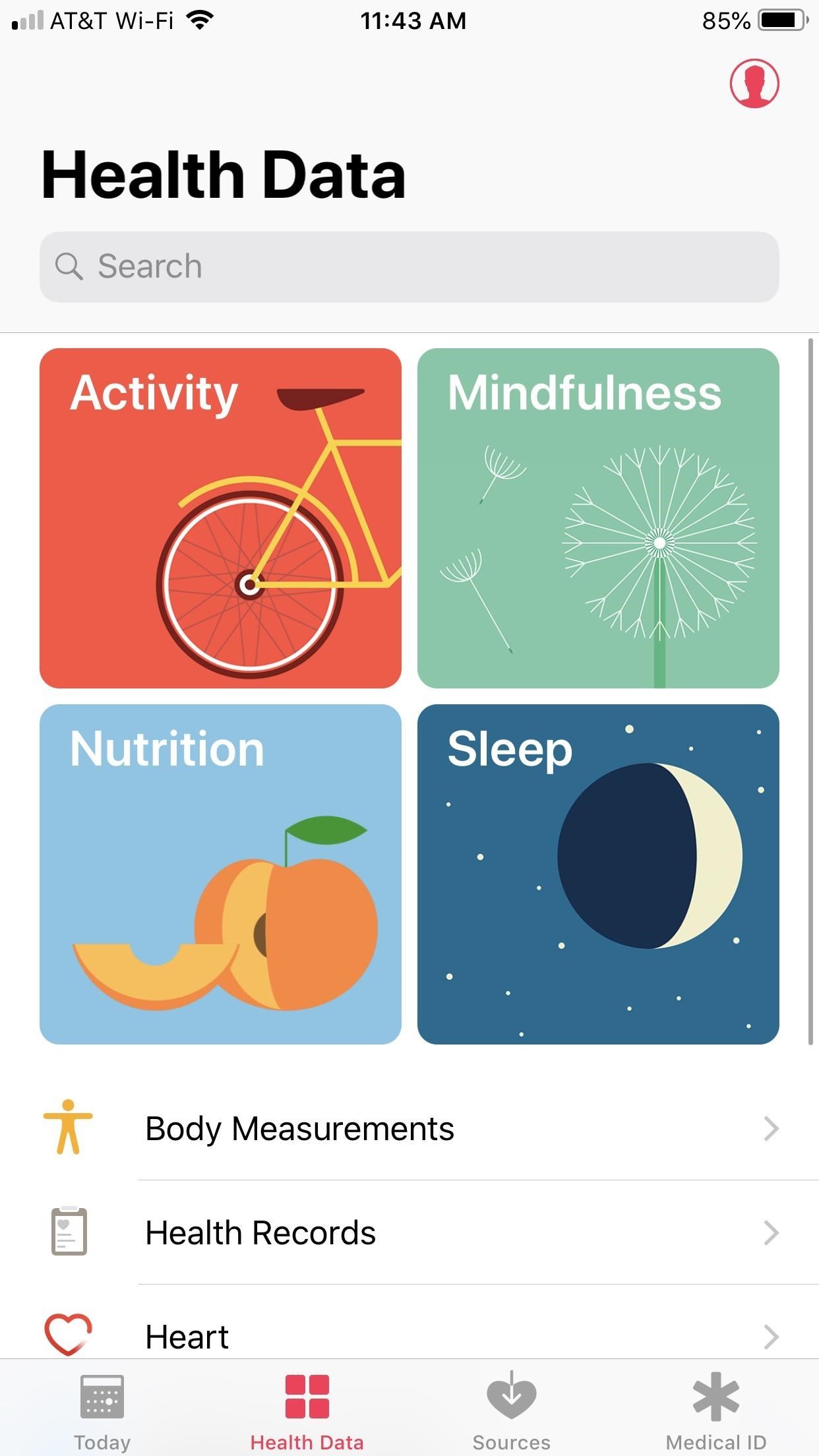
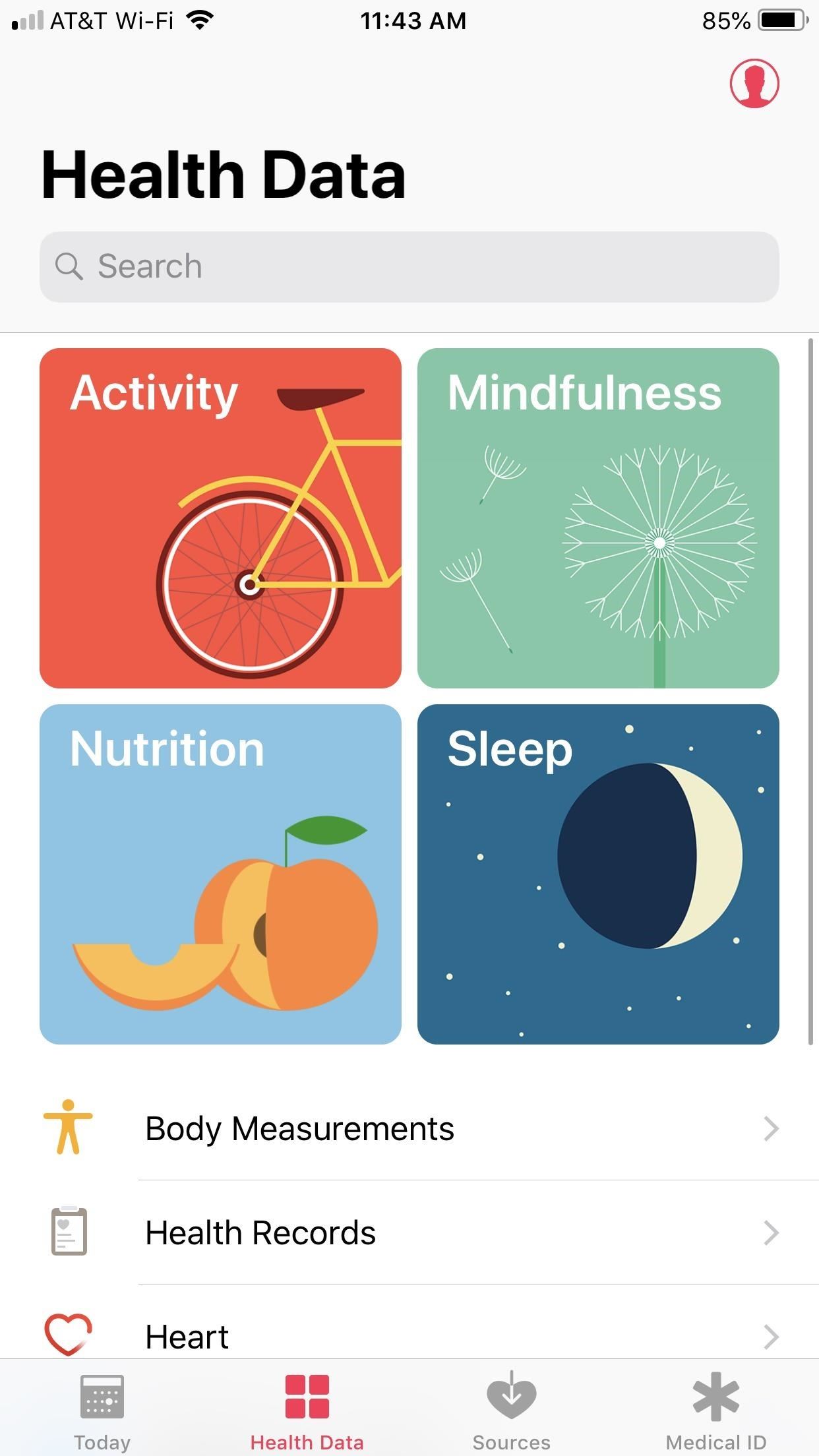
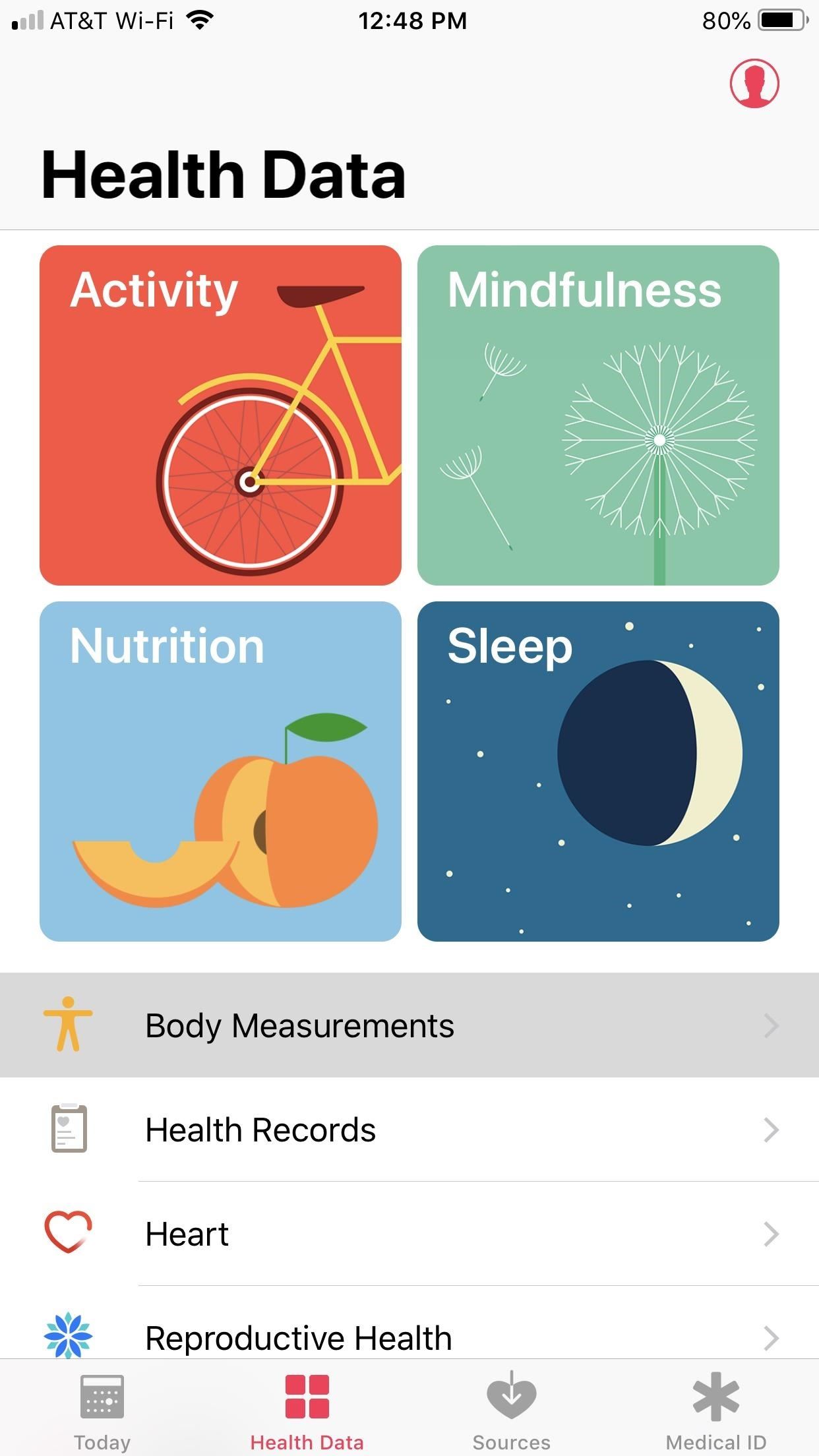
Tip 3: Find Apps to Integrate into HealthAs you'll see throughout this article, Health is an app that will let you manually enter as much data as you possibly can. However, why enter that data yourself when you could use an app to do it for you?There are many apps that work with Health to automatically enter health and fitness data such as sleep, nutrition, exercise, and calorie burn statistics. All you need to do is install them and set them up.In Health, tap the "Health Data" tab. You'll be greeted by four pillars — "Activity," "Mindfulness," "Nutrition," and "Sleep," alongside a list of subcategories at the bottom of the page. Each has its own set of recommended apps that will automatically add your relevant health data to the corresponding pillar when used. The only exception here is "Health Records." For example, check out the "Activity" tab. If you scroll down, you'll find a list of 20 titles under "Recommended Apps." Each is a fitness app of some kind that, as you use it to track your exercise, will add data automatically to Health, specifically to this "Activity" tab.

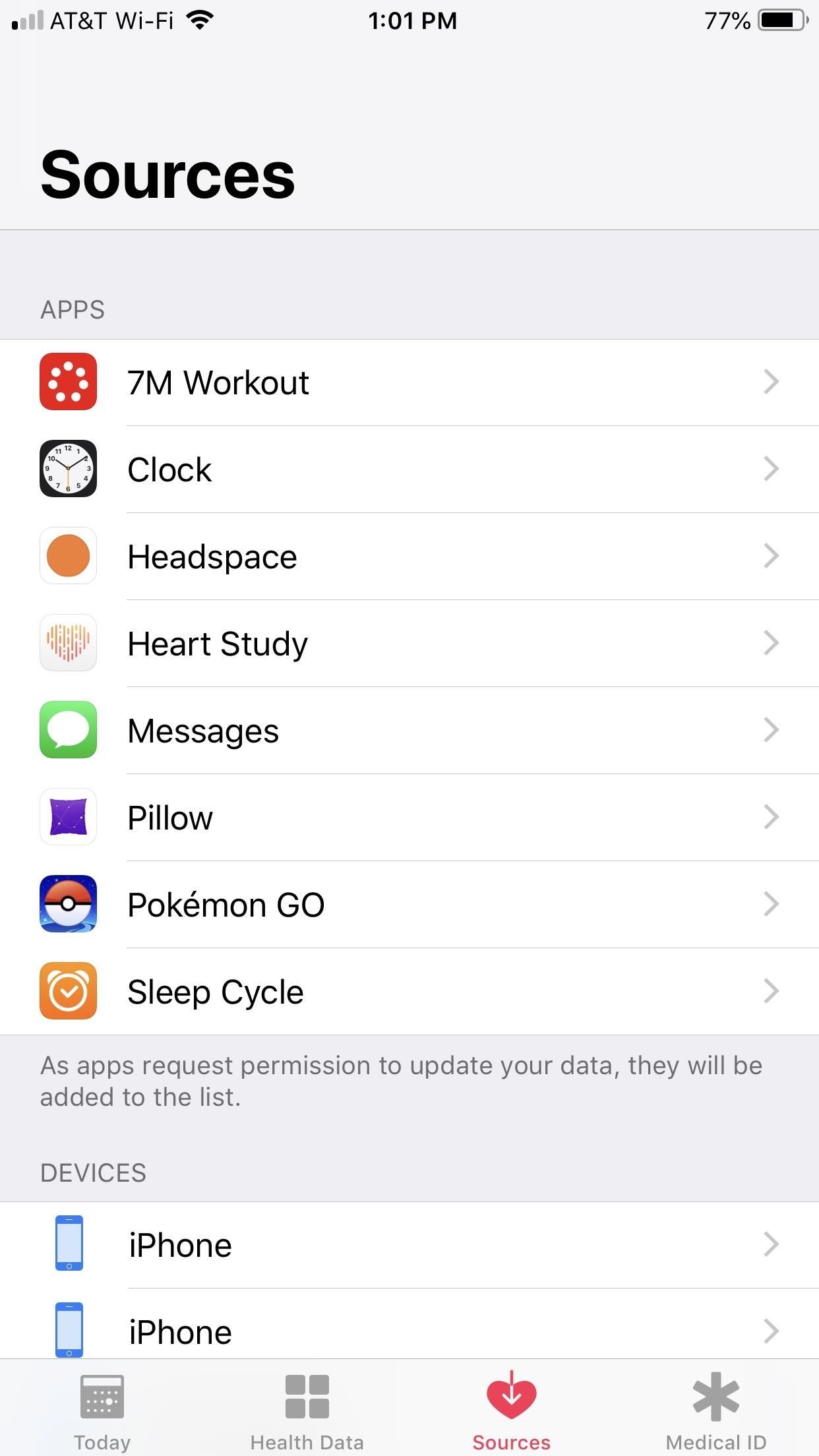
Tip 4: See Which Apps Have Access to Health DataThere are a lot of sources entering data into Health. If you want to see exactly what your apps have access to in the Health app, tap the "Sources" tab at the bottom of the display. Here, you'll see all apps on your iPhone that are reading data from Health and/or writing data to Health.But that's not all. Tap on each to see exactly what each app has permission to read or write. For example, Sleep Cycle has permission to write data about my heart rate and sleep analysis, as well as has permission to read my step count. You can even see an explanation for why the app wants permission for specific types of data.You can enable or disable permission for each data point individually or make sweeping changes by tapping "Turn All Categories Off" at the top of the page.

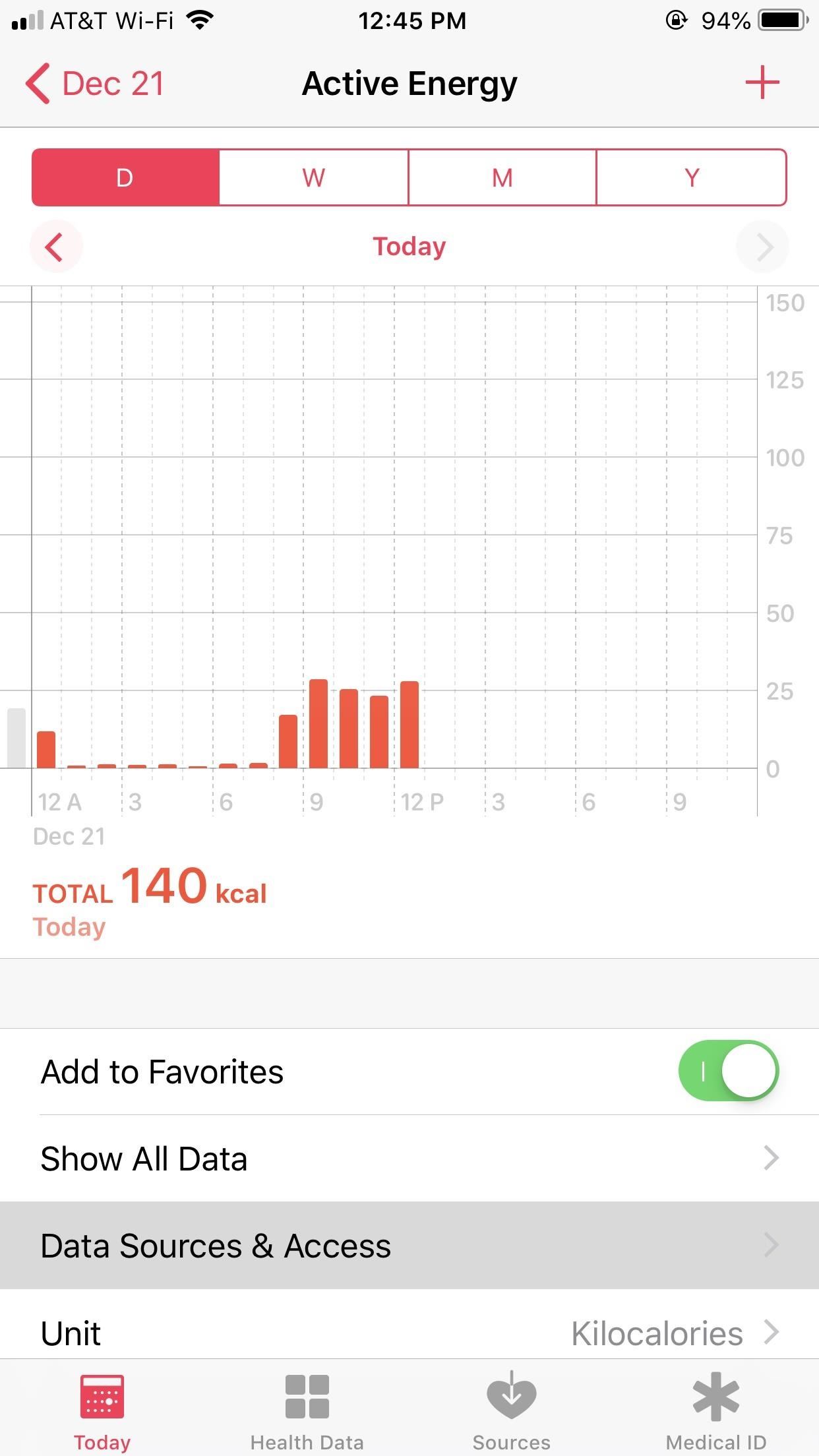
Tip 5: Prioritize Your Health Data SourcesHealth pulls data from a lot of sources — your iPhone, wearables, peripheral devices, and apps can all contribute to the information stored in the app. However, only one of these at a time can be used as the definitive source for each health section. Luckily, you get to choose which source that is.In Health, choose a section to focus on. For example, "Active Energy." Then, tap "Data Sources & Access," where you can view all sources of data, and tap "Edit" in the top right. Now, you can use the hamburger icons on the right side of each data source to drag a new source to the top of the list. Health will then prioritize this source and display its data from now on. If you need help deciding on a source to prioritize, just tap on each (outside of the editor). You'll see a complete list of data from that source, allowing you to decide if that should be the definitive source for Health.

Tip 6: Track Your Steps Without a WearableWearables like Fitbit sell themselves as a way to keep track of your steps throughout the day. Take enough steps, and you'll be on your way to a healthier you. But how can you possibly know how many steps you take in a day if you don't own one of these trackers? Easy — just carry your iPhone around with you.Your iPhone tracks your steps all day long, whenever you have it on you, and the data can be viewed in the Health app. Tap the "Today" tab, and you'll find the current day's step count listed under "Activity." Tap it, and you'll have access to your iPhone's entire step count history. Tap D, W, M, or Y to view your step counts for the day, week, month, or year, respectively. Alternatively, you can find "Steps" under "Activity" in the "Health Data" tab. Some wearables, such as the Apple Watch, will sync up their step counts with the Health app as well, so you don't always have to have your iPhone on you. Apple Watch will sync automatically, while third-party trackers will have to have their apps connected to Apple Health, such as Withings. Unfortunately, Fitbit and Misfit, to name a few, have not incorporated Health integration yet, so a middleman app like Sync Solver may be needed.

Tip 7: Track & Monitor Your SleepDid you know your iPhone doubles as a sleep monitor? With the right app, you can track how you sleep, see when you wake up during the night, and even set alarms to try to wake you up in the lightest sleep stage possible. There are also peripheral devices such as Apple Watch and Beddit that can track sleep data and sync it with Health so you don't have to worry about your iPhone battery running out.If using your iPhone only, the default Clock app has a "Bedtime" feature that will sync sleep hours to Health. Third-party apps such as Sleep Cycle can do that too but have other features to benefit from, though HealthKit will only accept data for when you fell asleep, wake-ups during the night, and when you get up.Full Instructions: Track Your Sleep Activity in Apple's Health App for iPhone Apple Watch Deals from Amazon | Apple | Best Buy | Walmart

Tip 8: Track Your Nutrition & Eating HabitsAn integral pillar of health is nutrition. What you eat fuels your body and can be the difference between a productive or sluggish day at the office. Health helps you keep track of the foods you eat, so you can stay on task with any goals you might have.Under Health Data, tap "Nutrition." Right away, the Nutrition page features a short video on the importance of a balanced diet, any nutrition data you might already have from Health or connected third-party apps, plus the usual suite of recommended apps that will integrate their data into the Health app. Scroll down, and you'll find a long list of nutrition data points, such as caffeine, fiber, iron, vitamin C, etc. If you have never entered any nutrition info before, you'll find all possible items listed here. Otherwise, any data points that have been entered will be displayed at the top of the page.You can manually enter data for any of these items by tapping on each, tapping the plus (+) icon in the top right, then filling out the relevant data. Once you do, that item will be brought to the top of the page.

Tip 9: Stay MindfulYour iPhone is an amazing device, but it's not without its flaws. Constant information at our fingertips can erode time to ourselves, to reflect on the day or how we feel. That's where "Mindfulness" in Health comes in. You can use this pillar to start carving out quiet time each day, as well as keeping track of your mindfulness progress as you go.Don't Miss: How to Use Screen Time in iOS 12 to Curb iPhone Addiction When you first open "Mindfulness" from the Health Data tab, you'll be greeted by a short video on the benefits of the pillar. You'll also see any Mindfulness data you may have already entered. If not, that's fine — Health's suite of recommended Mindfulness apps can help you get started below. While Apple is sure to screen all apps it recommends here, undoubtedly the two most popular options are Headspace and Calm. While both promote meditation, ironically, the two have entered a heated competition to become the number one meditation service on the App Store. Both are free to download, so give each a try and decide for yourself.App Store Link: Calm (free) App Store Link: Headspace (free) Once you start and sync up the apps with Health, you'll see meditation data appear on this page in blue. Tap that icon to view all Mindfulness data from that day, week, month, or year. If you use an unsupported app or take time for yourself outside of Health integration, tap the plus (+) icon in the top right to manually add Mindfulness time.

Tip 10: Keep an Eye on Weight ProgressSome of us want to lose weight, some of us need to gain weight. If you have a weight you need to change, Health can keep you on target. Under "Health Data," tap "Body Measurements." If you've previously entered weight data, you'll find it at the top of the screen in orange. Otherwise, tap "Weight" below "No Recorded Data." Here, you can view all weight data that either you've entered into Health or any connected compatible apps and smart scales have added themselves. You can view today's weight, and weight change for the week, month, or year. If you want to manually enter data, tap the plus (+) in the top right, then enter the relevant information. Tap "Add" to enter the new weight. Popular Smart Scales That Sync with Health: Withings Nokia Body | Body+ | Body Cardio | QardioBase 2 | iHealth Lite | iHealth Core | Eufy BodySense
Tip 11: Track Other Body MeasurementsOf course, weight isn't the only metric Health can keep track of for you. Health also allows you to enter information about height, body fat percentage, body mass index, lean body mass, and waist circumference. The process for adding data to these metrics is the same as weight. Of course, if you have any of these data points stored in an app that's connected with Health, you'll see that data here, too.

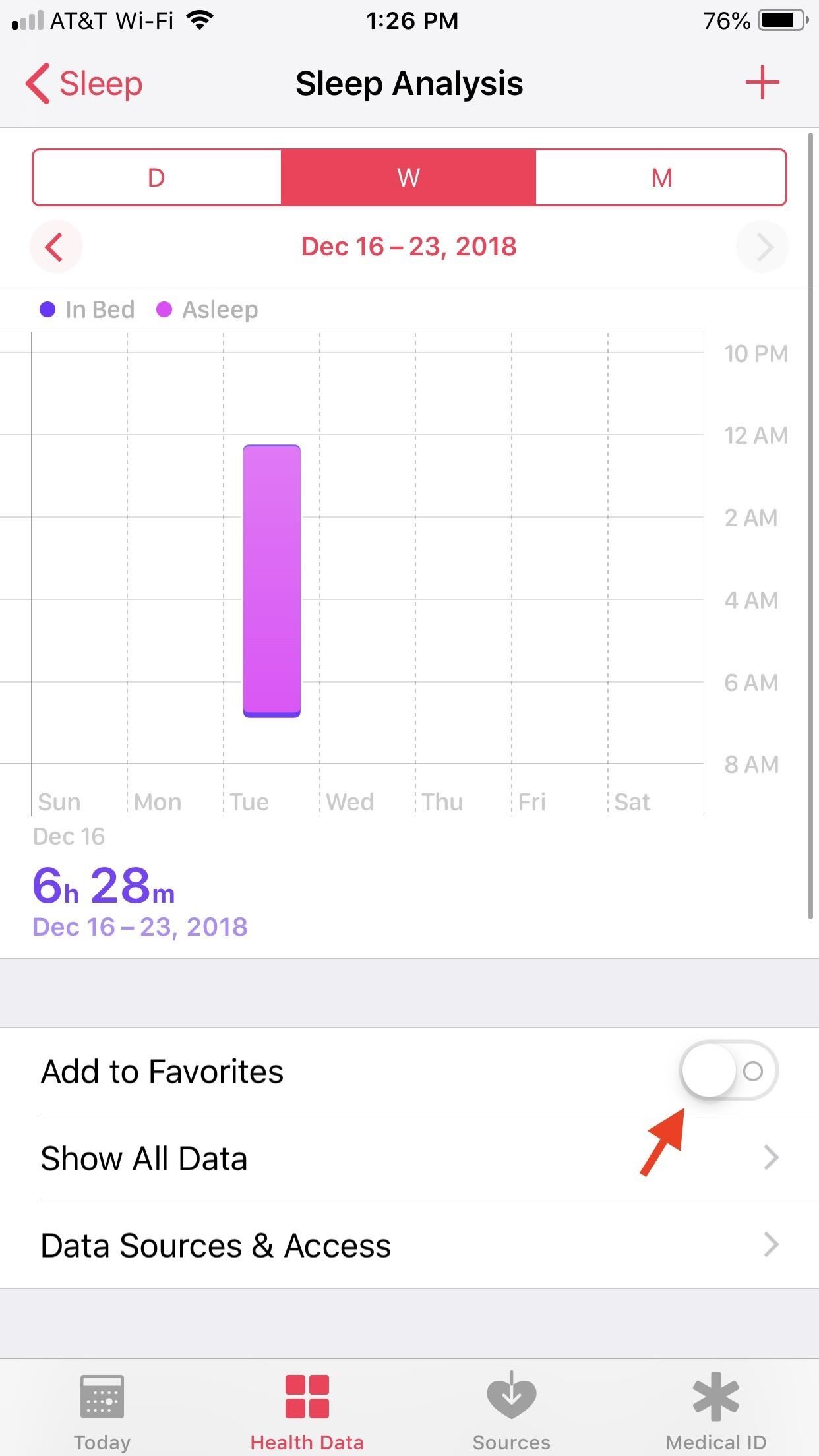
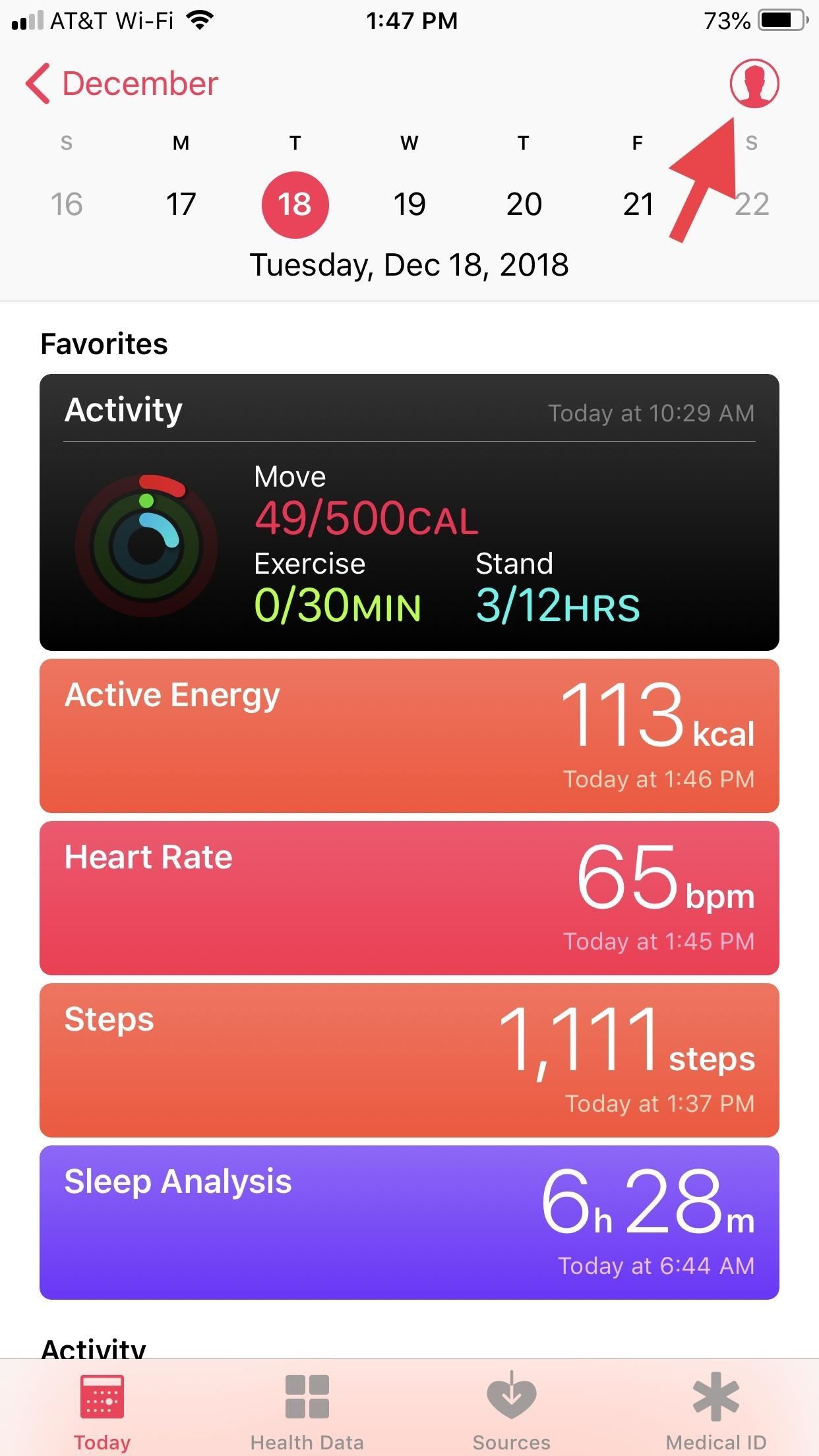
Tip 12: Customize Your Health FavoritesIf you're tired of jumping all over the place to view specific health data, jump no more. Health lets you add data points to a favorites tab on the main page of the app. That way, you can quickly view the information that's important to you, while ignoring the rest.First, locate the data point you want to add to your favorites. As you can see with Sleep Analysis, "Add to Favorites" appears below the data chart. Tap the slider to ensure the option is enabled, then head back to the "Today" tab to see the item under "Favorites." You'll also see shorter "Favorites" menus for favorited items in their corresponding pillars. Repeat this process for as many data points as you wish.

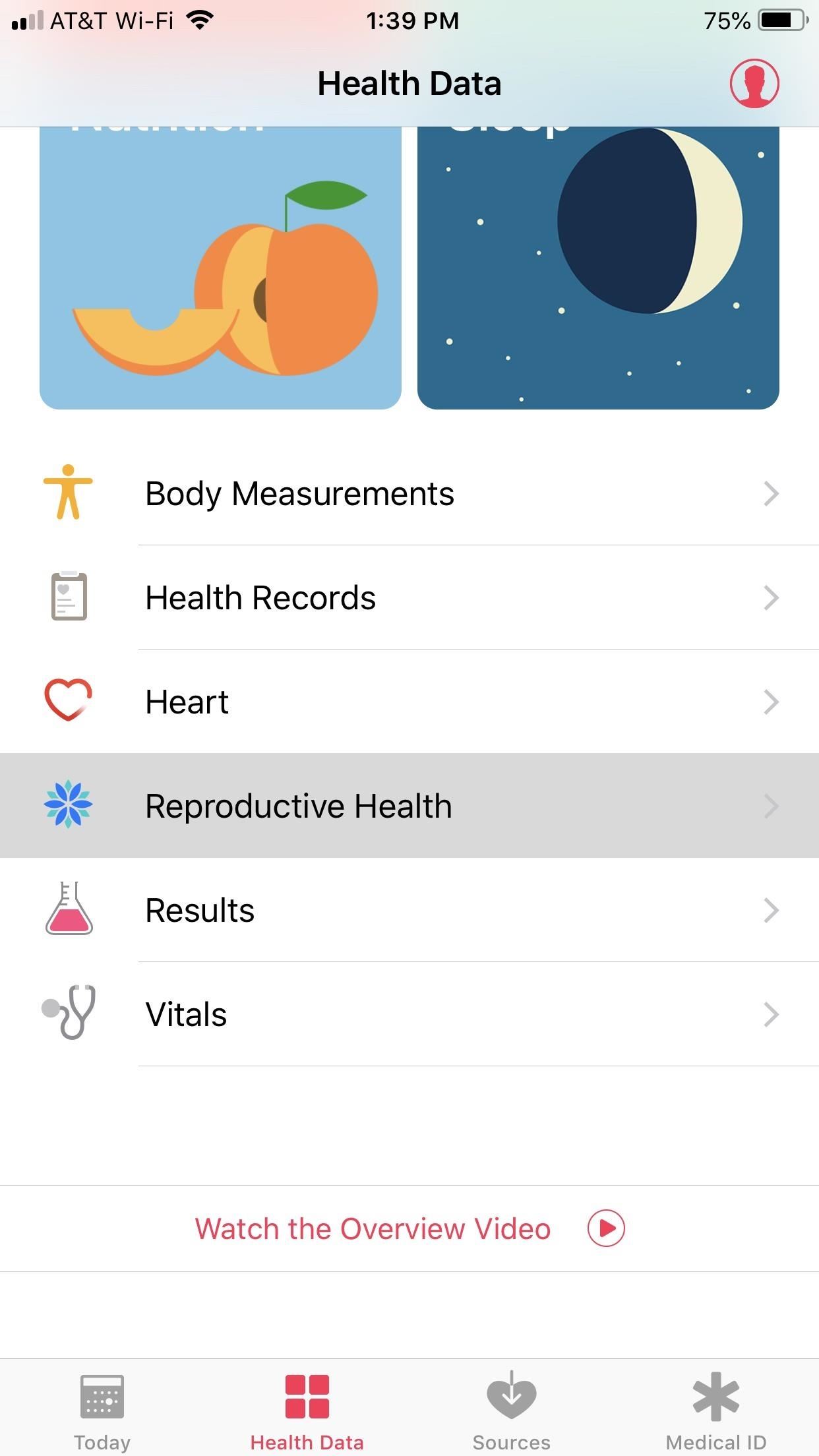
Tip 13: Keep Track of Reproductive HealthHealth covers a wide array of health needs. If you're someone who needs to keep track of their reproductive health, this app has you covered. Just tap the "Health Data" tab, then select "Reproductive Health" from the list. Here, you can add any relevant data, the same as you would in other Health sections described above, or install, use, and sync any recommended apps that will post data here on your behalf.

Tip 14: Export Your Health DataJust because Health is an excellent way to store your health data doesn't mean that information has to be stuck there. Health has a tool that will allow you to export your data off-app, to share with friends, medical professionals, or just to store elsewhere. It's your data — you should do what you want with it.To export your health data, tap the profile icon in the top right of "Today." Next, tap "Export Health Data" at the bottom of the page. Select "Export" on the following popup to proceed. Once Health finishes exporting your data, the share sheet will pop up. Just choose your data's destination here, and you're done. The exported data from Apple Health is in XML format, which is not very user-friendly since it can't be read in normal charts or anything without first being converted. You can use QS Access to convert the XML file into a CSV that can be read by most spreadsheet apps, including Apple Numbers. If you're a more technical person, you can also use Python to convert the file into a more readable format.

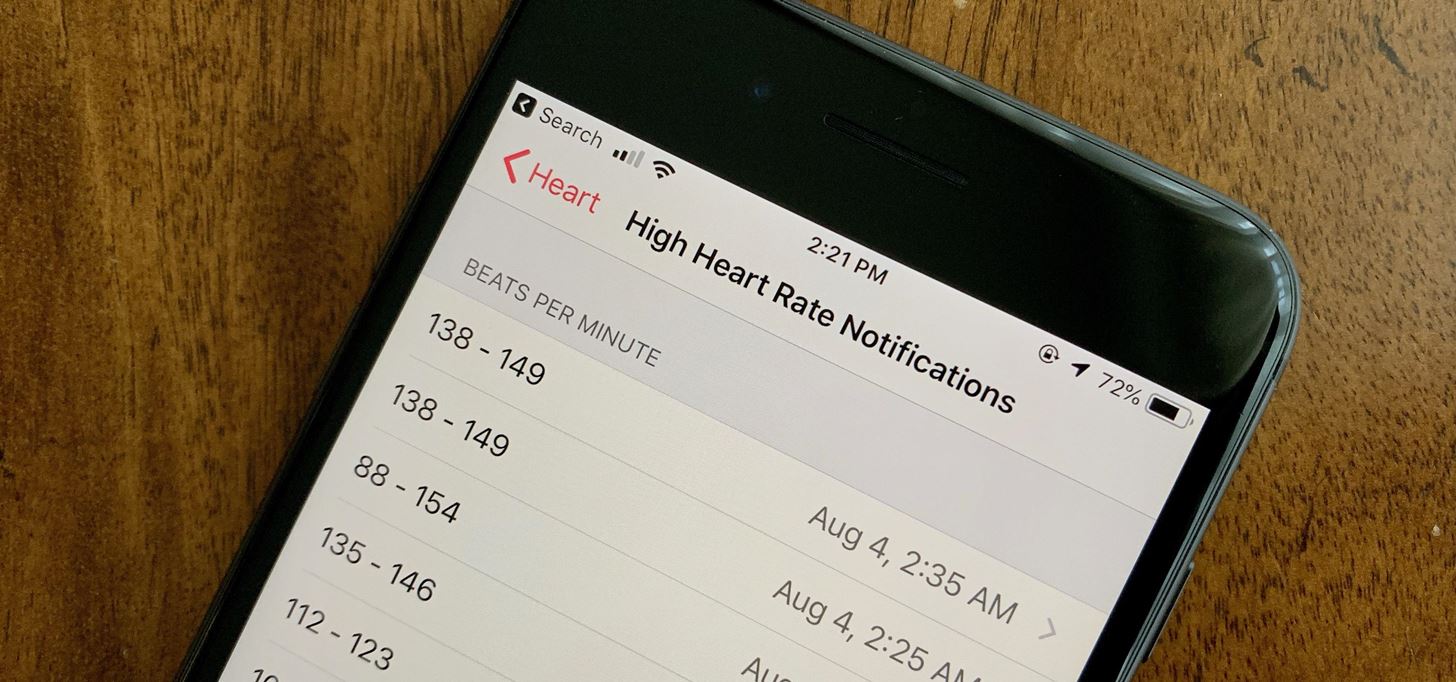
Tip 15: Check High Heart Rate History (Apple Watch Only)Your Apple Watch checks your heart rate throughout the day. If it detects your heart rate is too high, you'll receive an alert warning you as such. What does this alert mean, and what should you do about it?We cover those answers and more in our full guide. However, in addition to learning more about these notifications, the Health app makes it easy to check your high heart rate notification history. Whether you want to revisit a single alert or track your alerts over a set period of time, Health has that data.Full Instructions: What the High Heart Rate Warning Means on Apple Watch Image by Jake Peterson/Gadget Hacks

Tip 16: Check Low Heart Rate History (Apple Watch Only)On the flip side, your Apple Watch also checks for heart rates that are too low. Any time it does, it saves the notification in Health. You can use the app to refer to at any and all low heart rate notifications you've received. Take a look at our full guide to learn more about these notifications and how you can access a full history of them in Health.Full Instructions: What to Do When You Get a Low Heart Rate Notification Image by Jake Peterson/Gadget Hacks

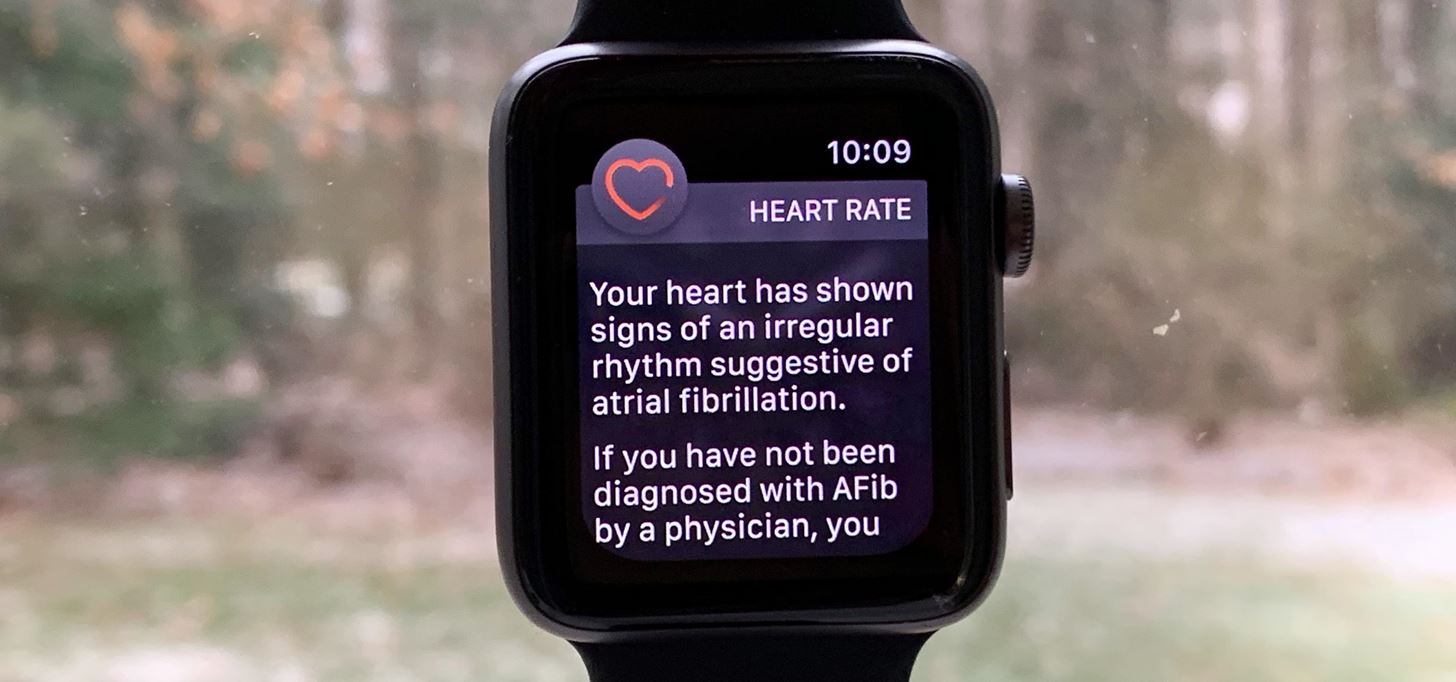
Tip 17: Check Irregular Heart Rate History (Apple Watch Only)Finally, your Apple Watch now checks for irregular heart rate as you wear it; This can be a serious issue, and with the help of an Apple Watch, it can be detected in people who otherwise would never have known they had the condition.The Apple Watch isn't a medical device, so it cannot be used to diagnose heart conditions of any kind. However, it can be a helpful tool in learning more about your heart and pointing you in a healthier direction. Check out our full guide for all your need to know about AFib notifications on your Apple Watch, as well as how to view those notifications in Health.Full Instructions: What the Irregular Heart Rhythm Alert Means on Apple Watch Image by Jake Peterson/Gadget Hacks

Tip 18: Cheat Your Apple Watch Rings (Apple Watch Only)Your Apple Watch rings are meant to motivate you to stay active through each and every day. Of course, sometimes, completing all three rings just isn't an option. If you're sick, traveling, or just plain lazy, losing a streak or a competition can feel like a humiliation.If you don't mind getting your hands dirty, your Apple Watch rings can be pretty easily tricked. Not only can you make minor adjustments to your sedentary lifestyle to convince the watch you're actually moving, you can manually enter exercise and calorie information to give your rings a boost. Your friends will never see it coming.Full Instructions: How to Cheat Your Apple Watch Rings

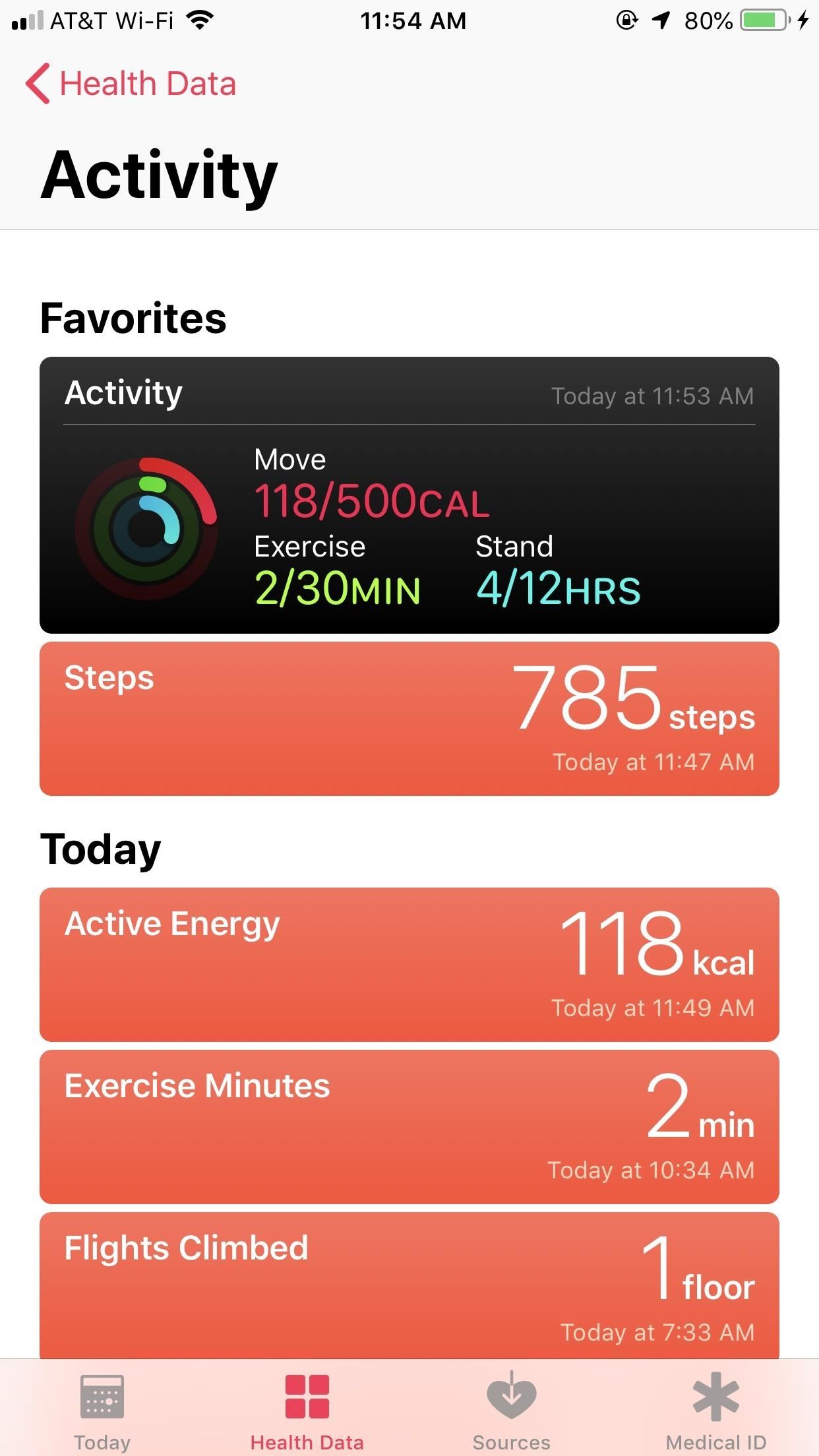
Tip 19: Calculate Total Calorie Burn for the Day (Apple Watch Only)Apple Watch owners are familiar with the Move ring — it represents a calorie burn goal that users try to hit each day. However, this number simply can't be your day's overall calorie burn. If the average adult burns 2,000 calories a day, and your Move goal is 450 calories, where are the rest of those calories?Interestingly, you'll find your answer in Health. It might not be a perfect system, but it's the way us Apple Watch users need to roll. However, there is a better way to do it using the Activity app for iPhone.Full Instructions: How to Figure Out Your Total Calorie Burn This article was produced during Gadget Hacks' annual Health & Fitness special coverage. Read all of the Health & Fitness series.Don't Miss: 8 Tips to Help You Become a MyFitnessPal ProFollow Gadget Hacks on Pinterest, Reddit, Twitter, YouTube, and Flipboard Sign up for Gadget Hacks' daily newsletter or weekly Android and iOS updates Follow WonderHowTo on Facebook, Twitter, Pinterest, and Flipboard
Cover image and screenshots by Jake Peterson/Gadget Hacks (unless otherwise noted)

How To: Get Oreo's Battery Menu Back on Android Pie


Static FBML is a Facebook application that allows Facebook page administrators to create custom tabs on their Facebook pages. This application is only available for Facebook pages, not for personal profiles or Facebook groups. Adding Static FBML to Your Facebook Page. You can add Static FBML in four easy steps.
How to Create a static FBML page for your Facebook fan page


If you would like to use your Facebook chat but are hiding from a particular friend, check out this tutorial. Sometimes you just aren't in the mood to talk to certain people and you don't want them to see that you are online.
How can I hide my online status? - Facebook


This, after you install installous on iPad, you need download the package files which makes your job easy. Using Installous now you can search and install your favorite iPad apps and Games. This is how, you can install installous on iPad and enjoy the cracked apps on your iPad.
How to Install Installous to Get Free iPhone Apps - Jaxov.com
jaxov.com/2010/05/how-to-install-installous-iphone-ipod-touch/
Installous is a free app available via Cydia which allows you to search, download, browse and install cracked / jailbroken apps on your iPhone and iPod Touch. The following guide will explain you to install Installous on your iPhone and iPod Touch.
How To Install Installous From Cydia - Question Defense


Uber price surging happens often at peak times in the morning and again in the evening rush hours when everyone is heading back from work. Remember when paying surge prices it's a bit like tipping Uber drivers, since the driver will benefit from it as well.


Because Instagram posts appear chronologically in the hashtag search galleries based on the chronological time at which the post was shared (not when the hashtag was added). So, if you're using those super popular hashtags, every single second matters to your engagement. If you're wasting 30 seconds even to add a comment after posting, add
15 Things You Should NEVER Post On Instagram | TheTalko


We've talked before about EXIF data—or metadata—attached to photos and how it can expose information about your location, what type of device you're using, and even the device or camera's unique identification number. If you think it's not that big a deal, just ask John McAfee—his location was
What Is EXIF Data, and How Can I Remove It From My Photos?


How To: Lock Your Apple Watch with a Passcode to Increase Security & Keep Prying Eyes Out How To: Extend Battery Power on Your Windows 10 Laptop or Surface How To: Temporarily Override Your Mac's Sleep & Screen Saver Settings from the Menu Bar
iPhone security tips: How to protect your iPhone from hackers


Sometimes, stock just doesn't cut it. When you're sick of the limitations in Sense on your HTC One, a new ROM can be a ray of sunshine. By installing a custom ROM, you can add or unlock new features in Sense, or you can get a pure Android experience instead.
How to Install a Custom Rom for Android Phones: 5 Steps


Gmail Attachment Limit: How to Send Large File Attachments through Gmail November 8, 2017 March 4, 2019 SalesHandy Team Email , Help Center You already have zipped a folder containing a large chunk of data - could be 100MB of pictures, 60MB of presentations or 1 GB of quick video tutorial - ready for sending through Gmail?
How to Exceed Outlook Attachment Size Limit that Actually Works


Netflix was the only app we tested that used 19:10 aspect ratio video (1.85:1 movies), allowing the full screen to be used for consumption. Apps, other than those which display video, will use the entire notch area when "Always use notch area" is enabled.
How to Force Apps to Fill the Screen on the Essential Phone


fast download manager Download Manager download download manager for pc download download manager Download the download program from the net.. How To Download Files WAY Faster, With FlashGet
Free Download Manager for Windows and macOS | Download

How To: These 9 Tips Make Gaming on Your Mac Not Suck

How To: These 9 Tips Make Gaming on Your Mac Not Suck
When most people think of "gaming computers," they're probably thinking of Windows-based PCs. They offer a huge variety of devices with better equipped software and hardware for a cheaper price, and there are more available games than there are for OS X-based systems.But that's not to say that you have to replace your Mac with a Windows computer in order to improve your gaming experience. In this guide, I'll be going through several tips you can use to optimize your Mac to have the best gaming experience possible without switching to the dark side.

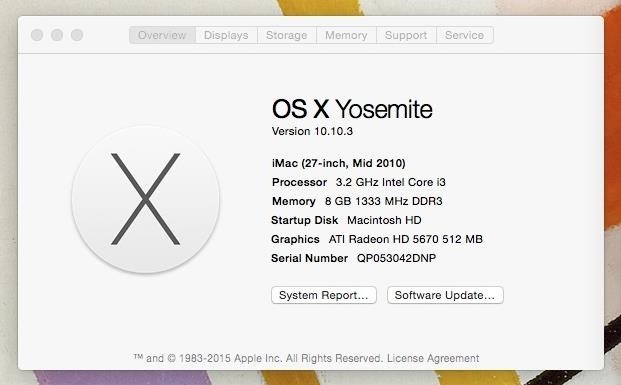
#1: Check Your Mac's Existing SettingsBefore you install a game, make sure you're well acquainted with the various aspects of your Mac, including the OS, processor, memory, available hard drive space, and graphics card. On OS X, you can view all of these by clicking on the Apple icon in the menu bar and going to "About This Mac." It's important to know this information because every game comes with minimum and recommended system requirements. For example, in Steam, you'll find these requirements at the bottom of the game listing as "System Requirements." With other online games or physically-purchased ones, you should find these same requirements on the box, in a manual, or on the affiliated website. While minimum requirements are okay to have, I suggest that you push for recommended requirements, even if that means updating your OS or deleting files from your hard drive to clear space.

#2: Make Sure Your Hard Drive Has Enough Free SpaceAs a rule of thumb, you should never let your your startup disk drop below 15% available storage. Once below that threshold, your computer begins to slow down because background processes and apps that need available storage don't have that available, so they cannot work at an optimal level. This is a no-no if you want a game to run flawlessly.As you can see below, my MacBook Pro only has 3.63 GB of available storage, which amounts roughly to 3% of free storage (yikes). In order to prevent issues, I should have around 18GB (15%) of memory available. Clear up space by getting rid of rarely used applications, duplicate files, and everything in your trash. If you're having trouble finding what to get rid of, download something like Dr. Cleaner or Monolingual, which help you automatically find files that you can safely delete from your Mac.Don't Miss: The Easiest, Fastest Way to Free Up Space on Your Mac Using Dr. Cleaner, I was able to find almost 38 GB of files that I could quickly get rid of, mostly made up of old GoPro videos I forgot I had saved. Deleting all these files put me at 41 GB, or 34%, of available disk space. If there's still not enough room on your hard drive, check out our guide on how to completely uninstall apps on Mac OS X, which will show you how to not only get rid of an app, but all the files associated with it as well.

#3: Close All Open & Menu Bar AppsHeavier apps such as web browsers (looking at you Chrome) and movie editors use up a ton of system resources, leaving less available memory for other tasks. All of this affects system performance, so before you start playing games, make sure to quit from resource-heavy apps in your dock. Also make sure to close or quit from menu bar apps, which always run in the background. The less amount of open apps taking up memory, the more responsive your Mac will be, making gameplay that much better.

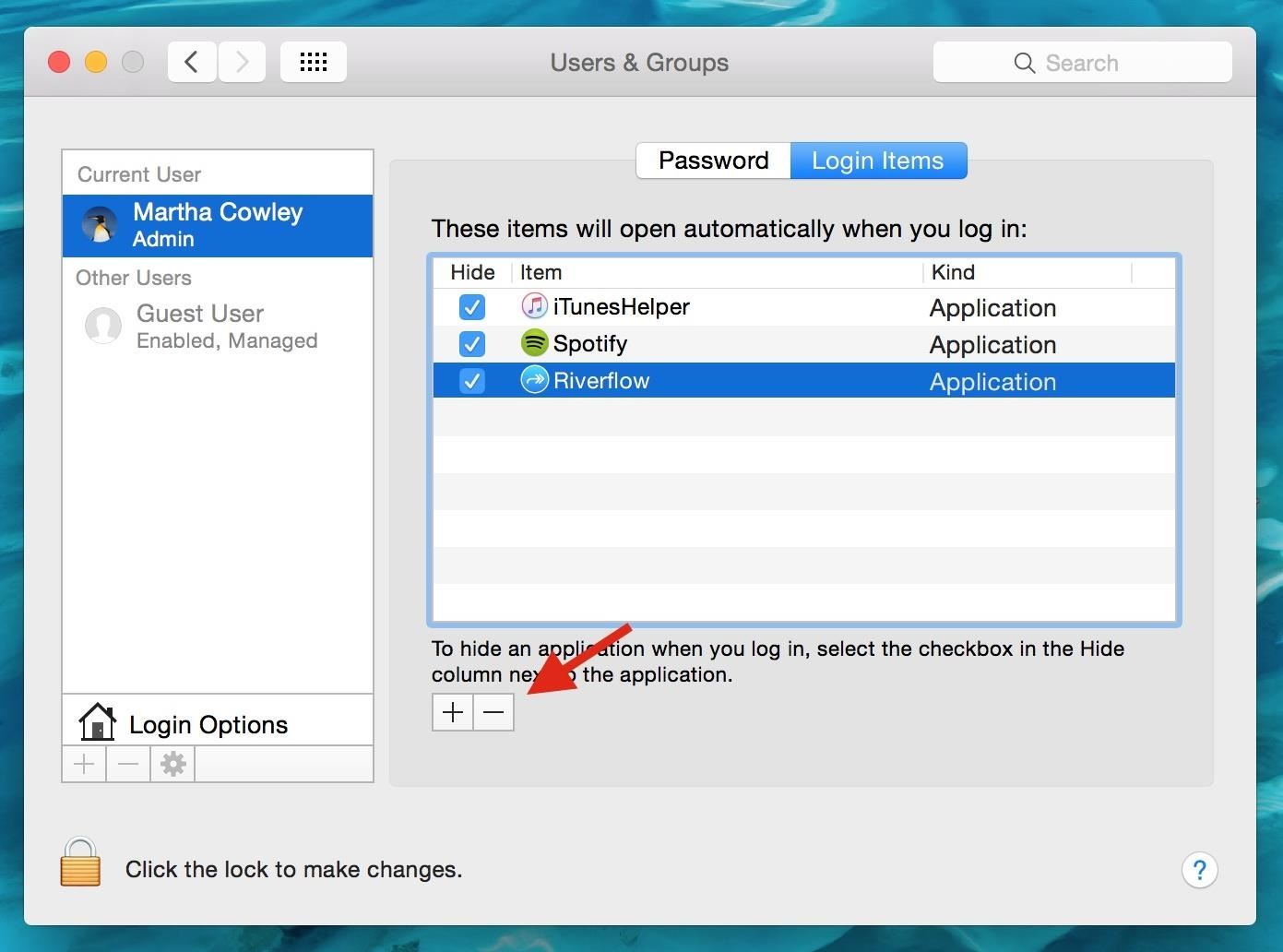
#4: Stop Apps from Opening Automatically When You Log InEvery time you log in to your Mac, a handful of apps open automatically, using resources before you even do anything. Stop all apps from auto-starting by going to System Preferences -> Users & Groups, then click on "Login Items," select an app (or all of them), and hit the minus sign underneath.
#5: Disable Dashboard or Notification Center (Wait)Two native OS X features that I never use are Dashboard and Notification Center. The problem with that is that they take up processing power and RAM that could otherwise be used towards gaming. Luckily you can disable both of them using Terminal.
Notification CenterTo disable Notification Center, open Terminal and enter the following two commands from Pastebin, one by one, in this order:Disable Notification Center Kill Notification Center You will no longer receive alerts, banners, and notifications for any apps in your Notification Center. To get Notification Center back on your Mac, open Terminal and enter the following command from Pastebin.Bring Back Notification Center Then go to /System/Library/CoreServices/ and double-click on Notification Center to launch it.
DashboardSimilarly, you can disable Dashboard through Terminal by using the following command on Pastebin.Remove Dashboard Your dock will disappear for a bit and Dashboard will be gone. You can bring Dashboard back with the following command on Pastebin.Bring Back Dashboard

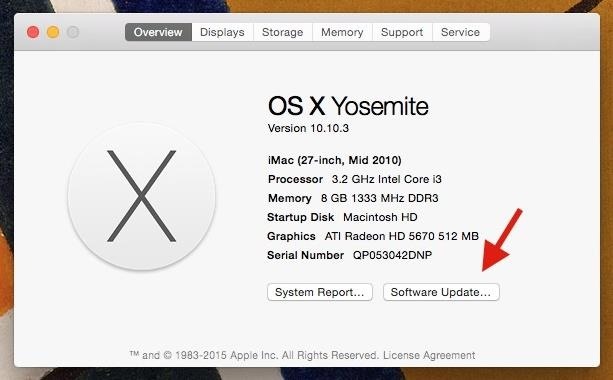
#6: Make Sure All of Your Software Is Up to DateUpdates to your software include both bug fixes and new features that affect the way your computer runs, including the games that you play on it.On OS X, check for updates by clicking on the Apple icon in the menu bar, then "About This Mac." Click on "Software Update..." and the Mac App Store will open, where you can update all of your computer's software, including your operating system (I'm using Yosemite, but could update to El Capitan). If you use Steam, it's also a good idea to update all of your games, which provide patches, updates, and new game installs that improve the way they run. Just go to "Library" and check which games need to update (unless you have auto-updates enabled, then you're fine).

#7: Configure Game SettingsEach game you play has graphic settings that you can customize to add more details to the background, let you see further, and more. Usually you'll find these settings in the game menu under "Graphics." As you can see below, many features like motion blur and sun shafts are disabled, because I don't really care for them, as they tend to cause a significant amount of lag because they constantly need to be updated and drawn. Ultimately it's up to you to choose which graphics settings are worth keeping, since all will affect game performance one way or another. You can also change the quality of certain graphics, which can range anywhere from low to high. Mess around with these to see which affect gameplay the most.

#8: Try Both Windowed & Full Screen Mode When PlayingBelieve or not, playing in different view modes can affect gameplay. I tested out a few games from Steam, in both windowed (seen below) and full screen modes, getting mixed results in how well the game played.Some games slowed down a bit when the window was too small, but others also slowed down when I went into full screen mode. Try out all the options possible to see which works best for you.

#9: Use Windows to Play GamesLast but certainly not least, you can always use Windows on your Mac to play all of those games unavailable on OS X. Using Boot Camp Assistant, you can dual boot Windows 10 on your Mac to play all the Windows games you want. Do you have any other tips to add that have made your gaming experience on Mac better? Let us know in the comments below!Follow Apple Hacks over on Facebook and Twitter, or Gadget Hacks over on Facebook, Google+, and Twitter, for more Apple tips.


Android phones have had facial authentication even before iPhones got Touch ID. In 2012, Android 4.0 Ice Cream Sandwich had a feature that scanned your face using the front-facing camera to unlock the phone. It worked well in sufficient lighting, because there was no specialised equipment that made faces visible in the dark.
How to decide between Android and iPhone | Computerworld


3 Solutions To Hack Into Someone's iPhone Without Them Knowing. iPhone is considered to be highly secured phone and hacking iOS based phones are next to impossible.


If there is no audio or sound when playing YouTube videos online, refer Google YouTube support No sound on videos to have your problem solved. If you have no audio in YouTube video playback on iPad/iPhone/iPod touch, try to mute and unmute with the button on the side of iPad/iPhone/iPod touch.
How to download audio from any streaming video | PCWorld


Texts are basically just email messages (albeit on a different network--texts are sent via a wireless carrier's network, while emails are sent via data), and so it's easy to send and receive text messages using your email address. Here's how to do it. Send a text message via email
Use Email to Send Text Messages (SMS) to Mobile Phones for Free


[Logo] LG Makes It Easy [Title] webOS 2.0: Adjusting Picture Settings [Narrator] For the most enjoyable viewing you want to adjust your LG Smart TV using your personal preferences as well as the demands of the different types of programming what you're watching with unique considerations for your viewing environment here's how.
LG Help Library: Best Picture Settings for your LG 4K or 4K


The Google Play Store has a staggering 2.6 million apps, and it can be challenging to determine which of them are worth a download. We've been curating our list of best apps for almost a decade.
Cell Phone Settings You Should Know How to Use | Xfinity


Download and install all Android 5.0 apps on any KitKat ROM. Lollipop is the next generation of Android. It comes full of optimization and features. The apps also had been updated to the new look called as material design.
Install the Android Lollipop Recent Apps Menu on Any Android


Looking to speed up your iPhone? A battery replacement may be one of the best options. Apple has shared that it decreases iPhone performance to guard against less predictable, older batteries from
Will a new iPhone battery really speed up your device? There


Need a primer on how to use zoom lenses with your Canon DSLR camera (a 7D, 5D, or Rebel T2i, for example)? This brief video tutorial from the folks at Butterscotch will teach you everything you need to know.
How to Set up a DSLR camera for the best possible looking


When someone asks me why they should root their phone, one of the top reasons I always give is that it enables you to install the Xposed Framework.Created by developer Rovo89, Xposed basically hooks into the Android system, then allows users to simply install mini-apps called modules that can change almost anything in a device's interface or other installed apps.
Install the Xposed Framework on Your Rooted LG G3 for 100s of


If you really want to control what your kids are seeing, you need to install software that can block certain sites and alert you to what they're doing. I'm a big fan of Net Nanny because it's a proactive tool that blocks porn and profanity before it hits the screen
I cannot access facebook because of net nanny - JustAnswer


Remove unwanted ads, pop-ups & malware. On your Android phone or tablet, open the Chrome app . Go to a webpage. To the right of the address bar, tap More Info .
How to Stop Pop-Up Ads on an Android Phone: Say Goodbye to


How To: Root a Nexus Device Running Android 6.0 Marshmallow How To: Update Your Nexus Without Losing Root (No Computer Needed) SafetyNet Explained: Why SafetyNet Shows That Google Actually Cares About Android Root Android Basics: A Series of Tutorials for Beginners
SafetyNet Archives - LineageOS


The Note 9 not only scored far below last year's Apple flagship iPhone X (10,357 points) but also fell short of OnePlus 6's benchmarked score of 9,088 points.
Music Video - Strand of Oaks « Canon EOS 7D :: WonderHowTo

News: Features We Want in iOS 13 for iPhone (& What's Rumored to Show Up)

News: Features We Want in iOS 13 for iPhone (& What's Rumored to Show Up)
Apple's scheduled to show off the first look of iOS 13 at WWDC 2019 on June 3, but what will the new operating system hold for iPhone? Rumors suggest that many features initially planned for iOS 12 will show up in iOS 13, codenamed "Yukon," and dark mode will be the big ticket item this year.The list below could be endless, in my opinion, if we nitpick through every Apple app, feature, and setting. Personally, there are a ton of small things I'd like to see changed in iOS either for ease of use, saving time, better organization, and so on, but we tried to hold back on the most important ones that we want and are rumored to happen. What would you want to see most, listed below or not?
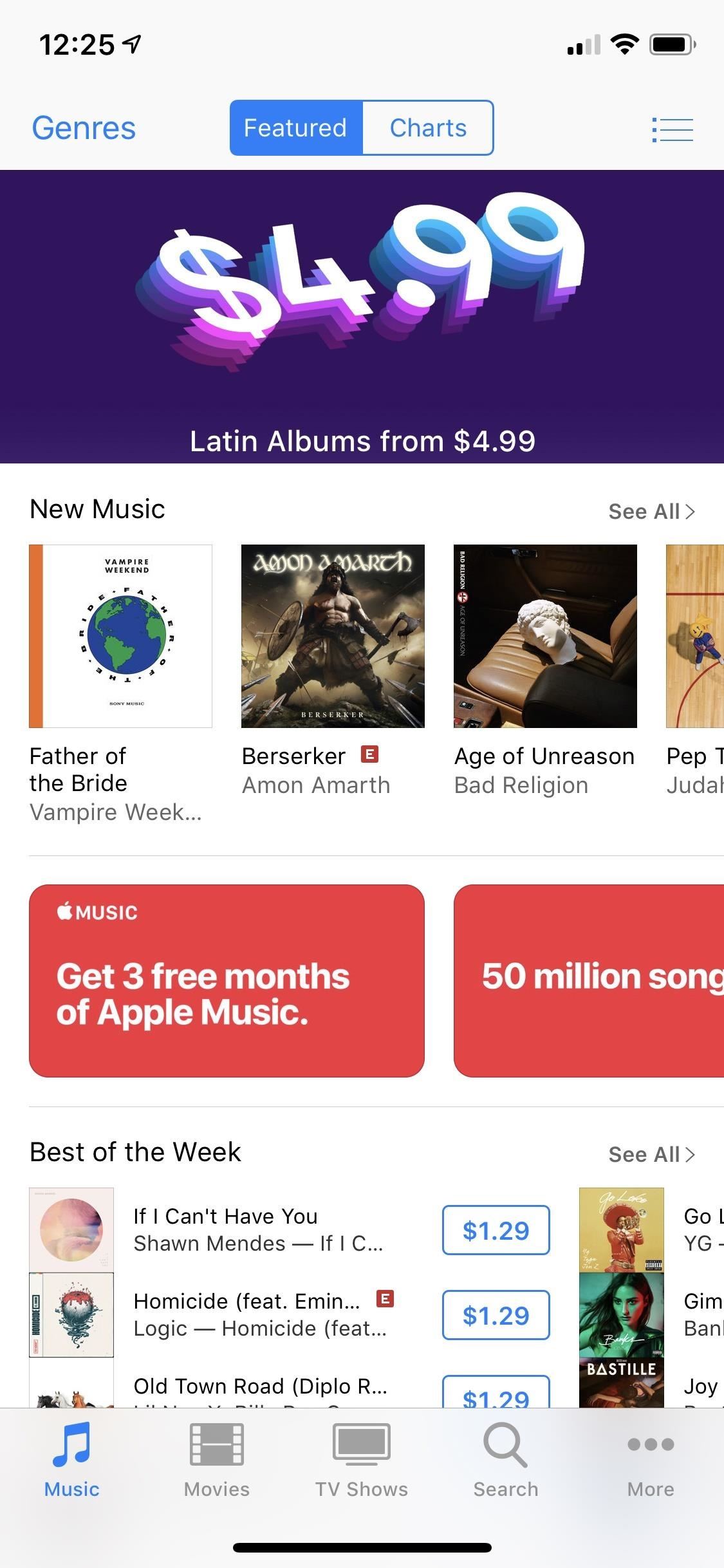
Feature 1: Universal Dark Mode (Rumored)A dark mode feature was supposed to come along with iOS 12 but it didn't — a huge disappointment since the first ever OLED-equipped iPhone was available, the iPhone X. There are credible rumors suggesting that dark mode will indeed appear in iOS 13, and it's more likely now that there's also the iPhone XS and XS Max, both with OLED displays. Hopefully, we can say goodbye to the need for Smart Invert mode.Dark mode, which would be accessible in the Control Center, would let you change all the bright white elements to a darker color, black or dark gray or both. It's easier on the eyes at night and combined with Night Shift, the display shouldn't be responsible for keeping you up anymore. There's also battery savings since the screen will be pushing out less bright light. It will save even more battery on OLED displays because the pixels won't need to be lit up at all for black areas and they won't need to use the full RGB spectrum for gray areas.Don't Miss: How to Enable Dark Mode in All Your Favorite Apps The iTunes Store gives us a preview of what Apple could do in other apps.
Feature 2: Better Trashing Abilities in MailIn iOS 9 and some earlier versions, there was a "Trash All" option for mailboxes. Apple, for some reason, removed it in iOS 10 and it still hasn't come back. There's a workaround that you can use, but it only works from folders, not from a search. We shouldn't have to use workarounds either. A video I made a while ago shows that it takes five minutes to delete 450 marketing emails from a search. Not fun.Don't Miss: How to Delete Emails in Bulk from Your iPhone's Mail App
Feature 3: Read Later Queue in Mail (Rumored)Instead of flagging a new email or having to create a folder and use the long process to get a new email into that folder, whenever you have a new message you want to read but don't have time to at the moment, throw it in a Read Later queue. It's another rumor for iOS 13, and it'd likely appear as an option in the action sheet or via a swipe shortcut. If it's not fast, there's no point.
Feature 4: Mute Conversations in Mail (Rumored)If you like notifications but don't want them for specific conversation threads, iOS 13 might let you mute them. Gmail lets you do it, and Apple already has this ability in the Messages app and for apps in the Notification Center, so it's entirely possible this will show up in Mail too.
Feature 5: Block Incoming Emails in Mail (Rumored)Another iOS 13 rumor expects us to get a blocking tool in Mail, similar to the one for the Phone app. So if you have junk mail that's constantly breaking through, this could be a way to get rid of it for good. It'd also be useful to silence trolls and hateful contacts that do nothing but harass.
Feature 6: More Organization in Mail (Rumored)My Mail app has gotten a little overwhelming, and one thing that can help with that is better organization tools. And that's what iOS 13 may come with. Specifically, the rumors say that there will be searchable categories emails will land in, such as marketing, purchases (my personal favorite), travel, unimportant, and so on. What will show up could be anything or nothing at all, but hopefully there's some improvement.
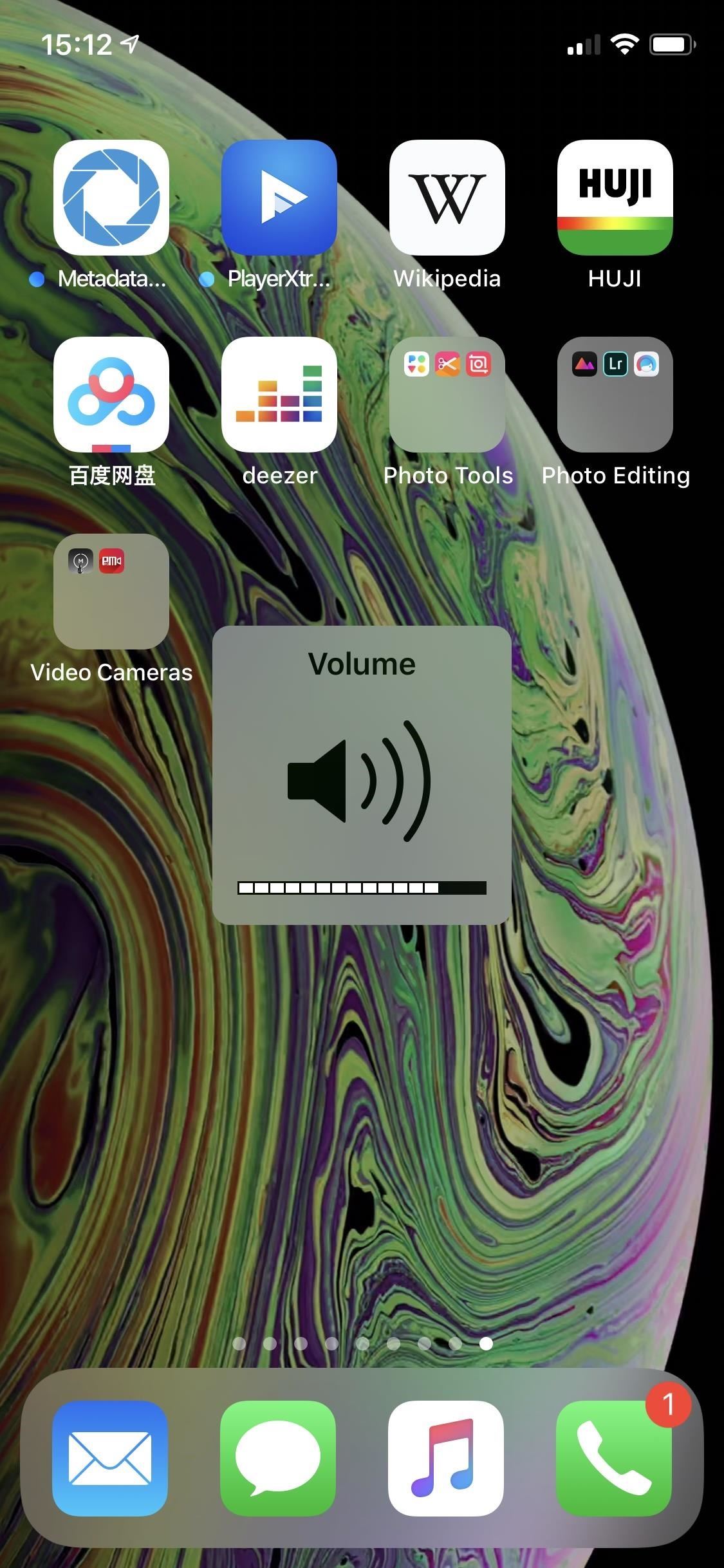
Feature 7: No More Volume Overlay (Rumored)It's been on practically everyone's wish list I've ever spoken to, year after year. In iOS 11, the annoying volume HUD that pops up right in the middle of content, blocking your view for longer than necessary, was replaced in some areas of iOS — but not everywhere. To name just a few where it shows up, there's the home screen, videos in the Photos app, and videos in Safari, as shown below. Can we just be done with this thing? It's rumored for iOS 13, but will it be another half-assed approach?
Feature 8: Sleep Mode (Rumored)Apple currently has Bedtime in the Clock app, which lets you set sleep and wake times, as well as Do Not Disturb and Bedtime Mode in the Settings, for muting calls and notifications and dimming the lock screen. But when you really want to get away from your iPhone during the day, it's not enough. But a sleep mode could be.It's rumored that a sleep mode will be coming in iOS 13, a toggle in the Control Center, which will turn on Do Not Disturb and Bedtime Mode, darken the lock screen, and mute notifications. And it will likely tie into the Clock's Bedtime tab. Hopefully, it could even go beyond all that and enable a reduced white point and Night Shift mode for when you need to use the device. Also, what if it could tie into App Limits in Screen Time, so when enabled, it locks you out of all apps until disabled? Customizability is preferred.
Feature 9: Glide or Swipe Typing in the Keyboard (Rumored)SwiftKey has been out for a long time with a swipeable keyboard for super fast typing, and it's even in Gboard, my favorite third-party keyboard for iPhone. Why continue using Apple's keyboard if it's so limited? If the rumors are correct, glide-typing may finally be coming in iOS 13.
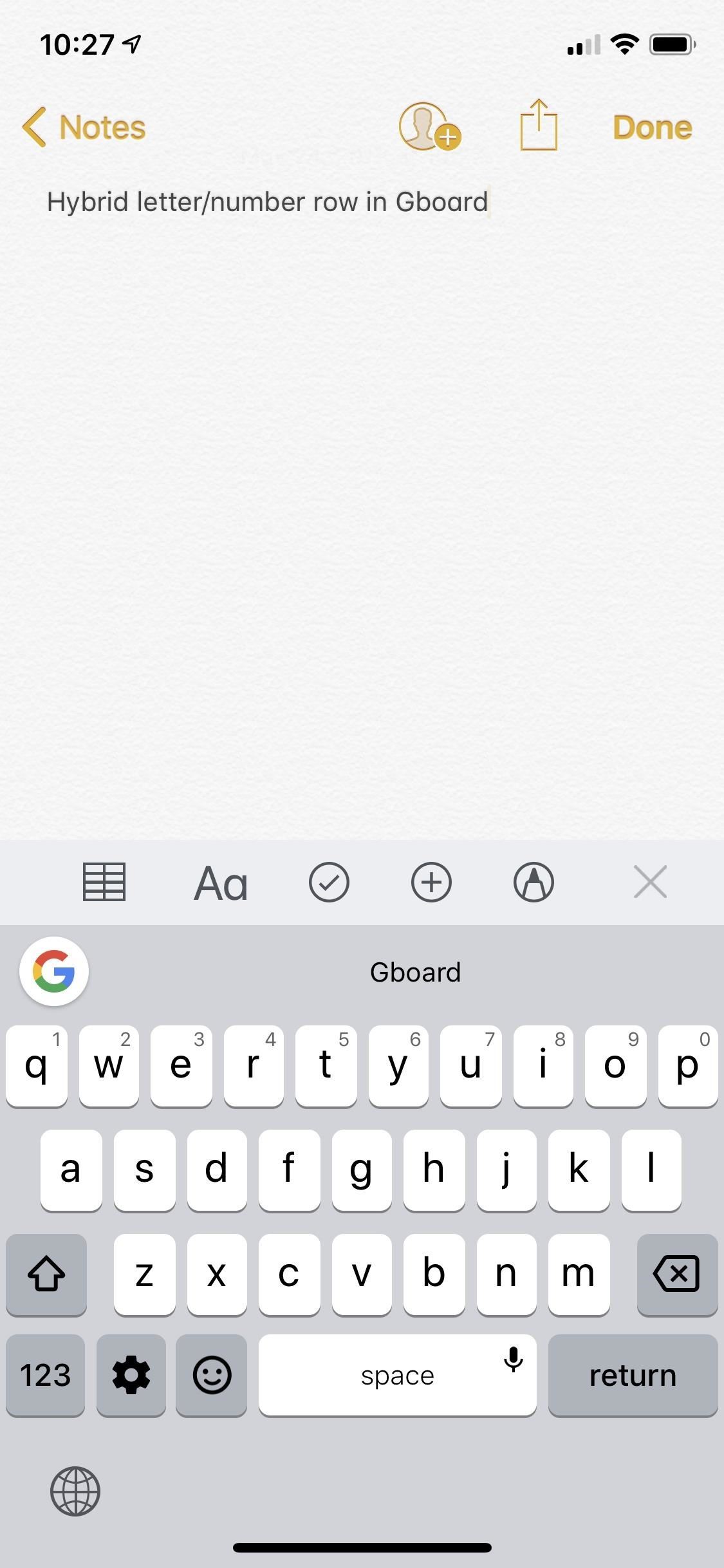
Feature 10: Number Row in the KeyboardIn April 2018, Gboard added a number row to its keyboard where you long-press or swipe-up the top letter/number keys to type the numbers. It's not a dedicated number row, but it works pretty well. It's something Apple needs to add support for, along with swipe-typing, if it wants to keep users in its keyboard. An option in the settings to turn a dedicated row or a hybrid row on and off would be best.Workaround: Quickly Switch Between Alphabet & Numeric Keyboards
Feature 11: Better Undo Gesture When Typing (Rumored)To undo something when you're typing with Apple's stock keyboard, you need to shake your iPhone like a crazy person. If you added more text than you wanted, you could also just delete it, but there's no other alternative for when you want to get something back. Apple may put a stop to this in iOS 13, with a three-finger swipe gesture instead, which won't cause an iPhone to hit the pavement accidentally.
Feature 12: Dual-Screen Mode for iPhonesThe iPad has Slide Over and Split View, both of which let you use two apps at the same time, so why not iPhone too? Plus-sized iPhone models have been around since late-2014, so why aren't there Plus or Max-sized features for the display? One day, maybe, but it likely won't appear in iOS 13.Workaround: How to Split the Screen on Your iPhone for Faster Multitasking
Feature 13: Wish List in the App StoreBack in iOS 11, Apple removed the "Wish List" in the App Store. Why? Who knows, but it's still in the iTunes Store, and the TV app has a pseudo wish list with the Up Next feature. Books even has the option to add items to a collection. Right now, the only sensible way to do it in the App Store right now it to share it to Notes.Workaround: Missing the App Store's Wish List? This Is the Best Alternative
Feature 14: Quick Actions for Haptic TouchIf you own an iPhone XR, you know what I'm talking about — unless you fall into that crowd that doesn't care about 3D Touch shortcuts.On the home screen of iPhone models with 3D Touch, you can firmly press on an app icon to bring up a list of quick actions, as well as view widgets if any. It's challenging to bring this to Haptic Touch since the gesture would be almost exactly like the one used to open edit mode to delete apps and rearrange them. Hopefully, though, Apple figures this out, especially if Haptic Touch is to be the 3D Touch replacement that everyone says it is.
Feature 15: Home Screen ImprovementsApple is supposedly working on home screen improvements again, but it's hard to classify this as a rumor since there are no details, and it's been rumored year after year. Also, the stories could point toward the iPad, which desperately needs it.Still, there is a lot that can be done for the iPhone. Apple could open it up to customized layouts with gaps wherever you want them. It could also include a row of Siri suggested apps that change based on machine learning of your usage. Contact icons on the home screen would be appealing, with quick actions for calling, texting, sending money, and more. Maybe an option to hide any app on the home screen would be good, especially offloaded apps.
Feature 16: Better Home Screen Rearrangement OptionsI just mentioned it above, but it's a big one. We need the ability to put app icons on the home screen wherever we want. Yes, you can already do that to a certain degree, but you can't put one app in the top left of a page, one in the top right, and four on the bottom, leaving room to enjoy the wallpaper more. That's just one example, but we need to ability to add blank spaces for separation and customizability.
Feature 17: Combined Find My Apps (Rumored)There's Find My iPhone and Find My Friends, the former of which lets you track down lost or stolen devices, the latter of which enables you to share your location and spy on others' positions. The rumor claims these two apps will converge into one "Find" app so that you won't need two apps with limited functions anymore.Most interesting is that a feature could show up for the Find My iPhone side of things that can track a device even without Wi-Fi or cellular data enabled on it. Tile trackers already do this with Bluetooth, by turning its network of users into geo-locators for lost items. Apple could do something similar, which makes sense since it's supposedly developing Tile-like tracking tags that pair with your iCloud account and can be located with the Find app.In the Meantime: Tile Trackers on Amazon
Feature 18: Fonts Management System (Rumored)Right now, the only things you can do to the system font on your iPhone is enlarge it with Display Zoom (on Plus or Max models), change just its size and not other components of the system, and bold it. That's not changing in iOS 13 or any time in the foreseeable future. However, iOS 13 might come with a fonts manager in the Settings app that lets you add fonts to the device's font book.Before, if you wanted to use a specific font inside an app, you'd have to hope that the developers included an option for it or else you'd be left with jailbreak tweaks, configuration profiles, and third-party keyboards. As of iOS 12.3, there are 263 different preinstalled fonts that developers can take advantage of for their user interfaces. Additionally, there are 138 fonts for document views and 380 that can be downloaded.Rumor has it that iOS 13's fonts manager in Settings will let you control what font appears in text fields and that devs get access to a new font picker. Also, if you download a document that uses a specific font and you don't have it, a pop-up will prompt you to install the missing font. While there are a ton of fonts compatible with iOS, I don't see Apple adding all of them, by default, to its fonts management, so plan on downloading a bunch.
Feature 19: Third-Party Apps in Control CenterThere's a lot of default tools in the Control Center, as well as a few you can add, but they're all made by Apple. At first, widgets were only for stock apps and tools, but Apple eventually opened that up to third-party apps which now overwhelm the Today View. When will we start seeing third-party apps take over the Control Center?
Feature 20: Settings Shortcuts in Control CenterAndroid has had it for a while, but iOS has resisted it so far. In the Control Center, wouldn't be nice if you could long-press or 3D Touch a control such as Cellular Data, Wi-Fi, and Bluetooth and have it take you directly to those options in the Settings app? I'm not sure why anyone would say no to that.Also, some controls lead you to more options when you long-press or 3D Touch them, such as Camera, Notes, and the brightness slider, and one of the options on the next screen could be to visit the settings menu for the app or feature in question. Just look at the mandatory Do Not Disturb control. When you open more options for it in the Control Center, one option is "Schedule" which takes you right to the DND settings. Let's get more of that.
Feature 21: More Options for Wi-Fi & Bluetooth TogglesStaying on the Control Center track here, let's talk about the Wi-Fi and Bluetooth controls. When they are on, and you tap them, they'll turn off for 24 hours. Tap again, and they're back on right away. But what if you never want them enabled? You can altogether disable them in the Settings app, so why not a third tap or long-press on the control to let you turn them off forever as well? Or, I'll settle for a settings shortcut as previously mentioned.
Feature 22: Transcribe Audio MessageIf the iPhone can transcribe voicemails in the Phone app, why can't it transcribe audio messages in the Messages app? When you're in a library, at work, in school, or in another place where breaking out the headphones or blaring a message for all to hear is not appreciated, transcriptions would allow you to know what was said without having to listen. There may be some privacy concerns here, but it sure beats paying a service to do it for you.
Feature 23: Profile Pics & Display Names in Messages (Rumored)You can add photos to your Contacts, which will show up in the Messages app but only for iMessage contacts. Well, a rumor states that iOS 13 will lets iMessage users select their own profile photo that will appear on all of their contacts' devices. It won't affect your photo of them in Contacts, just on iMessage. Also, it's possible Apple will give iMessage users the option to choose a display name instead of whatever is in the Contact card.
Feature 24: Organize & Edit Contacts GroupsYou can have groups of contacts set up in the Contacts app, such as for Work, School, Friends, Family, and so on. However, you cannot edit or create these groups on your iPhone. It can only be done in the Contacts app on macOS. You can't even add contacts to any of your current groups. It's about time Apple did something about this. Why can you view groups in Contacts for iOS but not do anything with them except hide or show them?
Feature 25: Rate Songs from Lock Screen or Control CenterI remember a time when I could rate a song in the Music app right from the lock screen player. I used to do it when I was at the gym or running and didn't want to unlock my iPhone. Now, you can't even love or dislike a song from the lock screen unless you use Siri. You can't even do stars or likes from the audio controls in the Control Center. For me, this is my number one wish for the Music app.Don't Miss: How to Rate Songs with Stars in iOS 10.2 & Higher
Feature 26: Protected Apple Apps & FeaturesSome third-party apps can be secured by a password or biometrics, i.e., Face ID or Touch ID. Outlook, Telegram, LastPass, and Signal come to mind as obvious ones that have this. So why can't Apple build this into its apps and features?Yes, you need Face ID or Touch ID to use Apple Pay, but that's a necessity. Apple also has password and biometric protection for documents in Numbers, Pages, and Keynote, but it's optional on a per document basis. Same thing with Notes.But it could be more distributed such as for the Hidden album in Photos. That album hides content from the Camera Roll, but what's to stop someone who has access to your iPhone from just opening up the Hidden album? What if you don't want anyone loving, disliking, or rating songs in the Music app? Or reading your conversations in Messages? What about locking down the Settings app itself?
Feature 27: Take RAW Photos in CameraApple gives third-party apps access to RAW photo capabilities, but it only uses it itself in the Photos app which lets you view and make minor adjustments to RAW photos imported or taken with other apps. But why can't the Camera app itself take RAW photos?
Feature 28: Longer Live Photos (Rumored)Right now, when you view a Live Photos, the video portion is three seconds long, but iOS 13 might kick that up to six seconds. While it would be nice to view an extra three seconds of video, it would also help with Live Photo effects such as Long Exposure, giving them more to work with.
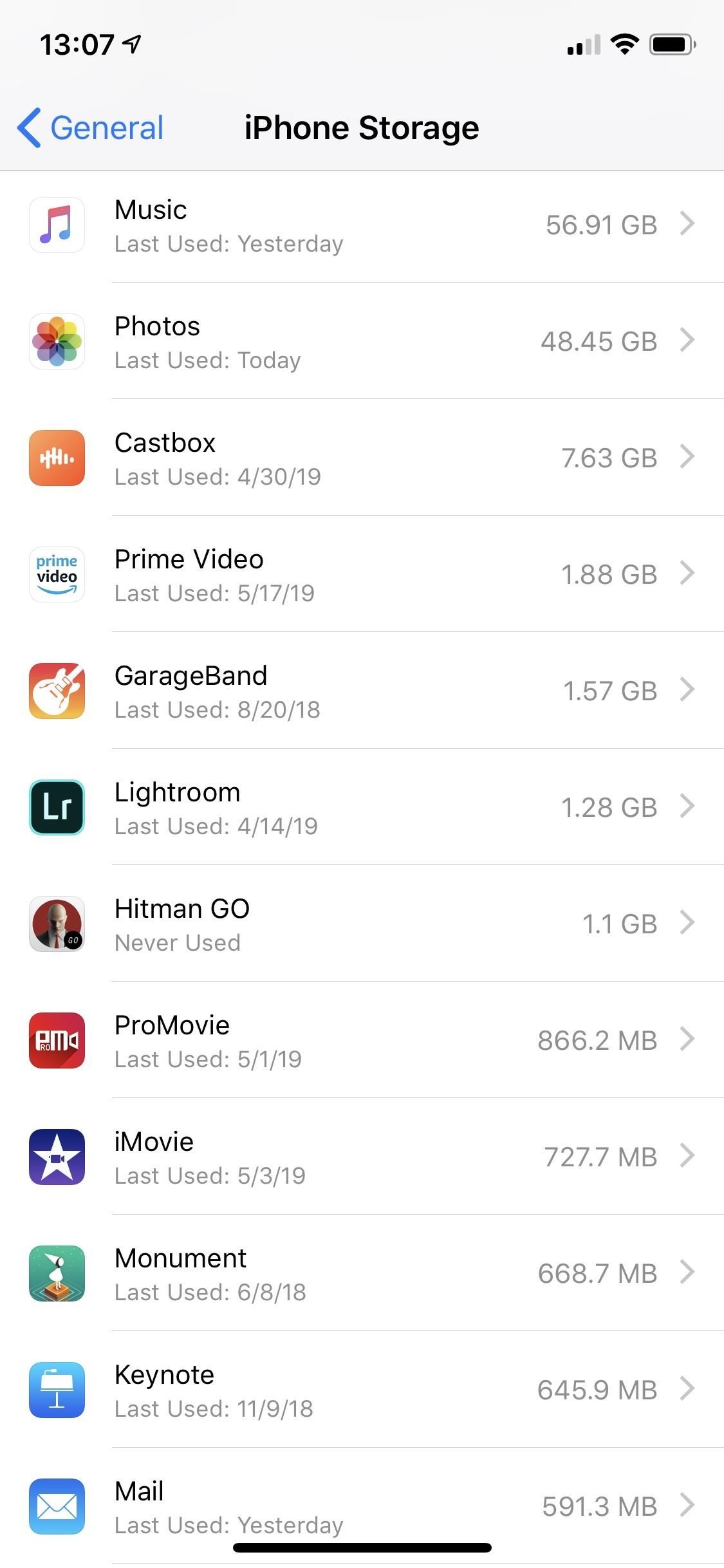
Feature 29: Ability to Sort Apps More in MenusYes, in the main Setting view, all apps below the default ones are alphabetized. But not in the iPhone Storage menu. Not in Screen Time. Not in the Cellular menu. Not in the Microphone, Photos, Camera, and Contacts privacy settings. Not in the Battery stats. Not in the Updates or Purchased lists in the App Store. It would be nice if some of these lists let you alphabetize apps or sort apps by categories.In the Battery menu, you can sort by most used or battery drain, that's it. In Screen Time, it's only apps and sites or categories. More options overall would be better.
Feature 30: Always-On Display for OLED Displays (Rumored)Now that there's the iPhone X, XS, and XS Max, all with OLED displays, it's time for them to be always-on displays as well. With these types of displays, information can show up on the screen when the device is "asleep," such as current time, alerts, stopwatch, etc. The blacks will remain unlit, not wasting precious battery life, while the information displayed can use some of the pixels as needed. Many Android phones already have this and have for some time.
Feature 31: View Security Videos Right in Home (Rumored)If you have a Nest Cam or other security camera connected to the Home app, iOS 13 may be bringing more options, such as being able to view past recordings without having to open up the camera's official app.
Feature 32: Reading Progress Tracker in Books (Rumored)One exciting rumor for iOS 13 is that the Books app will have a progress tracker, similar to the progress tracker you can manually add to your Goodreads account. Also, it's possible there will be a rewards system to keep you reading and reading and reading.
Feature 33: Better Organization in Reminders (Rumored)I love the idea of the Reminders app, but I never actually get anything done in it because it's so chaotic. I have like 20 different lists, I can't remember what's in what, and the Show Completed history is weird. Some of this may be better in iOS 13, which is supposed to have a new main layout of four default grid sections, those being things that need to be done today, all of the tasks, your scheduled tasks, and flagged ones. Will it make it more usable? Maybe. We'll have to wait and see.
Feature 34: Downloads Manager in Safari (Rumored)In the Safari browser for Mac, you can view downloaded files, open them, and jump right to them in Finder. Nothing like that exists on the iOS version of the web browser, but Apple may be testing a downloads manager for iOS 13 to access downloads from one place. How this would work, nobody knows, but maybe it would be a "Downloads" folder inside of a "Safari" folder in the Files app for "On My iPhone," similar to how Firefox does it.
Feature 35: Health App Improvements (Rumored)Rumors claim that the Health app will get a few new things. First, a better view of daily activity. Second, improved menstrual cycle tracking. Third, a new section for hearing that tries to figure out if you're listening to music too loud or if ambient noise could be ear-damaging sounds.
Feature 36: Contact Suggestions in the Share Sheet (Rumored)The activity view, also called the Share sheet, houses AirDrop, action options, and sharing options. What it doesn't have is contacts, but iOS 13 may change that. There aren't many details on the rumor, but there could end up being a new section in the view just for contacts.
Feature 37: More Screen Time Controls for Kids (Rumored)If you're a parent who loves the Screen Time restrictions you can put in place for your child's iPhone, more features are coming. Specifically, iOS 13 might have a new option for limiting who the kid can contact during specific times. For instance, you can restrict the device only to let it contact you or other family members for emergencies when at school, or you can keep them from reaching friends after bedtime.
Other Features We'd Like to SeeThere are actually a ton of features and settings we'd like to see iOS 13 incorporate. Aside from the ones above, there are the ones below that many users across the web also agree with.Custom icon packs (and not just a way for third-party apps to let you change their own icons). Live icons on the home screen. Always-on widgets on the home and lock screen. Desktop mode so the iPhone can be used with an external display, keyboard, and mouse. More customization options all rounded, like themes, background colors for Apple apps, different color bubbles for specific users in iMessages, etc. More advanced options and full-system support for Shortcuts automation. Improved battery widget that shows more stats and information. Picture-in-picture mode, and not just for YouTube videos in the YouTube app like we already have. Screen-sharing in FaceTime video calls. Call recordings in FaceTime video and audio calls. (There are privacy issues and laws that have and will probably prevent something like this.) Removal of shake-to-undo for more than just typing, like when you accidentally delete or archive an email. There should be buttons or swipe gestures for it instead in apps. A built-in way to see EXIF data or rename photos. More manual controls in the default Camera app. A way to set a default aspect ratio for photos (aside from just regular and square). Banner notifications for phone calls (instead of taking up the whole screen). A quick way to get refunds for accidental app purchases. More wallpaper options. Typing bubble on the Messages main screen for iMessage conversations. Customizable lock screen app shortcuts. Built-in translator for Safari (not just a Microsoft Translator action). Reset default apps for actions. And the list goes on and on.Don't Miss: Everything We Know About the iPhone XI & XI Max So FarFollow Gadget Hacks on Pinterest, Reddit, Twitter, YouTube, and Flipboard Sign up for Gadget Hacks' daily newsletter or weekly Android and iOS updates Follow WonderHowTo on Facebook, Twitter, Pinterest, and Flipboard
Cover photo and screenshots by Justin Meyers/Gadget Hacks

Features We Want in iOS 13 for iPhone (& What's Rumored to


In the 111th episode of the iPhone Life Podcast, tune in as Sarah and David review all of the iOS 13 features we're expecting Apple to unveil for the iPhone and iPad on June 3 at the Worldwide Developers Conference. And tune in next week on June 3 for our special post-WWDC episode where we'll discuss everything Apple announces.
iOS 12: best new features - cnbc.com


Apple is rumored to be dropping support for the iPhone 6, iPhone 6 Plus, and iPhone SE with the release of iOS 13. If true, owners of the iPhone SE would only have three years on the latest
WWDC 2019 Rumors: What New iOS 13 Features Will Apple


Apple's scheduled to show off the first look of iOS 13 at WWDC 2019 on June 3, but what will the new operating system hold for iPhone? Rumors suggest that many features initially planned for iOS 12 will show up in iOS 13, codenamed "Yukon," and dark mode will be the big ticket item this […]
Flipboard: News: Features We Want in iOS 13 for iPhone


iOS 12 Release Date, News and Features . What is iOS 12? Apple's next big iPhone and iPad software update But we also want a smarter keyboard that doesn't autocap and autocorrect randomly.
iOS 13 Rumored to Drop Support for iPhone 6, iPhone 6 Plus


The smartphone design we all want is finally real, but it's not an iPhone or Galaxy device A leaker a few weeks ago did say that Oppo will show a phone with under-display camera tech, while


Apple's scheduled to show off the first look of iOS 13 at WWDC 2019 on June 3, but what will the new operating system hold for iPhone? Rumors suggest that many features initially planned for iOS 12 will show up in iOS 13, codenamed "Yukon," and dark mode will be the big ticket item this year.
Features We Want in iOS 13 for iPhone (& What's Rumored to

Gear & Gadgets. News: Features We Want in iOS 13 for iPhone (& What's Rumored to Show Up) gadgethacks.com - Justin Meyers. Apple's scheduled to show off the first look of iOS 13 at WWDC 2019 on June 3, but what will the new operating system hold for iPhone?
How to Block Popups in Safari on Your iPhone « iOS & iPhone


News: Apple Seeds iOS 12.4 Developer Beta 3 Today for iPhone How To: Livestream Apple's WWDC 2019 Keynote on Any Device to See What's Coming in iOS 13 News: Features We Want in iOS 13 for iPhone (& What's Rumored to Show Up) How To: Secretly Track Someone's Location Using Your iPhone
iOS 11 Wishlist Roundup: 10 Features We Want - iPhone Hacks


iOS 11 Wishlist Roundup: 10 Features We Want to See in the next Version of iOS Posted by Khamosh Pathak on Jun 03, 2017 in Featured , iOS 11 , Top Stories iOS is officially 10 years old.
iOS 12 Release Date, News and Features | Al Bawaba


Jun 04, 2018 · iOS 12 has a ton of updates to its Photos features. It features "search suggestions," where it will highlight key moments, places and events it thinks you'll be interested in.
The smartphone design we all want is finally real, but it's