How To: The 4 Best Password Managers for Android
How To: The 4 Best Password Managers for Android

Over the years, the internet has become a dangerous place. As its popularity has increased, it has attracted more hackers looking to make a quick buck. However, as our dependency on the web grows, it becomes increasingly difficult to sever all ties. This means we have to protect one of our weakest points, the password.Our passwords act as the primary defense against hackers accessing our accounts and the data they contain. With all the information within just one account, we need to make sure we employ the strongest password. But this creates a dilemma — a strong password is hard to memorize, but an easy-to-memorize password is a weak one. Plus, you need a unique password for every account you use, which can easily reach into double-digit figures. This is where a password manager comes in.
Table of ContentsBackground on Password Managers Comparison Chart Key Comparison Points How We Picked These Apps App 1: LastPass App 2: Keeper App 3: Dashlane App 4: 1Password Conclusion

What Are Password Managers?A password manager is an app with a database containing your login information for all the various accounts you use. The database is typically encrypted with a master password to prevent unauthorized access. While this master password may be combined with other secret unique information to increase security, a user typically won't need to memorize anything more than the master password itself.The master password is how one part of the great dilemma is solved. You only need to memorize one strong password for all your accounts. However, you don't reuse this password — instead, you allow the manager to create passwords for all your other accounts. An example of a strong password — hard to memorize, but difficult to hack. Image by Dallas Thomas/GadgetHacks Once a master password is created, you add the login information for all your accounts into the database. At this point, you'll want to replace the password for each account with a stronger one. Using the "change password" function for each of your accounts, the password manager will create a new passcode. The manager will allow you to choose from various parameters such as whether to include uppercase or lowercase, special characters, and the overall length of the passcode to create a strong password that you will never have to memorize.
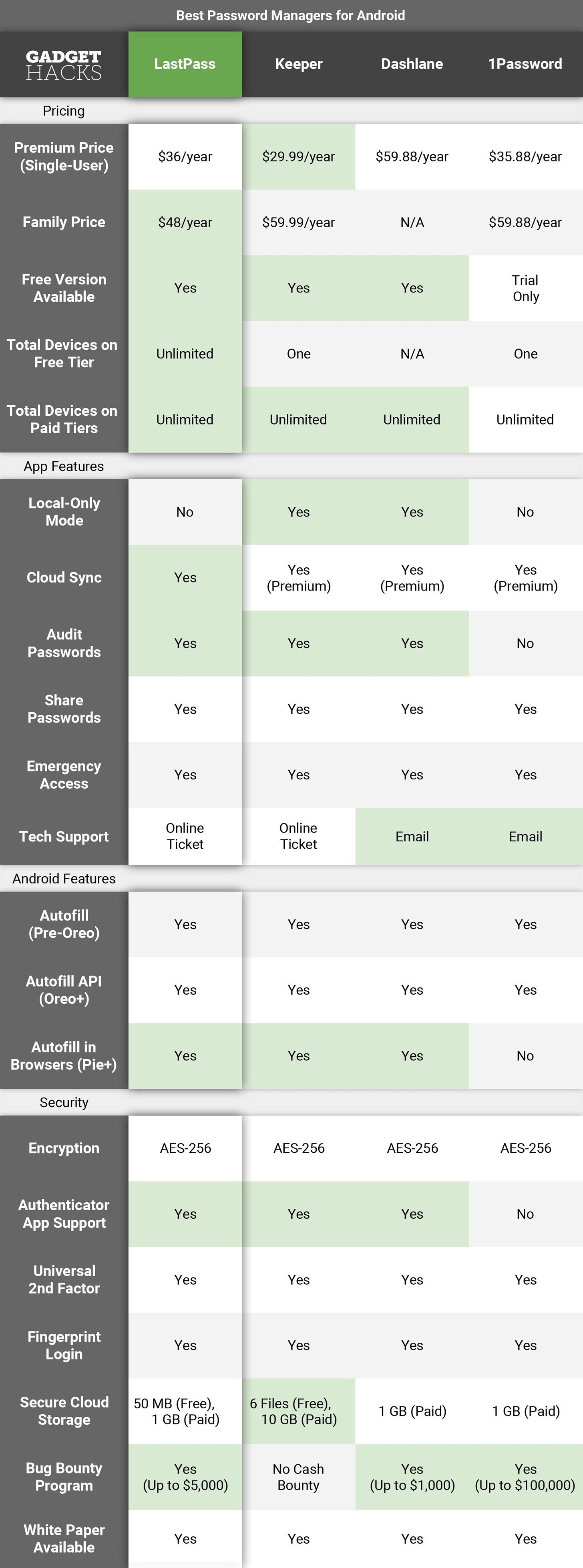
Comparison Chart Image by Dallas Thomas/Gadget Hacks
Key Comparison PointsPremium Price (Single-User): The price to unlock all features for a single user. Family Price: Value pricing for multiple accounts. All but LastPass provide five user accounts for the listed price, with LastPass including six users. Like the Premium Price, this will unlock all features. Free Version Available: Whether or not you can use this service for free. Total Devices on Free/Paid Tiers: If you use the cloud-based password database features available in some of these apps, this will come in handy. These two rows show you how many total devices you can sync your database to on both the free and paid tiers of the service. Local-Only Mode: This feature provides security in place of convenience. Instead of using the cloud to synchronize the database, your database resides only on your device. This provides more control as to who has access to it and who can view its contents, and it decreases the risks of being hacked. Cloud Sync: Your database is stored in the cloud making it accessible across multiple devices. Using the cloud, any modification made on one device will automatically update all the other devices with access. Audit Passwords: The manager reviews all login credentials and will recommend changes to passwords. For example, the manager will recommend changing if your password hasn't been modified in a while (typically three months), or if you use the same password for multiple accounts. Share Passwords: Users can extend access to passwords (whether individually or as a group) to other users. Some managers require that the users receiving access already have an account with the service. Emergency Access: In the case of the user's death or incapacitation, loved ones can be assigned access to the database. This way, the user's online accounts can be managed or deleted depending on the user's situation. Tech Support: The managers on our list provide support through either an online ticket system or email. Email is superior as it is more convenient to use and not susceptible to failure because a web page went down. Autofill (Pre-Oreo): For Android users not running the latest iteration of the OS, the password manager offers some method to automatically fill login information into apps. Autofill is typically accomplished using Accessibility (which operates similarly to Autofill API) or via a special keyboard (with a special button to autofill). Autofill API (Oreo+): One of the new features with Android 8.0 Oreo was the inclusion of an Autofill API. If an app has this feature, you can select its database in your phone's settings, then user names and passwords from your database will be automatically populated into apps and websites on your phone. Autofill in Browsers (Pie+): Starting with Android 9.0 Pie, the Autofill API mentioned above was expanded to include browsers. This means, if the password manager supports this API and you're using a phone on Pie or higher, you'll be able to auto-fill passwords from your database in browsers like Google Chrome without having to use a workaround like the Accessibility plugin that some apps have offered in the past. Encryption: The method used to ensure the security of the database. As of today, the highest standard available is AES-256 encryption. Encryption protects the database by making it virtually unreadable to unauthorized users. Authenticator App Support: The ability to use a code from an authenticator app to strengthen security of your password database. This code serves as an OTP (one-time password) that you enter in addition to your password to prove your identity. Some examples include Google Authenticator, Microsoft Authenticator, and Authy. Universal 2nd Factor: Also known as U2F, this is another way of providing multi-factor authentication. U2F is a set of hardware keys (typically USB) which you need to login to your database along with your password. Since you physically hold onto the hardware keys, many feel this provides the highest level of protection. Fingerprint Login: Using the fingerprint scanner on your device to access your database instead of having to input your master password. Fingerprint login provides convenience for users who repeatedly enter their database. Secure Cloud Storage: Encrypted cloud storage that comes with your subscription. LastPass and Keeper offer limited storage on their free tiers, while the other two password managers only include it with the premium plan. Bug Bounty Program: The security of a system is heavily dependent on its ability to work as intended all the time. However, even the most well-written code will have bugs and unforeseen errors. To combat this, companies offer a financial incentive to those outside the company to report these errors. Typically, higher rewards attract more white-hat hackers (hackers for the good guys) and higher skilled ones. White Paper Available: A technical report on how security and authentication are handled by the software. It provides necessary transparency and allows others to make suggestions to improve security for all.

How We Picked These AppsToday's password managers can do more than just store your passwords. Many have been moved from local storage to cloud storage, which means a copy of your password database is available on all the devices you use and automatically syncs to ensure any modification is reflected on all systems. While not a requirement for our list, each of the managers chosen offers this feature.Our first parameters revolved around security. We would only consider password managers that used the latest security tools available. Currently, that meant AES-256 (Advanced Encryption Standard with a 256-bit key), PBKDF2 SHA-256 (Password-Based Key Derivation Function 2 and Secure Hash Algorithm 2 with 256-bit digest), and salted hashes.Another requirement was that all apps in this list had to use Android's new Autofill API. Found in Android 8.0 or higher, this feature lets you choose a system-wide password database that will be automatically populated into any login fields — including both apps and websites. To use it, you simply install one of these apps, set up your password database, then select it in your phone's settings. (1) Selecting a database with Oreo's Autofill API. (2) Login info from the selected database is now populated into apps automatically. Piggybacking on the last criteria, there should be some way to autofill passwords for all of the non-Android Oreo devices out there. Specifically, there should be a way to autofill passwords in apps, as most password managers can autofill within the browser (whether through a plugin or an integrated browser).Emergency Access was another requirement, as it lets your loved ones access your account if you die or become incapacitated. With emergency access, your loved ones can close your accounts, access your finances, and take control of your online accounts when you are unable to do so. In that vein, you should also be able to share passwords.Finally, we only selected apps that had well-designed interfaces and were easy to use, which eliminated apps such as KeePass. Users of all experience levels should easily be able to create a database, add logins, and autofill those logins. You shouldn't have to set up security tools or spend excessive time in the settings menu, and all of these apps meet that criteria.
App 1: LastPassEasily the most popular app on our list, LastPass has worked hard to offer an amazing array of features that are unmatched by any other password manager out there. Due to the abundance of features being offered at one of the lowest prices, we had to give it the top spot.Play Store Link: LastPass Password Manager (free) LastPass was designed with cloud syncing in mind. The company intends for every user to have access to their database no matter what device they're using, with all their data perfectly in sync. This is exemplified by the fact that they are the only manager on our list to offer this feature for free. LastPass is available on all major operating systems and most major browser, allowing access to their synchronized database no matter what device you're using.One of the more important aspects of any password manager is security. A great password manager must utilize the highest level of security available to ensure your database won't be compromised. LastPass follows this principle and utilizes AES-256 encryption to protect your database.Since LastPass doesn't support a local-only database, your password database resides in the cloud (with a copy stored locally on your device). This requires authentication (to ensure only authorized users are connecting to the servers) and encryption during transport. LastPass accomplishes this using PBKDF2-SHA256 salted hashes. Once the user is authenticated, a decryption key unlocks the local copy of your vault. All communication between the server and the user is within an encrypted connection, adding extra layers to the security. In addition to the above protection, LastPass forgoes any contact with your decryption key, preventing them from accessing your database remotely. While they do store your database, they can't read its contents, ensuring your privacy remains intact.LastPass also supports authenticator apps like Authy or Google Authenticator, which provide an additional step to prove your identity. An even more secure version of this is Universal 2nd Factor (U2F), which houses a one-time password (OTP) within a USB stick, and it's also supported. The user must physically possess the USB stick in order to prove authentication, protecting against remote attacks.LastPass also tries to improve its users' personal security by auditing passwords. Upon review, LastPass will suggest you make changes to passwords that are weaker or have been repeated. Premium plans have access to 1 GB of secure storage to hold your most precious data. LastPass also uses a bug bounty program, offering awards up to $5,000 for any vulnerabilities (or bugs) found within their software. LastPass checks most boxes of essential features users want in a password manager, including no-workaround autofill for your apps on Oreo or higher, and autofill in browsers on Android Pie and up. With the exception of a local-only mode, users are provided everything else needed in a top-tier password manager.Somehow, LastPass is able to offer this at $36 a year, which is one of the cheapest options on this list. Its family pricing is not only the lowest at $48 a year, but it also includes six accounts compared the competition's five. Even better, you can use most features for free! LastPass provides security, convenience, and privacy while remaining relatively inexpensive. And for these reasons, it is number one on our list.
App 2: KeeperKeeper is an excellent alternative to LastPass if you're looking for additional security. If you don't want to trust any company with your database, Keeper offers one of the few essential features not supported by LastPass — a local-only database. It does this while standing toe-to-toe with LastPass on most other fronts.Play Store Link: Keeper Password Manager (free) Keeper offers both a free version and a premium version. Keeper's premium price (for one user) is the cheapest option on our list, while its family pricing is the most expensive. However, the free option is where it loses the most ground to LastPass.In the free version, cloud syncing isn't available. Your database is stored and encrypted locally, and not located anywhere else. Therefore, you never have to worry about your vault traveling across the web — but the downside is you'll have to manually copy your database over to any other devices, while repeating changes manually on each device.In addition, Keeper is a "zero knowledge" service, which means it doesn't know your master password, store any information, or have access to your decryption key. This means Keeper cannot access your database, protecting you from them and reducing the consequences if Keeper was to ever become compromised. However, local-only does surrender the convenience of syncing your database across multiple devices and platforms. For users who care more about this convenience, they will need the premium version.With the premium version (whether single or family), users have access to several features, including cloud sync and unlimited password storage. Users also gain access the ability to use the fingerprint scanner on their device to log into their database versus inputting the master password each time. In addition to sharing passwords, Keeper's premium version also includes Emergency Access. This feature allows users to give up to five loved ones access to their account in case of an emergency (such as death). The emergency contacts will need to wait a specific time before accessing, but after that, they can manage your vault. Users can modify the list of loved ones at any time.Keeper's premium plan offers the largest capacity of cloud storage at 10 GB, but you can only store up to six files on the free tier. Keeper also allows premium users to share passwords, with the only requirement being that the other party is also a Keeper user. The same security tools used to protect your vault when using sync features is used to share the password safely and securely. Another thing to address is Keeper's bug bounty program. While they do have a partnership with BugCrowd that invites white-hat hackers to try and penetrate their security, the incentives are mere internet points instead of cash. Internet fame is obviously less of a motivating factor to find flaws than the actual money being offered by the other apps on this list.Keeper is a great alternative to LastPass' free version. It allows users to have a local-only database, which is more secure than using cloud storage. For premium users, it offers many of the same features as LastPass (including two that LastPass doesn't have) with a price tag that's slightly lower. But while the single-user price is marginally lower, the family pricing is more costly for fewer users. However, because of its lengthy feature list and local-only free version, Keeper is highly deserving of its second-place finish on our list.
App 3: DashlaneDashlane's approach to the password manager centers on ease of use. It accomplishes this with a well-designed app and with a set unique security features.Play Store Link: Dashlane Password Manager (free) First off, let me stress that Dashlane is well designed. Each menu option is clearly labeled, removing any guesswork to its function. The default page is Recent Items, providing quick access to the accounts you frequently use. The integrated browser provides autofill for webpages and accounts without apps, and this functionality is also available on Android Pie or higher with other browsers.Dashlane also has a free version which removes cloud syncing (similar to Keeper), allowing for a local-only mode. Premium users can also turn off synchronization, which removes all copies of your database besides the local copy on your device. Therefore, premium users can choose how they wish to utilize Dashlane. Dashlane supports autofill via Autofill API for Oreo users and via Accessibility plugins for older devices. However, one of the biggest features of Dashlane is Critical Account Protection.Critical Account Protection reduces the difficulty of using a password manager. Dashlane will scan your email inbox and add all accounts associated with that email address. It audits each account's security and creates a report that displays information such as a timeline of when accounts were created, what type of accounts you have, and the risk level if a breach occurs. You are then given the ability to mitigate the risk by quickly changing passwords. Features like automatic password updating will be added when Dashlane implements Project Mirror in the near future. Overall, the main issue with Dashlane is its price tag. It supports many of the same key features that LastPass and Keeper offer, but it comes at a cost. It has the highest single-user price per year and doesn't offer family pricing. That means if a family wants to use Dashlane, each user must pay $39.99 a year. While not a bad option, LastPass and Keeper offer similar value for less.
App 4: 1PasswordWhile 1Password is last on our list, it does have advantages not found with the other managers. Specifically, 1Password's approach to security is greater the previous three options and highly recommend for those who want cloud synchronization in the most secure method possible.Play Store Link: 1Password (free) 1Password authenticates users using what known as a two-secret key derivation. Normally, managers use the master password to create a hash to authenticate users with their servers. A hash is a one-way function that alters data (in this case the master password) to a fixed size. The modification is usually irreversible (hence one-way) so hackers aren't able to derive the master password from the hash.1Password goes a step further by introducing a second component. This component is known as the Secret Key, and it's also unique and only known by the user, improving the security of the hash. The Secret Key is a string of characters that is first generated by your device when you initially create an account. This key is stored locally and is inaccessible by 1Password. While you'll never need to memorize the key as the system automatically retrieves it, its uniqueness is what makes it secure and helps with authentication. 1Password doesn't allow screenshots of its app, so we had to take pictures instead. Because of this two-secret key derivation, 1Password believes it is unnecessary to support third-party authenticators or universal 2nd factor (U2F). While they do have a point, the idea of having something on you to assist with authentication does ease the fear of customers and provides them some level of control that's unavailable with a software-based solution.1Password has by far the largest reward for its bug bounty program, offering payment up to $100,000 for potential vulnerabilities. Such a large amount will attractive higher skilled white hat hackers (good guy hackers) and lead to a more secure platform. For years, 1Password offered local-only storage. However, as of two years ago, it has transitioned to a subscription model and stopped offering the ability to create new accounts for the standalone model. So while there is a free tier, there's no way to access it unless you already had a license.Pricing is high, charging the second most for single user and family subscriptions (with the latter only 11 cents away from the most expensive listing). Also, it is the only one our list without a free version, but it does offer a free trial for 30 days. One final downside is a lack of support for autofill in browsers on Android Pie or higher.Nonetheless, 1Password is a great option, especially for those not using multi-factor authentication that want the convenience of cloud database. However, its lack of a free version and high pricing forced us to place it on our list.
ConclusionWith the frequency of cyber attacks increasing, users need to fortify their online defenses. However, according to Splashdata, last year continued the trend of people using the passwords "123456" and "password" for many accounts. But as previously mentioned, it is difficult to memorize a unique and complex password, especially for the many accounts we have. The is is why in 2018, password managers are vital.While password managers vary in functionality based on platform, for Android users, the best password manager available is LastPass. With its rich features, wide availability, and low pricing, users should look no further when it comes to storing their passwords. However, if you're looking for maximum privacy and want to store your database locally, then Keeper is your best option.Are you using a password manager? If you aren't, why not? Let us know in the comments below. And for more information on how to keep your Android secure, check out our Android Security collection using the link below.This article was produced during Gadget Hacks' special coverage on smartphone privacy and security. Check out the whole Privacy and Security series.Don't Miss: Android Security Tutorials for Keeping Your Phone Safe from Malware & HackersFollow Gadget Hacks on Pinterest, Reddit, Twitter, YouTube, and Flipboard Sign up for Gadget Hacks' daily newsletter or weekly Android and iOS updates Follow WonderHowTo on Facebook, Twitter, Pinterest, and Flipboard
Cover image and screenshots by Jon Knight/Gadget Hacks


Will a new iPhone battery really speed up your device? There's an app for that. Apple is now offering to swap the battery in older iPhone's for $29, but will having this done speed up your device?
You Can Speed Up Your Slow iPhone by Replacing the Battery


SoundCloud is a music and podcast streaming platform that lets you listen to millions of songs from around the world, or upload your own. Start listening now!
SoundCloud 101 « Smartphones :: Gadget Hacks

How to download audio from youtube to your iphone - YouTube


Quite a few people have complained about an issue with the front-facing camera on the Nexus 6. tricks to help you get the most out of your Chromecast. Digital Trends helps readers keep
Nexus :: Gadget Hacks » Tips, tricks, and mods for your Nexus


Most smartphone cameras can detect the infrared impulses used by the majority of TV remotes, so you can diagnose problems without getting up off your couch. Follow Gadget Hacks on: Facebook: https
how to revive a dead phone battery | GearBest Blog


How To: Save Battery by Mirroring Your Android Screen to Chromecast with the Display Off How To: Hidden Zoom Features in iOS 8 Makes Reading Small iPhone Text Easier for Everyone How To: Enable Chromecast's Screen Mirroring on Any Rooted Android Device Running KitKat
Cast your Android screen from the Google Home app


But in practices, most email services provide limit the size of attachments that are transmitted through their serves and email clients. Outlook allows only 20MBs while other providers like Google and Yahoo mail limit the size of attachments to 25MBs. Also, the email you send can't be sent it the format you send it in.
Gmail and Size Limits in Sending Attachments - Lifewire


This is my Galaxy S3 battery, used daily for over a year and a half. Lightly flick one of the corners with your finger, and if the battery spins freely like a top, then it has "failed" the spin test and needs to be replaced.
Samsung Galaxy Note 5 Battery Tips - Android Authority


When you connect your iPhone, iPad, or iPod touch to a computer or other device for the first time, an alert asks whether you trust the computer: Trusted computers can sync with your iOS device, create backups, and access your device's photos, videos, contacts, and other content.
How to Access Your Computer from Your iPhone: 12 Steps


Credits go to Make Magazine for the idea Laser communication is generally used to transmit data wirelessly through a laser beam. This demonstration is a more simple visual understanding of how
Make a Simple Laser Communicator - Metacafe


Check out these renders that show what the iPhone XI could look like if Apple was able to drop the camera bump. Current rumors predict that Apple will actually enlarge the size of the iPhone's
iPhone 8: Here's what Apple's new phone could look like

How to Enable Developer Options on Your Nexus « Nexus 7


OnePlus 5T comes with many new features and improvements as compared to the OnePlus 5. Some of the top features of OnePlus 5T are Face Unlock, Gaming Mode, Parallel Apps, Gesture Support and
OnePlus 5T launched at Rs 32,999, comes with Face Unlock


How To: Hack an Diebold eVoting machine in just a minute How To: Hack Michigan's optical scanner voting machines How To: Vote with an electronic voting machine in Pennsylvania How To: Operate the ELECTronic 1242 voting machine How To: Vote in Pennsylvania with electronic voting machines How To: Build a Morse code telegraph
Steal an election with Diebold machine in one minute - YouTube


Share photos with Friends using Google Drive View My Channel -
News: The Galaxy S10 Doesn't Have a Notification LED Here's Why

News: The Galaxy S10 Doesn't Have a Notification LED Here's Why
Samsung just announced the Galaxy S10 lineup, but we already knew each device's every nook and cranny. Thanks to leaks and hands-on demos, we know the OEM kept the coveted headphone jack, but omitted one treasured feature in its place — the notification LED. Why did Samsung strip the S10 of this light, and can users expect something to replace it?Notification LEDs have been an integral part of Samsung devices for years. Android fans might not remember a time before these lights, and for good reason — they're super cool. Notification LEDs offer an easy, unintrusive way to know whether or not you have alerts on your phone. No sounds, no light-up displays, just a small, convenient blink.Don't Miss: All You Need to Know About the Galaxy S10 Lineup Then why get rid of it? Well, it most likely isn't an intentional omission, at least not in the sense of, say, an outdated port. Rather, the notification LED is simply a casualty of Samsung's bold new design. In order to create that seamless edge-to-edge infinity display, something had to give. You can't have a traditional notification LED when the space it needs to take up is currently occupied by that coveted screen real estate.Undoubtedly, long-time fans will be disappointed. While they can still boast over most of the smartphone world with their intact headphone jacks, the new S10 is just another device to lose the notification LED.So, where do we go from here? Well, perhaps around the display. Samsung's Edge Lighting is much like a notification LED, except instead of being one single light, the entire border of the display lights up. While the feature only works while interacting with your phone, it's a cool replacement for notification popups, and offers a lot in the way of user customization.Those who know Edge Lighting's past limitations should find comfort that Samsung has updated the feature with One UI. Still, it's not quite a true replacement for the simple nature of the notification LED. Hopefully, Samsung includes an always-on display version of the notification LED, or, better yet, utilizes the ring light around the selfie camera as a notification LED. Sadly, there are no official plans for either of these replacements at this time.Don't Miss: Galaxy Devices Are Getting Better Edge LightingFollow Gadget Hacks on Pinterest, Reddit, Twitter, YouTube, and Flipboard Sign up for Gadget Hacks' daily newsletter or weekly Android and iOS updates Follow WonderHowTo on Facebook, Twitter, Pinterest, and Flipboard
Cover image by Jacob Mendel/Gadget Hacks


My iPhone 4s was really annoying me recently because the screen kept going blank during phone calls where I actually had to access the screen to answer those digital voice menus. If you had your
How to get my iPhone to not end a call on FaceTime when I

'Metaphor' Exploit Threatens Millions of Android Devices—Here


Read receipts, the small confirmation that lets you know your friends on Facebook Messenger have seen your message(s), are supposed to be a good thing for everyone. But they can also be a great
How to View All Messages at Once on Facebook, Without


You can search for the app named hibernate in playstore. It comes in two different modes. One for the rooted user and other for the non rooted users. Grant the required permissions and then select the apps that you need to hibernate.
Get Sony Stamina (Power Saver) Mode on Any Rooted Android


How to Use Turn by Turn Navigation on an iPhone or iPad. This wikiHow teaches you how to use your iPhone's or iPad's Apple Maps app like a GPS to get turn-by-turn instructions.
How GPS Works on the iPhone - Lifewire


On the sign-in screen, type your Microsoft account name if it's not already displayed. If there are multiple accounts on the computer, choose the one you want to reset. Select I forgot my password below the password text box. Follow the steps to reset your password. To get more info, see Microsoft account help.
How To Recover Yahoo Mail Account | How Do i Reset Forgotten


The main reason here is missing support for one of the standards used by YouTube to make videos available. Mozilla Firefox for instance supports WebM but not h.264. While that is going to change soon, it does not seem to have an impact on the availability of videos on the site.
Cannot watch youtube videos in firefox browser | Firefox


+ FREE! Finally, there's a 100% totally free phone number lookup by name at no charge that REALLY is a free phone search. This is better than Caller ID or cell phone trackers or reverse phone detective or Google phone number lookup!
Reverse cell phone lookup service is free and simple - CBS News


I was doing some digging around to see how I could get AOSP Lockscreen on this phone and I found some instructions on how to do it on the HTC One and figured it's basically the same thing, so i tried it on this phone and it worked.
11 Hidden Features You Need to Know on Your HTC One M8


You may come across your favorite eBook in PDF format, in which case you will need a PDF to eBook converter which allows you to convert and read unlimited eBooks. For your convenience, this article shows you an easy way to convert PDF to eBook compatible file types. Best PDF to eBook Converter
Website Recommendations: Where can I download free e-books in


One of Android 8.0's best features is also one of its most subtle — customizable lock screen shortcuts give you more control over the two functions you care about most. Your Galaxy S9 has the Phone and Camera apps in those spots by default, but you can quickly and easily change them if you have
How to Change the Lock Screen Shortcut Icons on Your Samsung

How To: Enable Experimental Cards in Google Now for Android

How To: Enable Experimental Cards in Google Now for Android
Google has a practice known as dogfooding, where they use their employees to test new and upcoming features for their various services. Back in March, they accidentally released a dogfood version of YouTube on Google Play, and many Android users got their first behind-the-scenes glance at the internal testing features.Developer Zhuowei Zhang sprung into action as soon as he saw these settings, and created an app that allows you to enable dogfood options on Google Now. UnleashTheGoogle, as it's called, has allowed us to enable "OK Google" on any screen in the past, but a recent update unlocks a set of upcoming Google Now cards.With functions that range from informing you of nearby artwork to finding the lowest airline fares, these new cards cover a lot of ground. So if you're ready to truly unleash the Google, use our step-by-step guide below. Please enable JavaScript to watch this video.
RequirementsRooted Android device Unknown Sources enabled

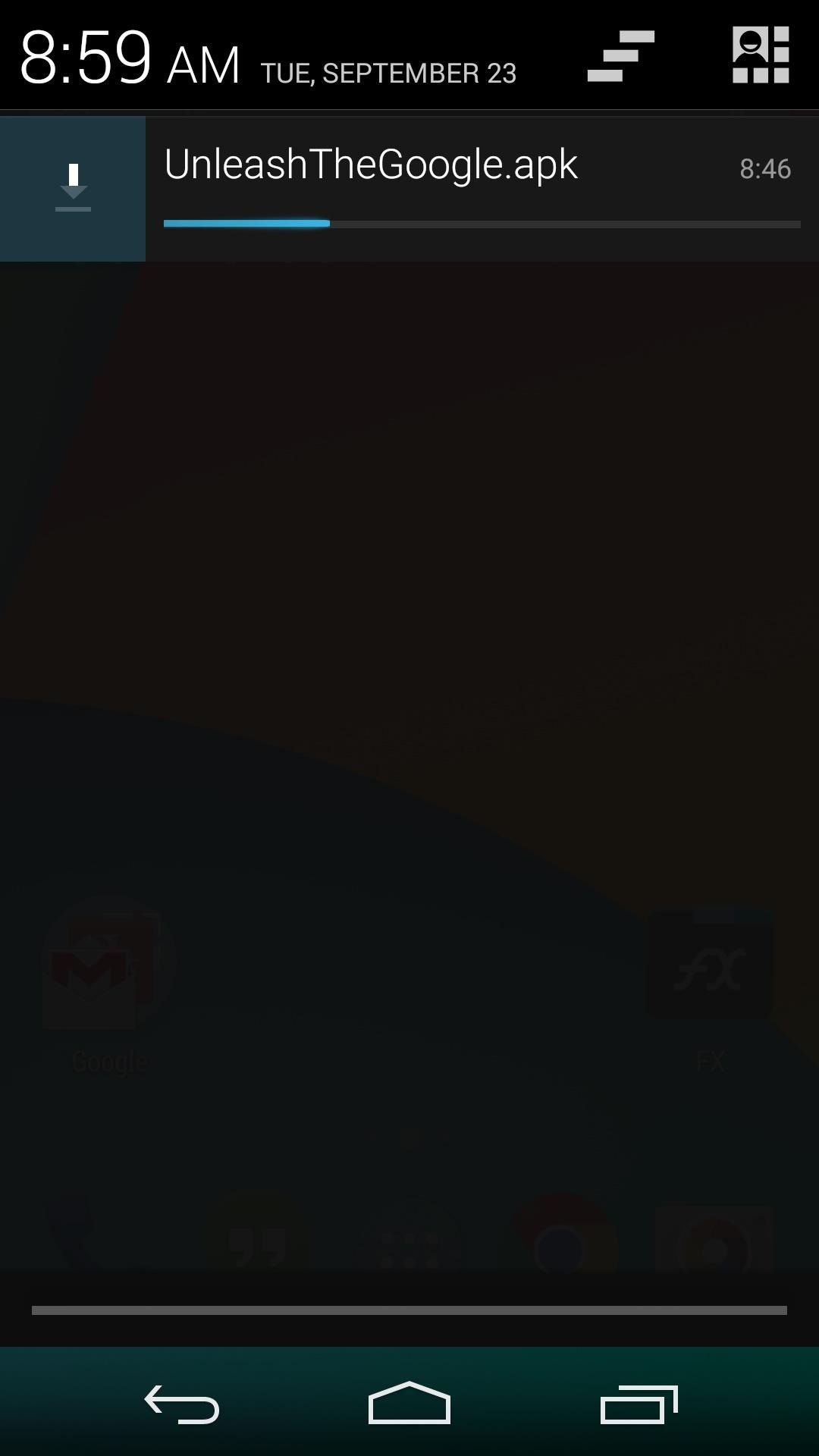
Step 1: Install UnleashTheGoogleZhang's app can be downloaded at this link. Wait until the download has finished, then tap the Download Complete notification to begin. Android's installer interface should come right up, so press Install on the next screen. When that's finished, go ahead and tap Open.

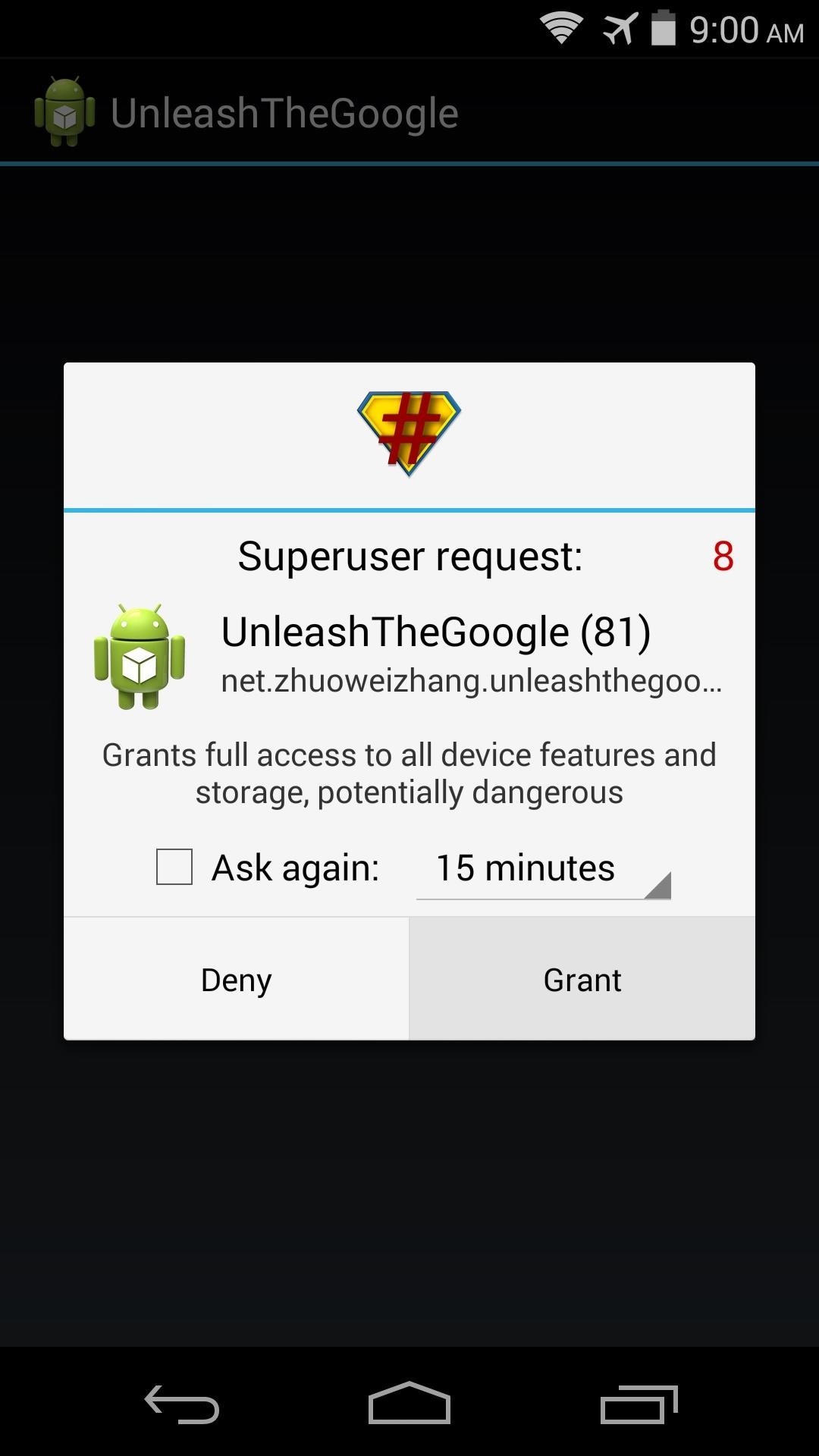
Step 2: Run UnleashTheGoogle and Restart Google SearchAs soon as you open UnleashTheGoogle, the app will ask for Superuser access. Hit Grant on the popup, then a toast message will inform you that the Google Search app must be restarted before the changes will take effect. Perform a quick Google Search (any search term will do the trick), then press the Recent Apps button on your device. From here, long-press the Google Search entry, then select App Info. On the next screen, simply tap Force Stop to restart the app.

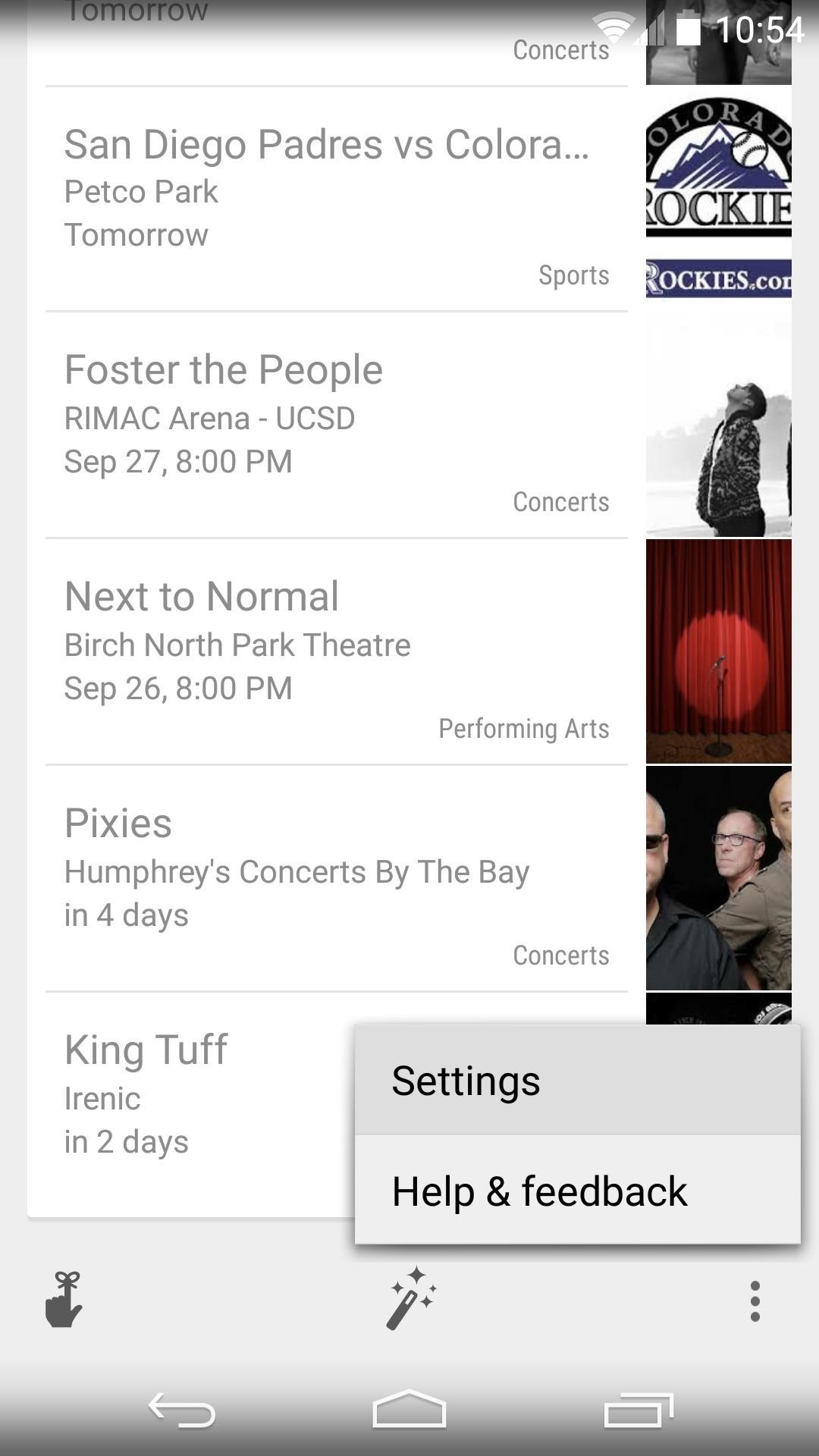
Step 3: Enable Experimental CardsFrom Google Now's main menu, scroll down to the bottom of the page and tap the three-dot menu button. Select Settings, then tap Internal API Cards on the next menu. In here, tick the box next to Enable Experimental Cards, then make sure all of the toggles below that option are set to On. As with all Google Now cards, the new ones won't show up until they're relevant. For instance, the Artworks Nearby card won't be displayed unless you're physically near a work of art, and the Election Information card will have to wait until the upcoming mid-term elections. In order to get a Flight price monitor card, you'll need to search for a flight and wait until the price changes. (1) Flight price monitor card, (2) Flight price monitor settings With your new cards enabled, you can now uninstall UnleashTheGoogle if you'd like. Have you received any of the new cards yet? If so, post some screenshots in the comments section below, or shoot us a line on Facebook and Twitter.


Learn how you can add a weather widget to Home Screen on Samsung Galaxy S7. FOLLOW US ON TWITTER:

Deleting cookies in Firefox is pretty easy. Start by opening your Firefox browser. You will click a series of tabs to delete all or part of the cookies on your computer.
How to Delete Cookies in Mozilla Firefox Web Browser


If you really want to spy on someone or just monitor your house, you can easily use your Android phone as a spy camera. Whether you want to spy on your employees at the office or make sure that your baby is safe while you're away, turning our Android device into a spy camera takes only a couple of minutes.


How to Behave in Internet Chat Rooms. Cyberspace chat is a great way of connecting people with similar interests. It comes with its own etiquette, or "netiquette", which may confuse or even intimidate a novice.
How To Behave In Internet Chat Rooms - YouTube


How to make a Vinegar Battery | Homemade Vinegar Battery | Science Experiment for School Kids Vinegar battery For this experiment you'll need: • Vinegar • Two glasses • Two zinc strips • Two copper strips • Connecting wires • LED Bulb Procedure: • Take two glasses and fill them with vinegar
How to Make a Battery With Coke & Vinegar | Sciencing

How to Start using your new Samsung Galaxy Tab with - Tablets


Carrier-branded Galaxy S9 models come with a ton of bloatware that you usually can't get rid of without rooting. With a little digital elbow grease, however, there is a way to disable bloatware on your S9 or S9+, and it's a lot safer that attempting to root and modify you precious device.
The Safest Way to Disable ALL Bloatware on Your Galaxy S10

Extract audio from YouTube video and download MP3


Follow the steps below to get back into your account. If you can access your account and simply need to change your user ID or password, you can do it in QuickBooks or in Intuit Account Manager. Recover your user ID or reset your password. Go to qbo.intuit.com. Select I forgot my user ID or Password. Enter your phone number, email address, or
Recover your Microsoft account


In this Computers & Programming video tutorial you will learn how to intersect roofs on Google SketchUp house. This demonstration tutorial opens up a project where the building is already constructed and slanting roof is to be added.
How to Use Intersect Faces to Make Roofs in SketchUp


Samsung Galaxy Tab 10.1 For Dummies By Dan Gookin When the action is hot — when you need to capture more than a moment— you switch the Galaxy Tab camera into Video mode, where you can record video and audio to your Galaxy Tab.
How to take photos on my Samsung Galaxy Tab S 10.5 LTE


Blog For Latest Tips & fixes for iPhone, iPad, Apple Watch, Mac, iOS, macOS Problems. Apps, Software, accessories reviews, news, Deals, Tutorials in Video.
Binance 101: How to Install the Mobile App on Your iPhone


As this new rule means that in the future Huawei's phones will not be supported by Google, the company is rumored to be shifting to its own operating system, something that has been previously
Huawei May Be Developing Its Own Mobile Operating System

How To: Play 'Final Fantasy Awakening' on Your iPhone Before

How To: Install a Custom Recovery on Your Galaxy S6 or S6 Edge

How To: Install a Custom Recovery on Your Galaxy S6 or S6 Edge
In the realm of Android mods, none is more powerful than a custom recovery. This is installed in place of the stock offering, and it lets you back up your entire system, flash mods, and install custom ROMs.Recently, the guys over at Team Win Recovery Project released a version of their popular custom recovery for the Samsung Galaxy S6. This didn't include support for the S6 Edge, but developer eousphoros ported the official version of TWRP and made it compatible with the Edge.While the S6 Edge build was made for the T-Mobile variant specifically, early user reports indicate that it works on all bootloader-unlocked variants of the Edge. Combined with the official build of TWRP for the regular S6, this means all versions of Samsung's latest flagship now have a custom recovery available to them, with the exception of the AT&T and Verizon models, which will likely never have root, custom recovery, or any such mods.
Don't Miss: How to Fix Root-Related Deep Sleep Issues on a Galaxy S6
Step 1: Knock Out the PrerequisitesBefore you get started, there are a few things you should know about installing custom recovery on your Galaxy S6.First, while user reports indicate that the T-Mobile S6 Edge build will work on all Edge variants, it has not been extensively tested. So I'd only recommend that you install this custom recovery on a Sprint or international variant of the S6 Edge if you're comfortable with restoring the factory firmware on your device in case anything goes wrong.Secondly, the method outlined here will require that your Galaxy S6 is rooted, but Nelson has a good rooting guide which should make that part easy. Be aware, though, that both rooting and installing a custom recovery on your device will trip the KNOX counter, meaning that your warranty will be void, and Samsung Pay will likely not work on your device.

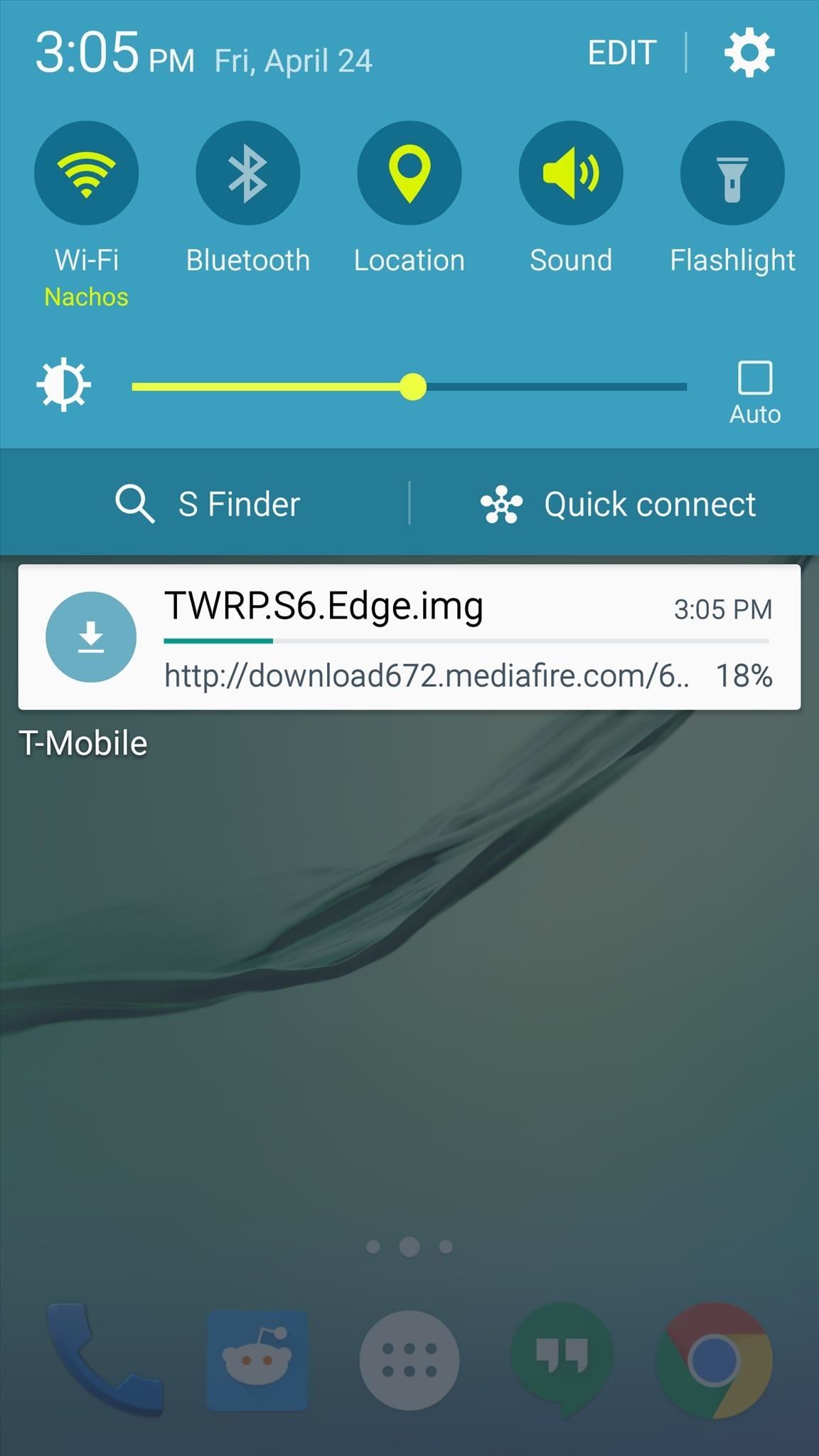
Step 2: Download the TWRP Image File for Your ModelThere are three different builds of TWRP available, and each is for a different Galaxy S6 model. So point your device's web browser to the link that corresponds to your particular variant:TWRP for Galaxy S6 Edge (All models) TWRP for Galaxy S6 (Sprint model) TWRP for Galaxy S6 (All other models)

Step 3: Install FlashifyThe file that you just downloaded is an image, and a great tool for flashing such files is available for free on the Google Play Store. It's called Flashify, so search it by name to get it installed, or head directly to the install page at this link.

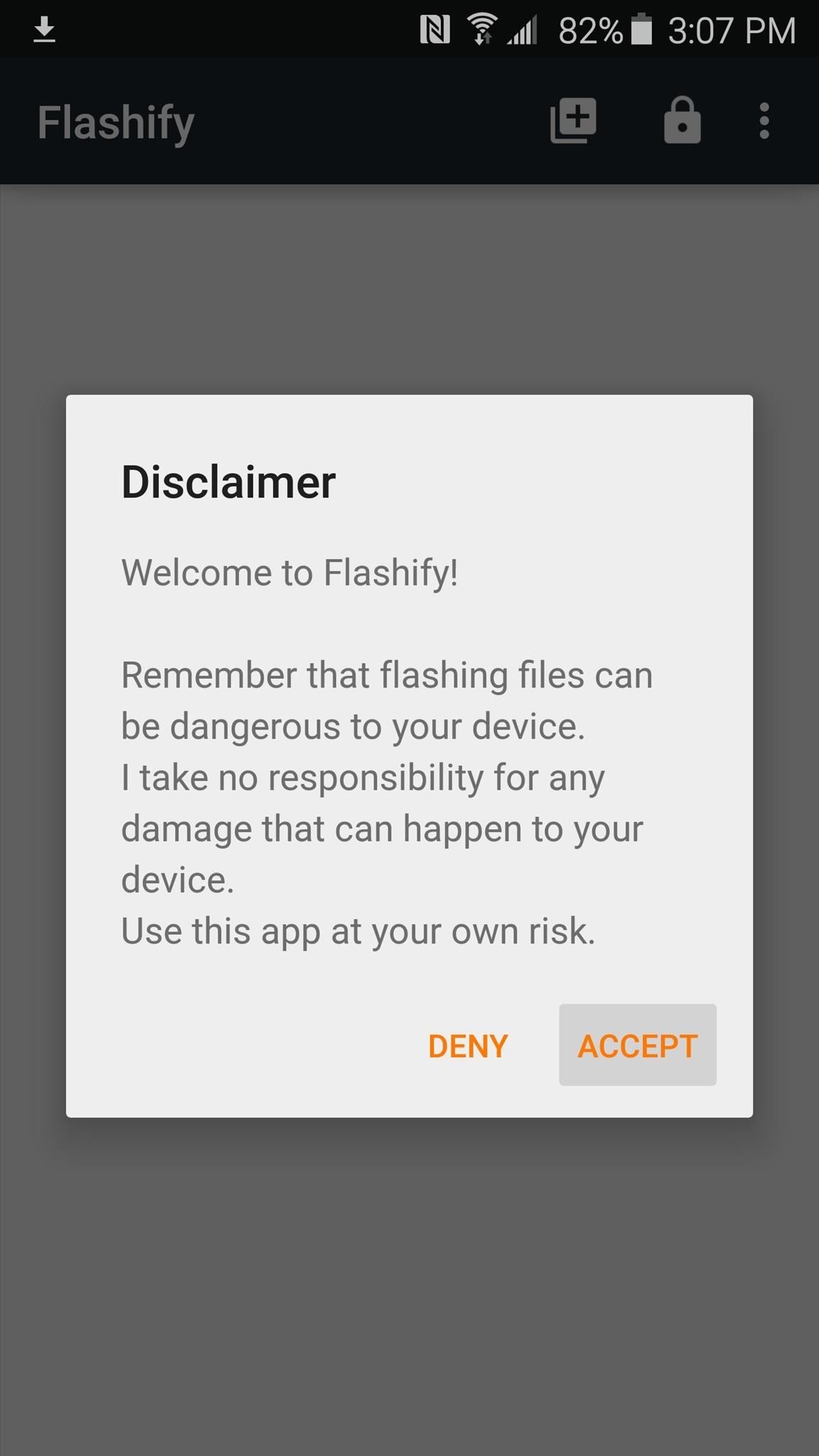
Step 4: Install TWRPNext, go ahead and launch Flashify, then the app will give you a disclaimer. Press "Accept" here, then Flashify will ask for Superuser access, so tap "Grant" on the popup. After that, tap the "Recovery Image" option, then hit "Choose a file." From here, use the next menu to browse and select the TWRP image file that you downloaded in Step 2. Next, Flashify will ask if you're ready to install TWRP. Tap "Yup!" if you are, then give it about 30 seconds to complete the process. When it's finished, Flashify will prompt you to reboot your phone. Tap "Reboot Now," and your phone will boot directly into your newly-installed custom recovery. Alternatively, you can always boot into custom recovery with an easy button combo. From a powered-off state, press and hold your device's home, volume up, and power buttons simultaneously, and TWRP should come right up.

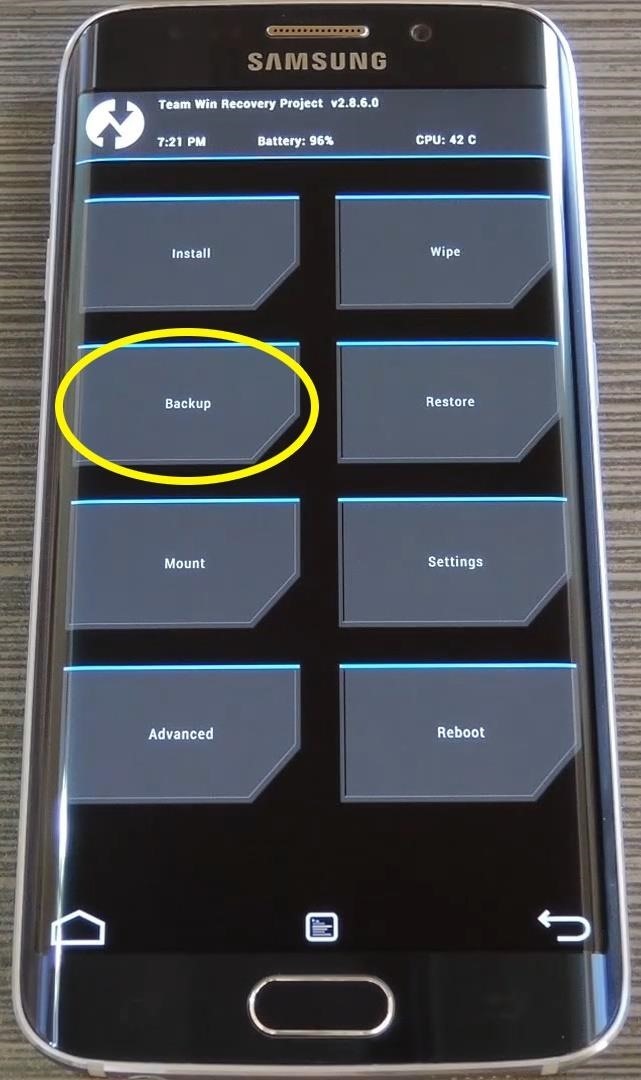
Step 5: Make a NANDroid BackupNow that you've booted into TWRP, you're ready to go about flashing ZIPs and custom ROMs. But before you do that, it would be a great idea to make a full NANDroid backup. That way, if any mod you flash causes issues, you can easily restore your backup to get everything up and running.From TWRP's main menu, tap "Backup," then leave everything selected as it is. After that, simply swipe the slider at the bottom of the screen, and a full NANDroid backup will be created. Give it about 5 or 10 minutes to complete the backup, then you'll always have a system restore point to fall back on. What was the first mod you flashed with TWRP on your Galaxy S6? Let us know in the comment section below, or drop us a line on Android Hacks' Facebook or Twitter, or Gadget Hacks' Facebook, Google+, or Twitter.


CNET's Dan Graziano shares with you tips and tricks for Google's latest flagship smartphone. Get the most out of your Nexus 5 CNET. Loading Unsubscribe from CNET?
Nexus 6: Common Problems and How to Fix Them | Digital Trends


Depending on your device, when you lower your brightness slider all the way to the minimum, it may still emit a considerable amount of light. This is because manufacturers have the option of setting a minimum brightness value, and while 1 would be the true minimum brightness that your display is capable of, some have set is as high as 5 or even 10.
Best Apps For Dim Screen Brightness for Night Mode


How To: Turn the Screen Off Faster & Alleviate Power Button Stress on Your Samsung Galaxy Note 2 How To: Trick Out Your Galaxy S3's Status Bar with New Icons, Clocks, Colors, & More How To: Get a Taste of the New Galaxy S6 with This Weather Widget for Any Android
Get LG's Double-Tap to Sleep on Any Samsung Galaxy Device


The latest version of Gmail's Android app lets you customize what swiping does. To get started tap your profile picture at top-left and scroll down to Settings. Go to General Settings > Swipe Actions and you can define a variety of actions: Archive, Delete, Mark as read/unread, Move to, Snooze, and None. It's a long needed bit of
How to Customize Swipe Actions in Gmail for Android


Shop through a wide selection of Carrier Cell Phones at Amazon.com. Free shipping and free returns on eligible items.
How to Root Any Device - XDA-Developers Android Forums


It might not be as big a deal for photos that stay on our hard drives but for those we share, a little caution is always a good idea. Meet EZ UnEXIF Free (EXIF Remover), a free Android app that removes all the EXIF data in a photo and saves it as a copy or overwrites the original one, according to your preference.
Smartphone Pictures, Exif, and Personal Privacy - Anti-virus
stopsign.com/blog/smartphone-pictures-exif-personal-privacy/
Find out more details on this blog: "How to Scrub the EXIF Data from Photos on Your Android Phone Before Sharing Them". The up side to all of this is that certain social networks such as Facebook and Twitter proactively strip out Exif data, but that can change in the future and I personally wouldn't trust it if you're really concerned
How to Scrub the EXIF Data from Photos on Your Android Phone


Apple Watch wants you to stand up and move around for one minute out of each hour for 12 hours a day. Do that and you fill up your stand ring. It's the only one that's time sensitive. With all the other rings, even if you have only an hour left on the day, you can get up and jog and fill them up
How to close your move, exercise and stand rings on Apple


How to Find Old Posts on Facebook. This wikiHow teaches you how to search all Facebook posts by keyword, and filter them according to the post date. Open [https://www.facebook.com Facebook.com] in a web browser.
Facebook Search Finally Lets You Search For Posts Again


Carrier-branded Galaxy S8 models come with a ton of bloatware that you usually can't get rid of without rooting. If you dig a little deeper, however, there is a way to debloat your S8, and it's relatively hassle-free.
Remove Bloatware on Galaxy Note 3 with or Without Root


Step By Step Guide On How To Root Nexus 6P On Android Oreo 8.0: Google's last flagship device of the popular Nexus line up is the Google Nexus 6P. The device was manufactured by Huawei and it was a huge hit and received a lot of positive reviews from the critics and the users.
Root Nexus 6P on Android 8.0 OPR5 Oreo Firmware [How To]


Search the world's information, including webpages, images, videos and more. Google has many special features to help you find exactly what you're looking for.
How to order food directly with Google iOS or Android

How To: Flash the firmware on your iPhone

How To: Flash the firmware on your iPhone
I have never had any device that is easier to update the firmware than my iPhone. For anyone who may not be sure, firmware is basically the 'software' that runs a device's hardware. That's the easiest way I can think of to put it. Please enable JavaScript to watch this video.


Google Play offers a free MP3 download of Linkin Park's Hybrid Theory album. This album typically goes for $11+ as a digital download or $7.. Jan 23, 2018 - 53 min - Uploaded by MiR0*I do not own
Linkin Park's "Hybrid Theory" - FREE on Google Play - Warner


Using Domain name instead of localhost in with https in xampp. Map your custom domain name to localhost in HOSTS file. Set up virtual hosts on Apache (XAMPP
How to Change localhost to a Domain Name in XAMPP (Windows


WonderHowTo LegoPeople News: Guy plays 5 String LEGO Bass Guitar Samsung's Amazing Music-Making Tool Soundcamp Is Coming to All Androids
Tips on recording a kick drum « Obedia :: WonderHowTo


Homemade TV Antenna: This TV antenna is not only omnidirectional, but also compatible with the new digital television. I actually get more stations with the new digital television signals than the old system. I get 35 channels and I an a long way from any large city.
How to make a simple and FREE TV antenna - YouTube


And if you don't use that system to send the messages for the next fourteen days, you'll automatically be signed out for security reasons. 3. How To Send Texts Via SMS websites. It may sound somewhat dull, but there are websites that can help you to send text messages from your computer.
How to Send an Email from Yahoo! Emailing Site: 6 Steps


To quickly disable the notification, just toggle the slider to off. A note will display letting you know this notification won't show up anymore. Again, this is only for the app that's currently running—a new notification will show up if another app is displaying over other apps. This is a very granular setting.
How to Disable the "Is Displaying Over Other Apps


Facebook Trick - Make Your Profile Picture a Looping Video


News: Home Decor App Houzz Expands Augmented Reality Catalog to Include Virtual Floor Tile News: T-Mobile Galaxy S8 Update Breaks SafetyNet & Android Pay How To: This All-in-One Mods Catalog Makes Customizing the OnePlus One Extremely Convenient
Can we all just calm down a bit and stop the toxic tone


For example, many people prefer Microsoft Edge's text rendering and think it looks better than Chrome's on Windows 10. One Reddit user even brought this to the attention of Edge's project manager. If Microsoft does take note of this and improve the new Edge browser's text rendering, Chrome's text rendering will get even better, too.
10 Reasons Why Chrome is Better Than All Other Browsers


News: Google's New App Fixes Everything Annoying About Apple's Live Photos News: Thanks to Google, iPhone Users Can Finally Pick a New Frame for Their Live Photos How To: 3 Ways to Try the Pixel 2's New 'Motion Photos' on Any Android
News: New iPhone App Fills Your Living Room with a Virtual


Most of these types of APKs are categorized by either processor type or the target DPI value, which represents a device's display density and helps the app know how much content can fit on the screen. So in order to know which APK you should download, you'll have to find your device's DPI class first, and I'll show you how to do that below.
A Guide on How to Find Your Phone's Screen Density Value (320


News: This Hack Turns Your iPad into a Multi-Window Multitasking Powerhouse for $10 How To: Run Two Apps Side by Side on Your iPad in iOS 9 How To: Use Split View Mode on Any iPad Model How To: Watch YouTube Videos While Browsing in Chrome

How To: Customize the Quick Settings Toggles on Your Samsung Galaxy S4 with Color Themes

How To: Customize the Quick Settings Toggles on Your Samsung Galaxy S4 with Color Themes
Samsung's quick settings toggles are insanely useful for accessing settings that you would normally need to dig into menus for. Definitely a case of function over form, though. TouchWiz's bright green on dark blue has to be one of the fugliest color combinations I have ever seen.Luckily, there's an Xposed module out there we can use to change the colors of our toggles. It works great if you've themed your phone and want to make your quick toggles blend in with the rest of your Samsung Galaxy S4. Please enable JavaScript to watch this video.
Prerequisite: Rooted GS4 with Xposed FrameworkIf you haven't rooted your phone yet, check out my one-click rooting guide for the GS4. You can have your phone rooted in just minutes.I also have a tutorial on installing the Xposed framework. This opens up your phone up to various mods and customizations similar to this one.
Step 1: Back Up Your DataJust to be safe, you should make a backup. If you have a custom recovery on your phone, like ClockworkMod or TWRP, create a full nandroid backup now. If you don't have a custom recovery, you should back up as much app and system data as you can using backup apps like Titanium Backup or Helium.

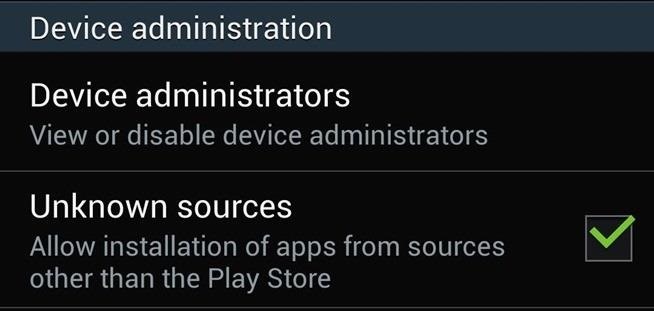
Step 2: Enable "Unknown Sources"Head to your GS4's Settings -> More -> Security, and under Device administration, make sure Unknown sources is checked. Image via wonderhowto.com Enabling this setting lets your phone install apps from outside of the Google Play Store.
Step 3: Download the ModuleWe'll be using an Xposed module called XQuick Settings Toggles by xperiacle from XDA developers, so go ahead and download the latest version...XQuickSettingsToggles.apk version 1.0 You can also check out xperiacle's XDA thread in case of any updates to the module.

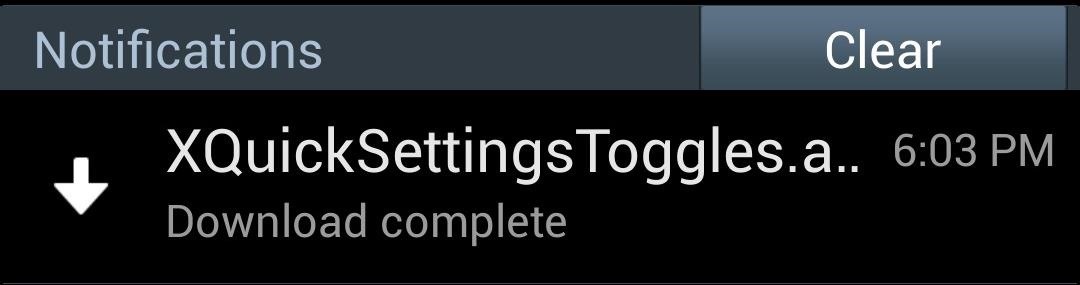
Step 4: Install the ModuleOnce it finishes downloading onto your phone, you'll get a Download complete notification. Tap on it to start the installer. Select Install, then Done once it's finished.

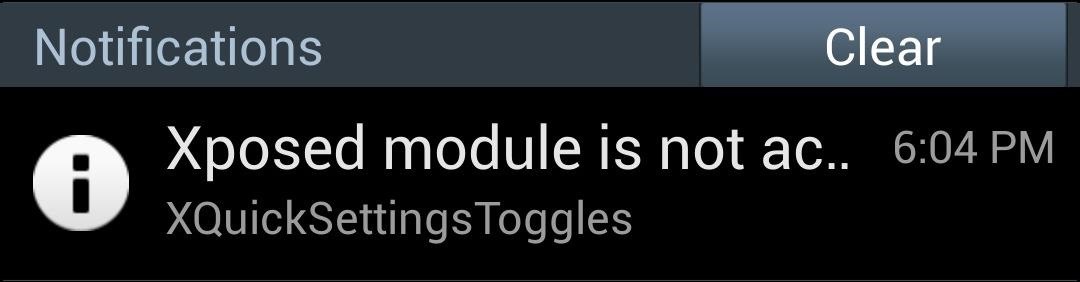
Step 5: Activate the ModuleUpon installation, Xposed will remind you that the module hasn't been activated yet. Tap on it to head to Xposed's Modules page, then make sure the box next to XQuickSettingsToggles is checked. Reboot your phone for changes to go into effect.

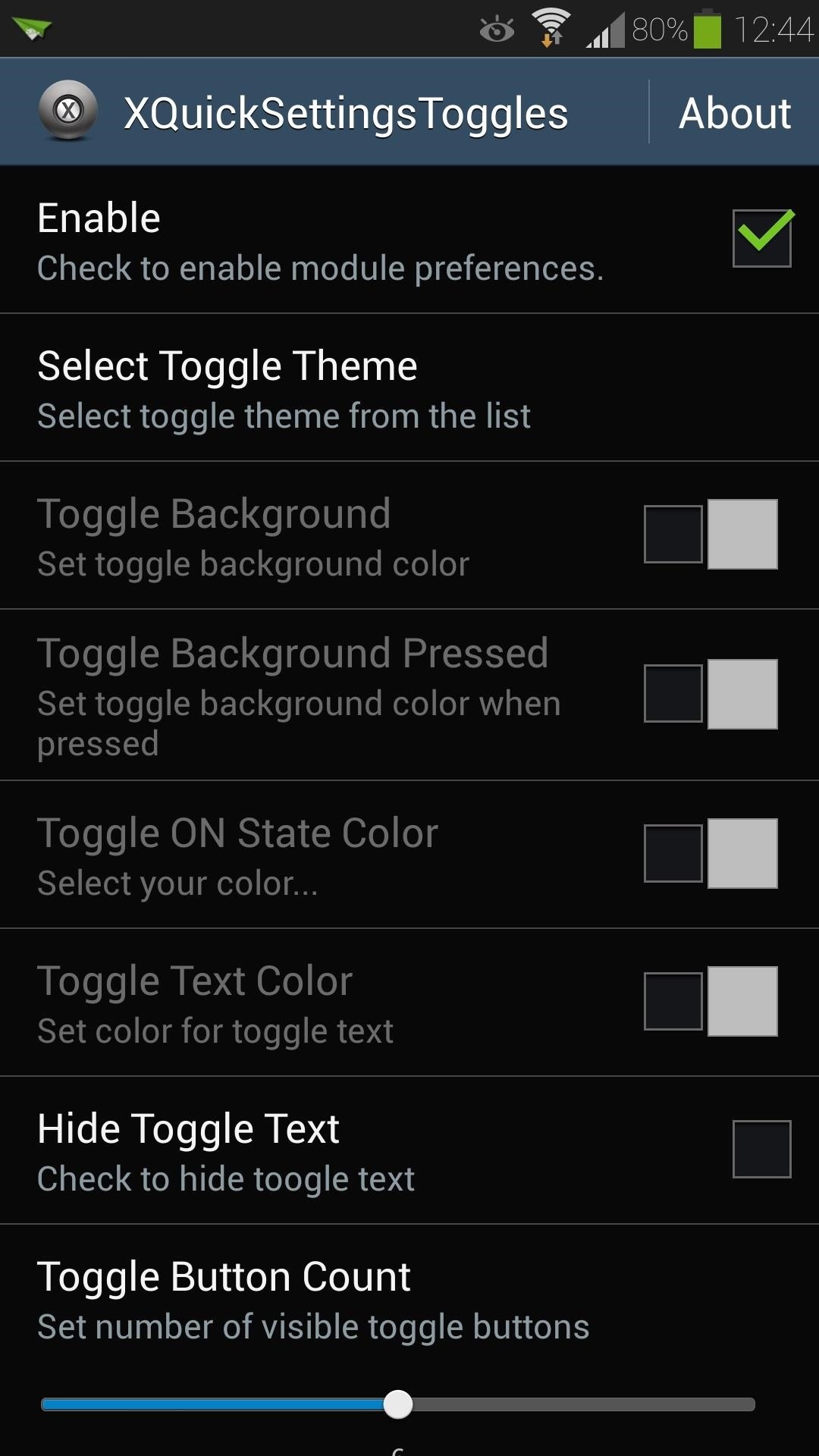
Step 6: Choose Your Toggle ColorsYou can open up XQuickSettingsToggles from Xposed's Modules page or from your app drawer. Make sure to check the box next to Enable, then you can start customizing your toggle colors. You can choose Select Toggle Theme for preset themes, and you can also customize the individual toggle elements like the background and text colors using the built-in Color Picker. The module also lets you hide the toggle text, and set how many toggles are visible at a time (however, the latter feature didn't seem to work on the device we tested, so your mileage may vary).Once you're finished choosing your colors, tap your GS4's menu button, choose Restart SystemUI, then hit the Restart Now button. If you don't see the changes take effect in your quick toggles, you may need to choose Soft Reboot instead.Once you've done that, you can check out your newly-themed toggles. If you have any questions, or want to share your favorite color schemes, feel free to leave them in the discussion section below.


How to Restore the Mobile Data and Mobile Hotspot Quick Settings Toggles on Samsung Galaxy Devices. Love them or hate them, Samsung is by far the most dominant manufacturer of Android smartphones
How to use Galaxy S10 Settings? - Galaxy S10 Guides


Customize the Heck Out of Your Galaxy Phone with Samsung's Good Lock Cameron Summerson @Summerson Updated June 14, 2016, 1:25pm EDT The Samsung Galaxy S7 is probably the best Android phone available right now , but that doesn't mean it's perfect.
How to Add Custom Shortcuts to Your Quick Settings - Android


You need to use Galaxy S10 Settings to customize Galaxy S10, S10e, S10+, or S10 5G so that the phone works in the way you want. Like other Android phones, Galaxy S10 offers plenty of options for you to customize and tweak the phone to meet the needs and preferences of different owners.
Customize the Heck Out of Your Galaxy Phone with Samsung's


There's still plenty to softMod on your Note 2, and today I'm going to show you how to customize your Quick Settings toggles. I've been on a customizing kick over the past few weeks, showing you sweet mods for your Samsung Galaxy Note 2 like interactive live wallpapers, app and settings backgrounds, status bar tweaks, and
How to Customize the Size of the Quick Settings Button Layout

How to Customize the Quick Settings Toggles on Your Samsung


Android's Quick Settings menu is quite handy—just swipe down with two fingers from the top of your screen and you're ready to toggle several different system settings on or off. It got even better with Android 6.0 Marshmallow, since you can even use the hidden System UI Tuner to rearrange and remove your Quick Settings tiles now.
How to use and customize Galaxy S10 lock screen?


How to Customize the Size of the Quick Settings Button Layout on Samsung Galaxy Devices. Google introduced actionable quick settings toggles from the notification bar in Android Lollipop, but
Change the Quick Settings Toggles on Your Samsung Galaxy S4


Galaxy S10 lock screen can help you keep your data from prying eyes. Samsung also allows you to tweak and customize the Galaxy S10 lock screen to match your personal preferences and needs. This Galaxy S10 how-to guide explains the components of the Galaxy S1o lock screen, shows you how to customize the lock screen, […]


There's more to the notification drawer than just notifications. In fact, you can control a lot of the most commonly changed settings from anywhere on your phone! Lets go over how to use and
How to Restore the Mobile Data and Mobile Hotspot Quick


Samsung's quick settings toggles are insanely useful for accessing settings that you would normally need to dig into menus for. Definitely a case of function over form, though. TouchWiz's bright green on dark blue has to be one of the fugliest color combinations I have ever seen.
How to Customize Quick Settings Toggles with Colors, Photos


In this softModder tutorial, I'll be showing you how to theme or change the colors of your Galaxy S4's quick settings toggles. Don't like TouchWiz's cartoonish color scheme of bright green on dark
How to Customize Quick Settings on Samsung Galaxy - YouTube

Snapchat 101: 6 Privacy Settings You Need to Check on Android & iPhone

Snapchat 101: 6 Privacy Settings You Need to Check on Android & iPhone
Since starting as a simple messenger with self-destructing pictures, Snapchat has grown into a full-fledged social media platform. As features were added, new permissions were requested, and we're all probably guilty of just tapping "OK" to try out the latest and greatest. But at some point, it's a good idea to review your settings to see what personal data you're putting out there for all to see.Settings like Ghost Mode can protect your privacy by preventing people from viewing your location, while other options like Snapchat's ad tracking preferences and anti-spam measures help give you peace of mind. I'll delve into each of the most pressing privacy-related settings in the Snapchat app for Android and iPhone below, so if you're concerned about security, we've got you covered.
#1: Ghost ModeA great way to stay private is to enable Ghost Mode. This setting is enabled by default, but if you've experimented with the Snap Map, it gets toggled off automatically, so it's worth double-checking. Once enabled, nobody, not even your friends, will know your exact location. Check out the following guide to see how it works:Don't Miss: How to Turn on Ghost Mode for Snap Map to Stay Private

#2: 2-Factor AuthenticationEnabling two-factor authentication (2FA) is the best step you can take to secure your account, because the only way to log into Snapchat will be to enter both your password and a special code that gets texted to your phone number. You have a couple different ways of enabling it. First, tap your Bitmoji in the top-left corner, then tap the gear in the top-right corner to access your settings. Next, tap "Login Verification" (that's what Snapchat calls 2FA). You can enable two factor authentication one of two ways: Through SMS or through a third-party authentication app. Enabling Login Verification through SMS is really easy. Tap "SMS" on the Login Verification screen and you'll be sent a verification code via text message every time you log in. If you want to use a third-party authenticator app, we recommend installing Google Authenticator (Android or iOS). After installing the app, go back to Snapchat and navigate back to the Login Verification screen. From there, tap "Authentication App," then "Set Up Manually," and Snapchat will find Google Authenticator after a quick scan. From there, open the Google Authenticator app and you'll be asked to "Add the token" for your Snapchat user name. Tap "Yes," then go back to Snapchat and enter the code and tap "Continue" to log in.ue."

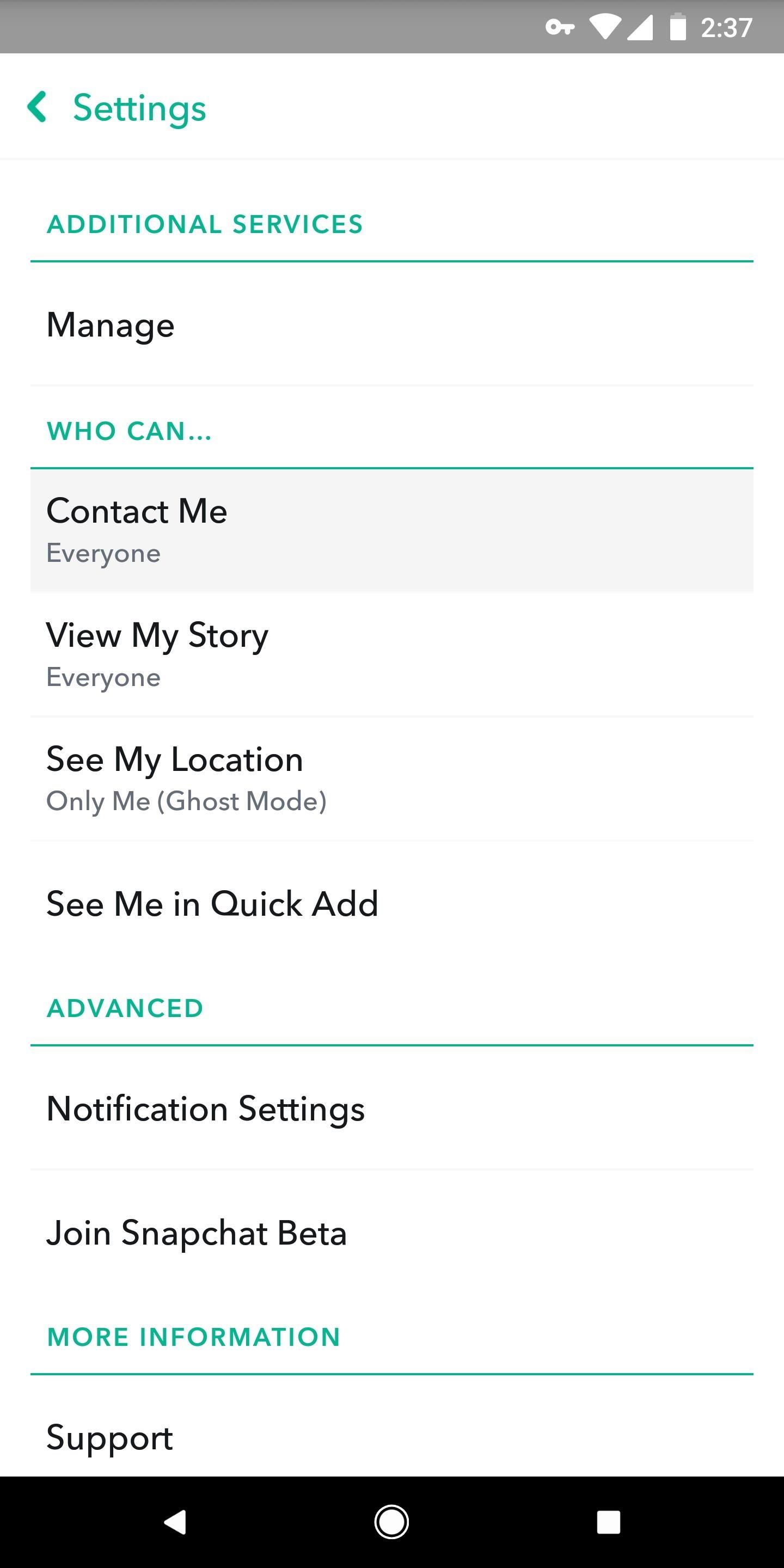
#3: Who Can Contact YouInside the app's settings (tap your avatar from the main screen, then hit the gear icon), scroll until you find the Who Can... sub-header. Tap "Contact Me," and make sure it's set to "My Friends." This way, random people can't reach out to you if they find your username.

#4: Who Can View Your StorySimilar to who can contact you, it's better if only your friends can view your story. Go back to the Who Can... subheader from #3 and tap "View My Story." Make sure "My Friends" is selected. Alternatively, you can use the "Custom" option, but this is only helpful for blocking specific users, so the "My Friends" option offers better privacy.

#5: Who Can Add YouPerhaps most importantly, you'll want to make sure random people can't just add you. Back under the Who can... header, tap "See Me in Quick Add." Make sure it's unchecked so that people who you don't add can't add you back. People will still be able to add you if you give them your Snapcode or username.

#6: Ad TrackingBy default, Snapchat serves up ads based on cookies and other browsing data that are gathered while you're using the web. If a website has ad-tracking cookies and it's partnered with Snapchat, you'll get targeted Snapchat ads based on your activity in said website.That's common practice in this day and age, but you don't have to participate in this data mining. To opt out of these personalized ads, head to the settings menu in Snapchat (tap your avatar, then the gear icon) and select "Additional Services." From there, tap "Manage" and hit "Ad Preferences," then un-check both options. Note that by changing this setting, you'll still see ads — they just won't be using cross-platform trackers to target you with specific products. Don't Miss: How to Use Your Selfies to Create a Bitmoji DeluxeFollow Gadget Hacks on Facebook, Twitter, YouTube, and Flipboard Follow WonderHowTo on Facebook, Twitter, Pinterest, and Flipboard
Cover image and screenshots by Brian Lang/Gadget Hacks


How to Change Font Size on iPhone, iPad or iPod Touch


At the time of the iOS 4 announcement, Steve Jobs mentioned that some features such as Multitasking and Wallpaper are not going to work on the iPhone 3G. This is most probably because of memory and CPU issues (the iPhone 4 has 512Mb, the iPhone 3Gs has a faster CPU than the 3G).
Multitasking and homescreen wallpaper on iPod touch 2g

Find Out Who's Trying to Unlock Your Samsung Galaxy S III


RELATED: How to Manage, Customize, and Block Notifications in Android Nougat. While this post focuses specifically on Lollipop (Android 5.x) and Marshmallow (Android 6.x), Nougat (Android 7.x) takes notification control even further. For a detailed look at how to better control notifications in Nougat, head over here.
How to use Android Lollipop's notification and interruption


For an extra level of security, you can download an app onto your iPhone or iPod that will let you create a customized security key, which you unlock by using the touch screen to draw a simple graphic. This tutorial shows you where to get the app and how to set it up
How to Lock Apps On Any iPhone - lifewire.com


But you absolutely can, and this video will walk you through the steps of replacing the battery in your Samsung Galaxy S8. When you take apart your Galaxy S8, be sure to follow the step-by-step


Starting today, you'll have the option to save your live video to your phone at the end of a broadcast. While live videos will continue to disappear from the app when you're done, this update gives you the flexibility to hold onto your video and re-watch it later, especially if something exciting happens during your…
Instagram Live Replays: What Marketers Need to Know


The Universal Serial Bus (USB) standard has been with us for many years, but making USB devices is still a daunting task. Find out how to make it easier. How To Create And Program USB Devices
Learn To Use ATtiny85 USB Mini Development Board

How to Stop Friends from Asking You What Your "Relationship


Steps to Change Snooze Time on iOS 10 Use the Wave Alarm App. First, install the Wave Alarm app then tap on the small gear icon at the top to display the clock face. After the installation, tap on the Add Alarm then shape your alarm you want it by entering your desired wake time. Now tap on the Snooze and alter the snoozing intervals.
How to change the Snooze time for iPhone alarms with Sleeper


With the Notification Panel, you'll never miss a text, call, or an app notification, and you can view recent messages and access certain functions on your Galaxy Phone. To make things even better, you can snooze notifications or access an app's notification settings from the Lock screen.
Make Your Notification Panel Translucent - Android - Samsung


Download and Install Facebook Lite on your iPhone: iPhone is known for its security and durability. When it comes to this feature iPhone takes care of various feature to save it from the various third-party application.
Download & install Facebook Lite on iPhone [iOS 9 & Above